
INTRODUCTION
PURPOSE
This document outlines the new features added to the CloudSupervisor tool in July 2023. Customers can use this document as a reference to understand and leverage the benefits of these features.
Intended Audience and Pertinent Sections
This document is intended for company personnel, customers, and partners. It serves as a reference for understanding the feature updates and using them effectively.
1. Dashboard
1.1 FinOps Dashboard
The FinOps Dashboard provides an at-a-glance summary of cloud costs. It includes the total number of subscriptions and services, total expenditure for a selected month, average expenditure over the previous three months, and daily expenditure details.
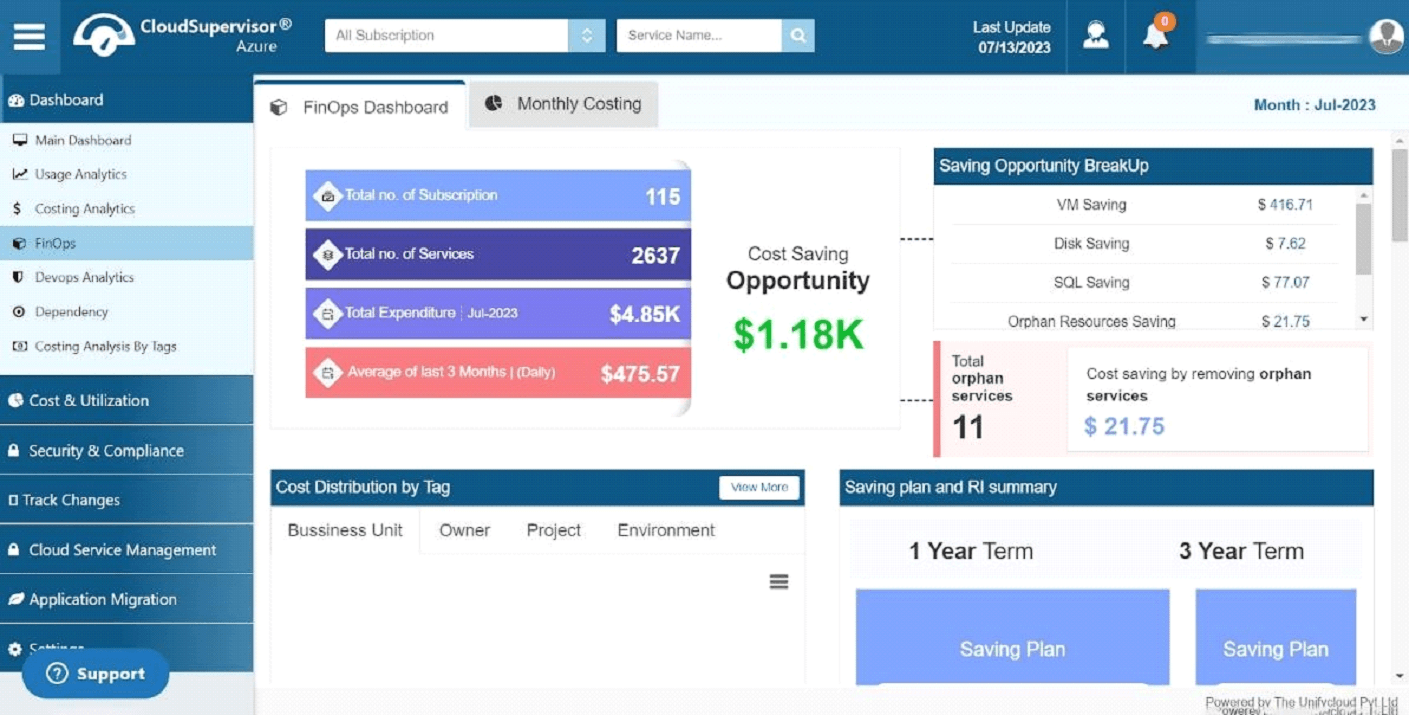
Figure 1: FinOps Dashboard
In addition to identifying cost-saving opportunities, the dashboard provides a breakdown of potential savings across the following categories:
- VM Savings
- Disk Savings
- SQL Savings
- Orphan Resources Savings
- VM Processor Savings
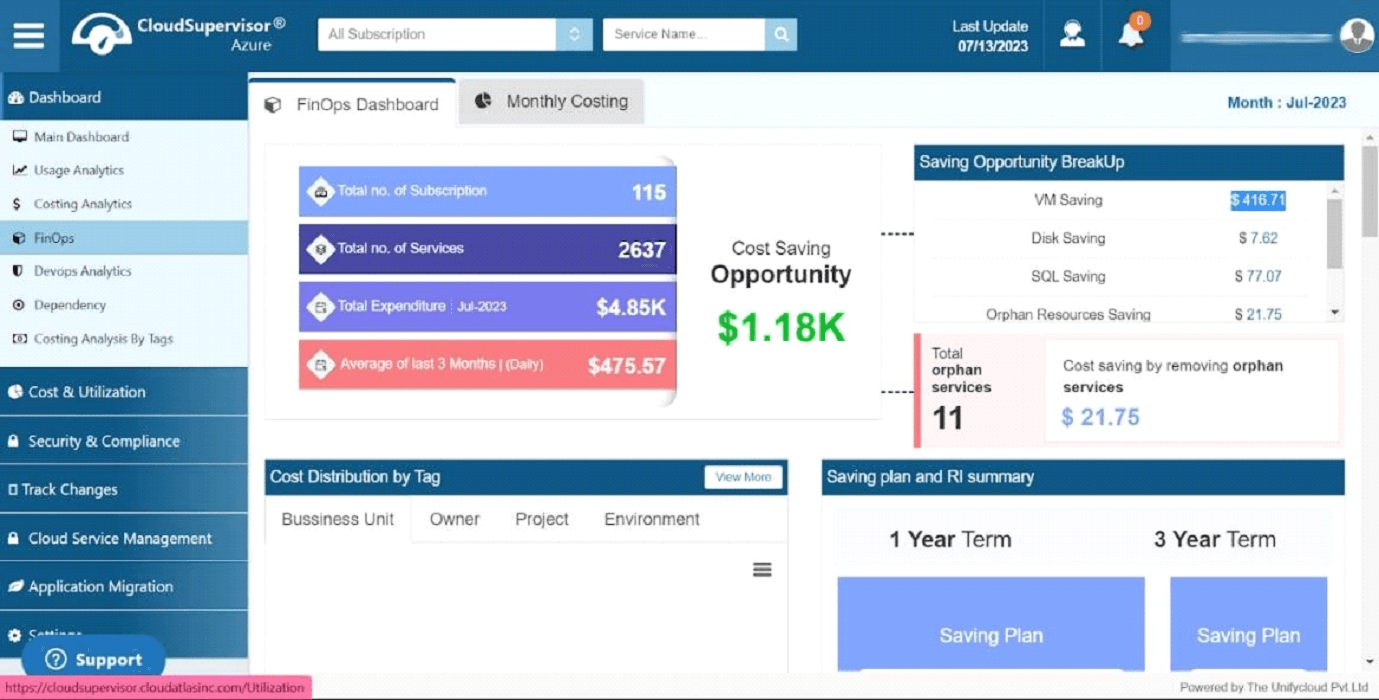
Figure 2: VM Savings – Saving Opportunity Breakdown
The dashboard also provides an overview of orphaned resources and the potential cost savings that can be achieved by removing unused services.
Clicking the VM Savings breakdown link (for example, $416.71) directs you to the VM Utilization Summary Dashboard, where you can review the overall VM savings opportunities.
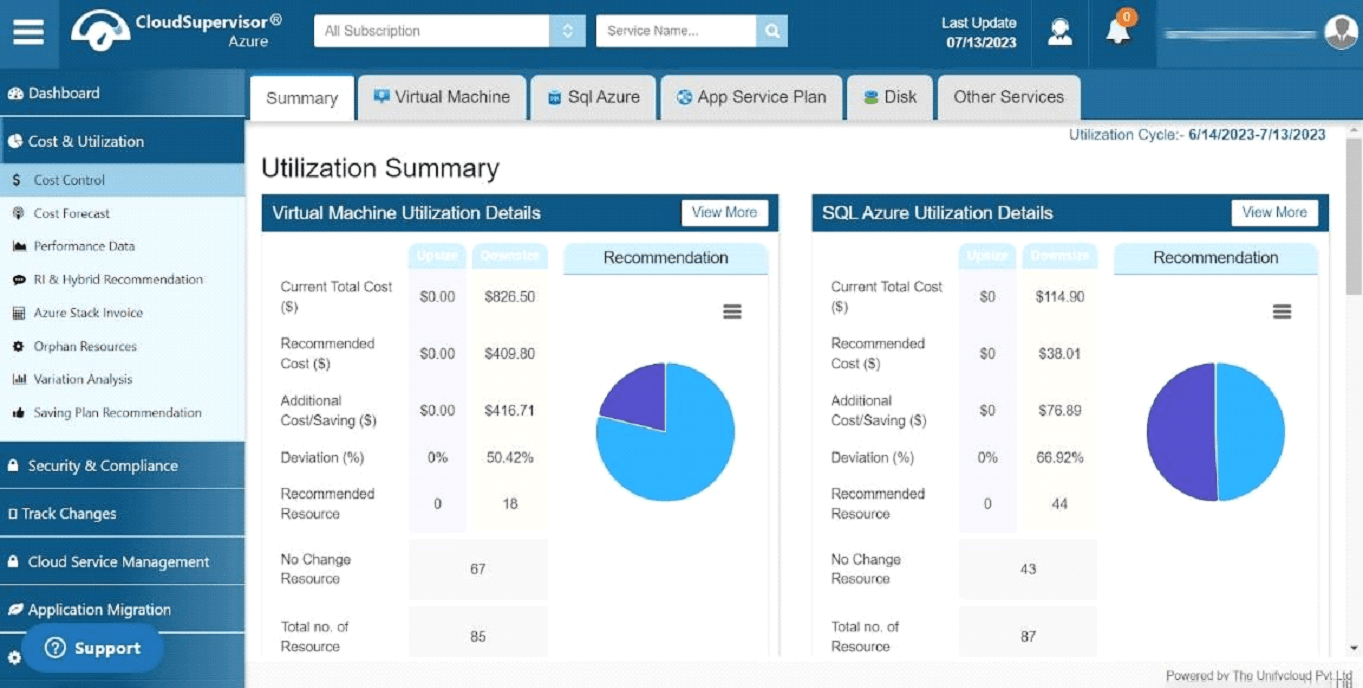
Figure 3: VM Utilization Summary Dashboard
The dashboard displays utilization details for the following resources and services:
- Virtual Machine Utilization Details
- Azure SQL Utilization Details
- Disk Utilization Details
- App Service Plan Utilization Details
- Other Service Utilization Details
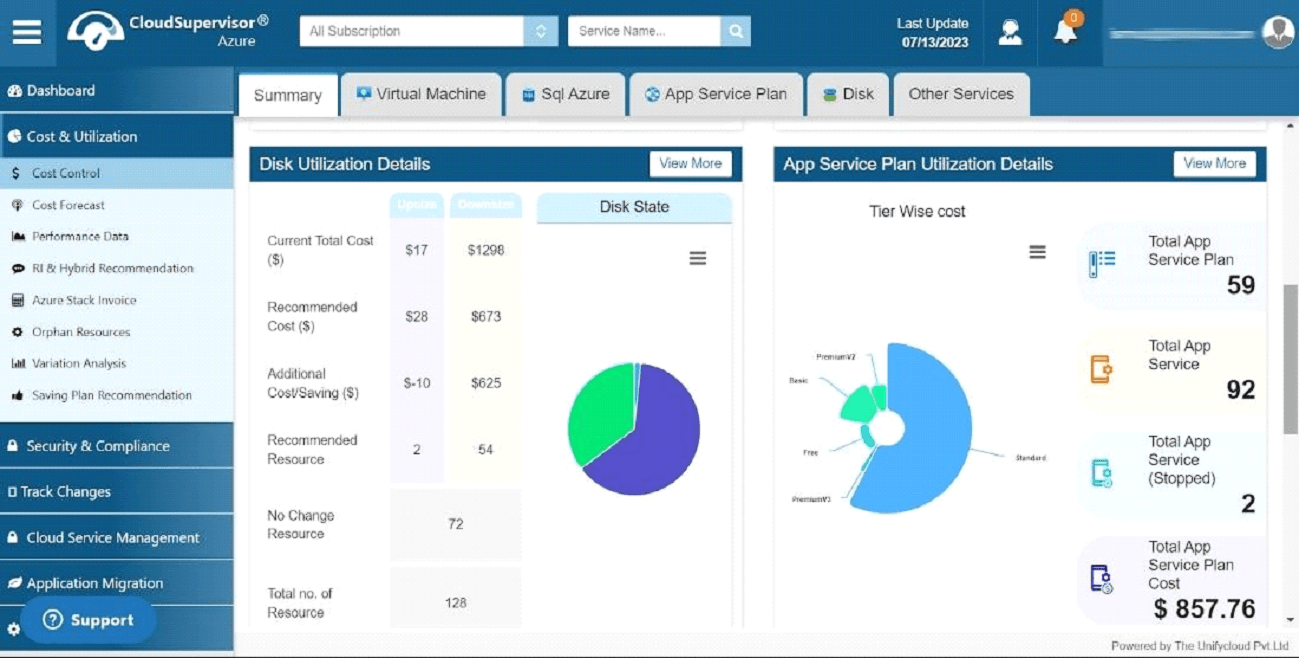
Figure 4: Virtual Machine Utilization Details
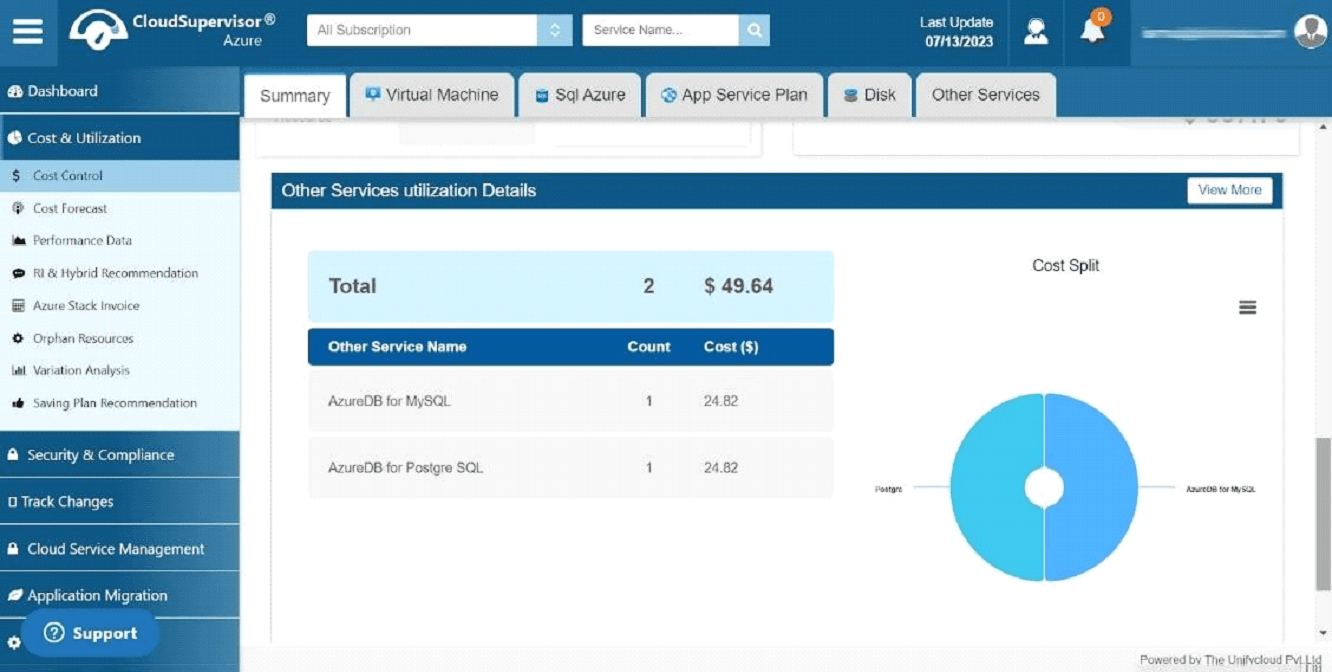
Figure 5: Other Services Utilization Details
Clicking the Disk Savings breakdown link (for example, $7.62) directs you to the Costing Dashboard.
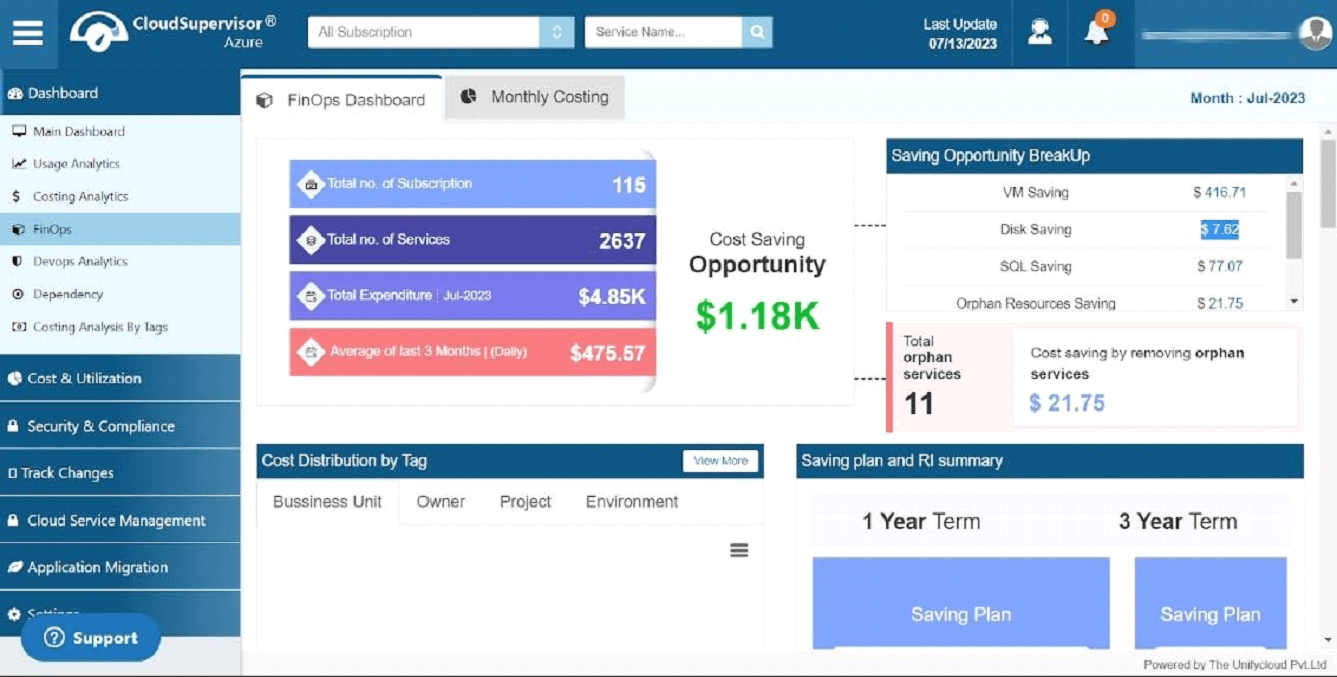
Figure 6: Disk Savings – Saving Opportunity Breakdown
The Costing Dashboard provides information about expenditure and potential savings, including total expenditure, average costs over the previous three months, and available cost-saving opportunities. It also displays environmental costs and comparisons between budgets and monthly bills.
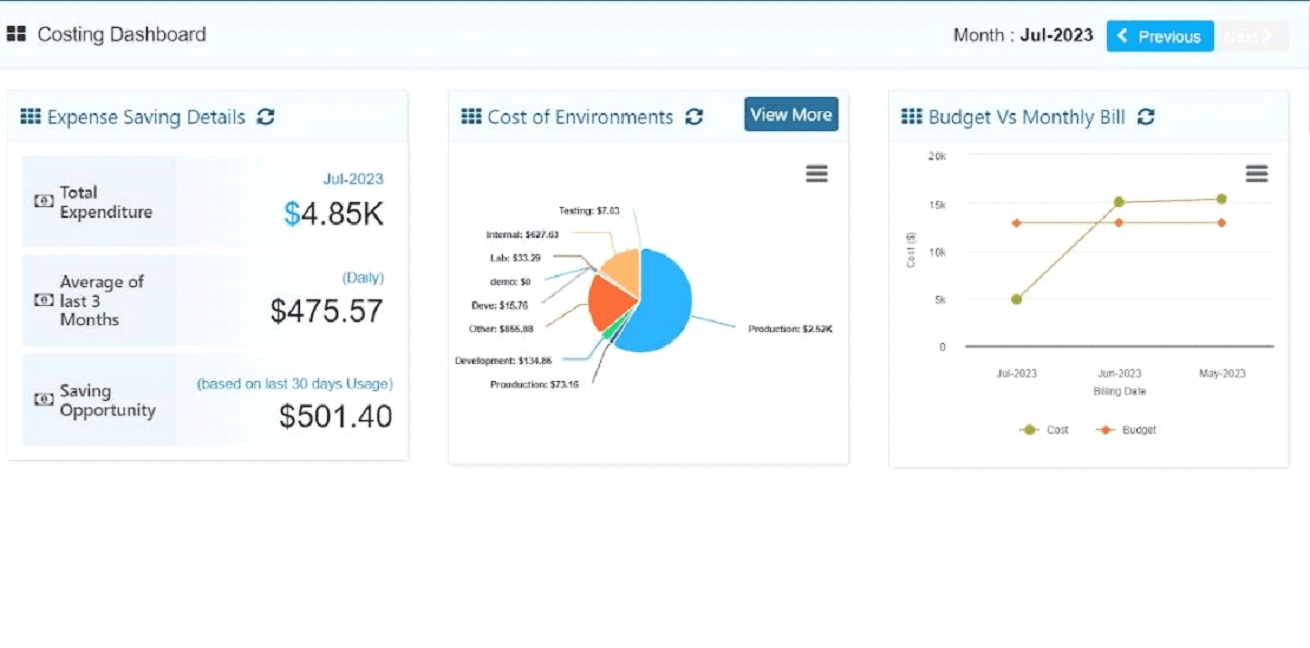
Figure 7: Costing Dashboard
The dashboard provides a resource summary and a breakdown of costs by location.
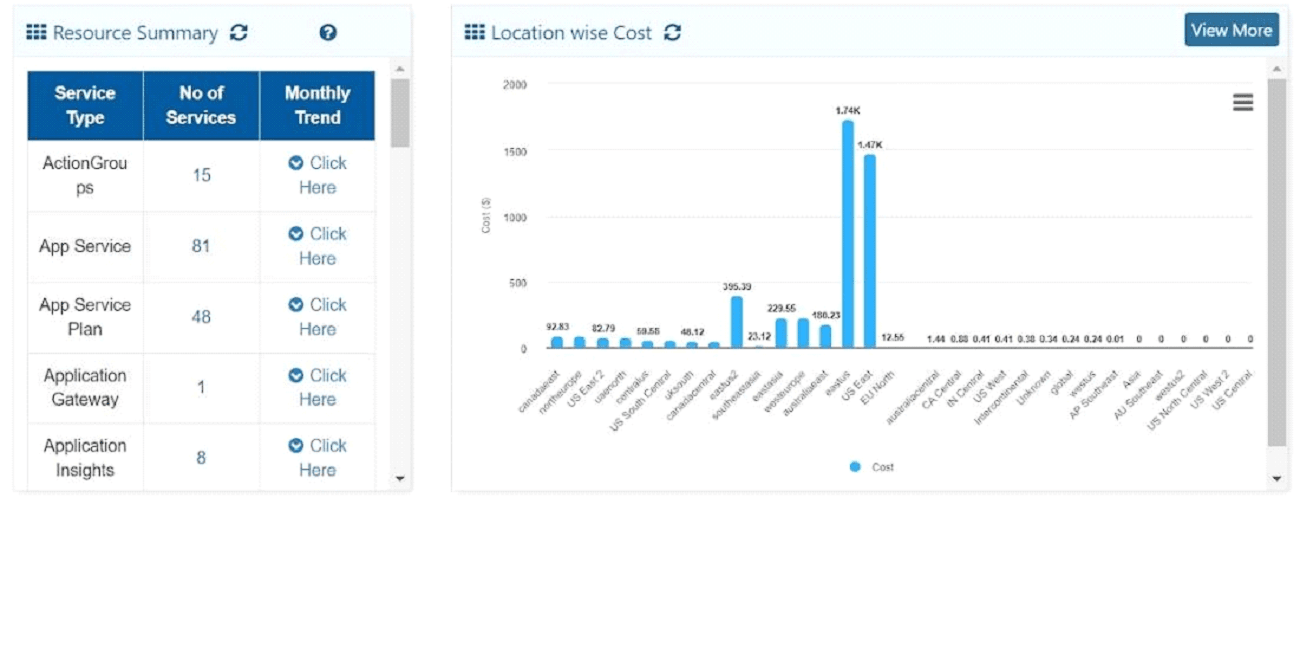
Figure 8: Costing Dashboard – Resource Summary and Location-Wise Cost
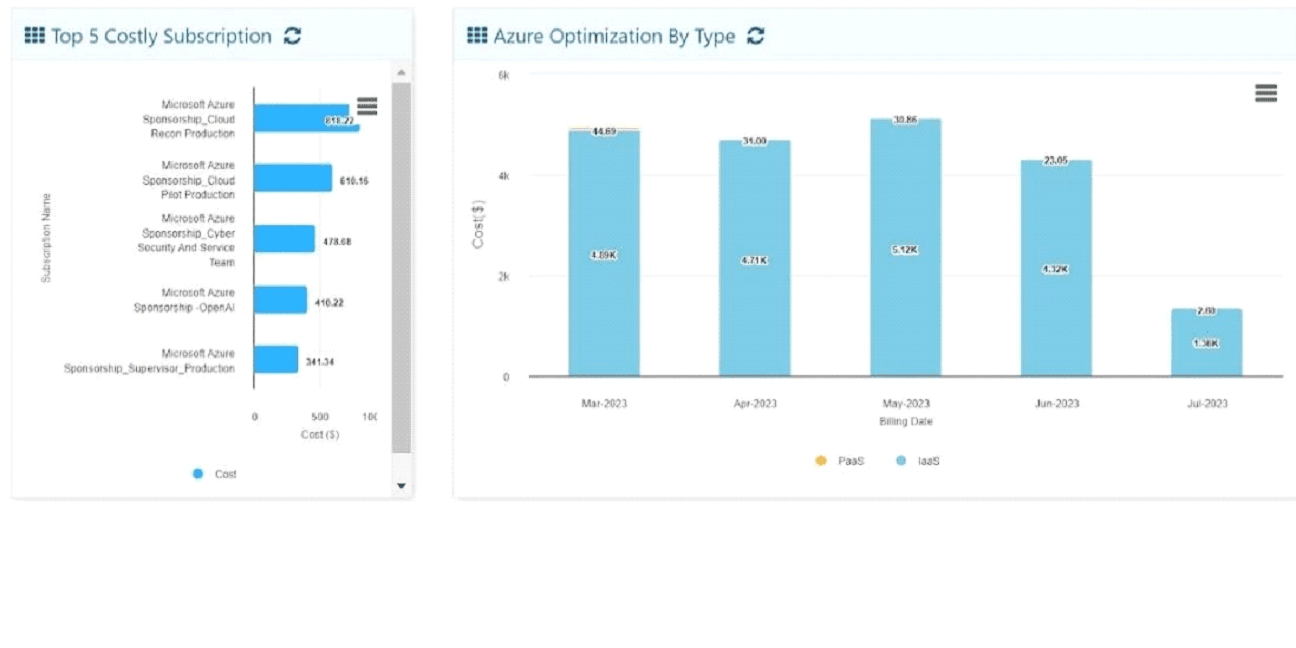
Figure 9: Costing Dashboard – Top Five Costing Subscriptions and Azure Optimization by Type
The bar chart presents Azure optimization opportunities by type and highlights the five subscriptions with the highest costs.
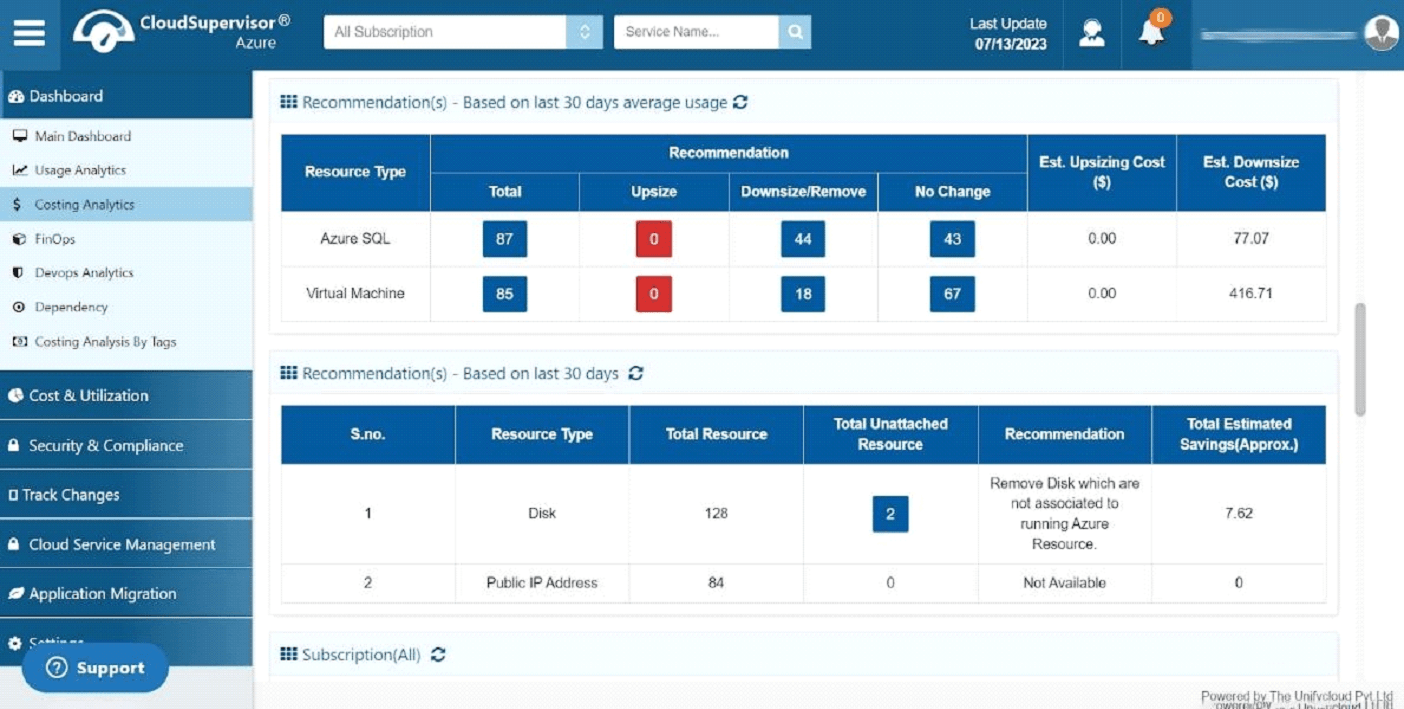
Figure 10: Recommendations
Based on average usage over the previous 30 days, the platform provides recommendations for upsizing or downsizing virtual machines.
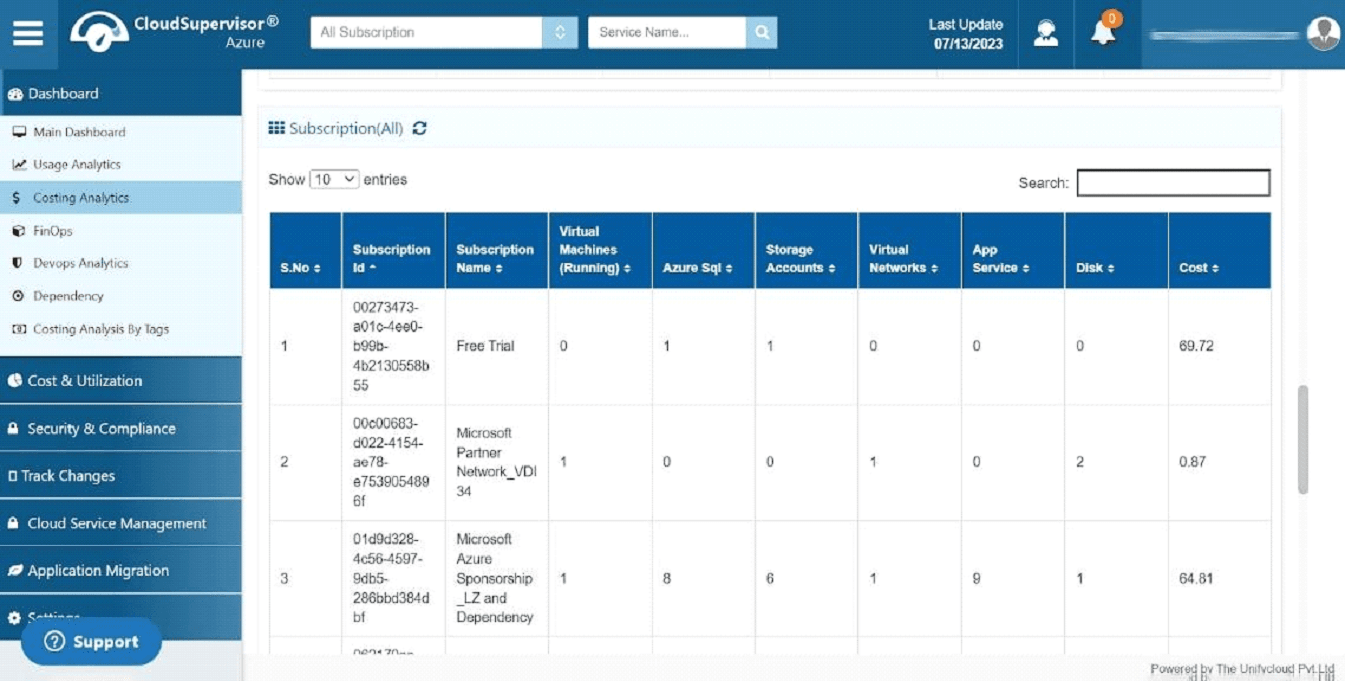
Figure 11: Subscriptions
Clicking the SQL Savings opportunity link (for example, $77.00) in the Saving Opportunity Breakdown directs you to the SQL Utilization Summary Dashboard.
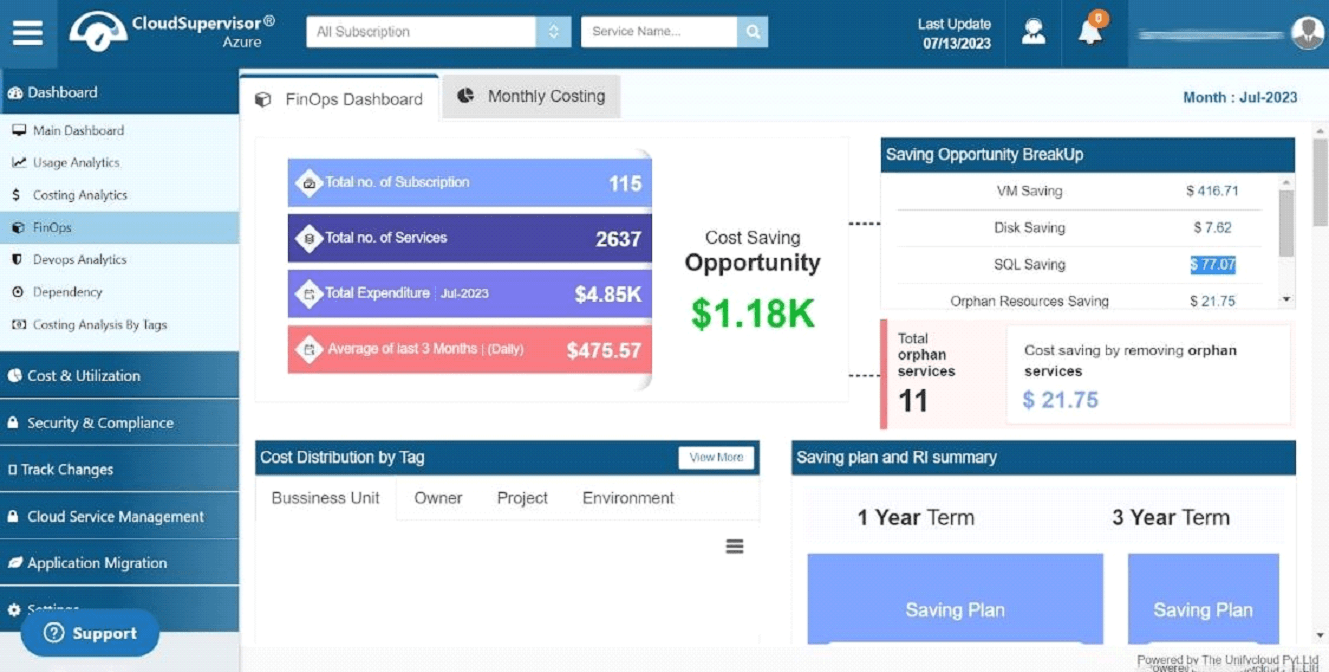
Figure 12: SQL Savings – Saving Opportunity Breakdown
Clicking the Orphan Resources Savings link (for example, $21.75) directs you to the Orphan Resource Savings Dashboard.
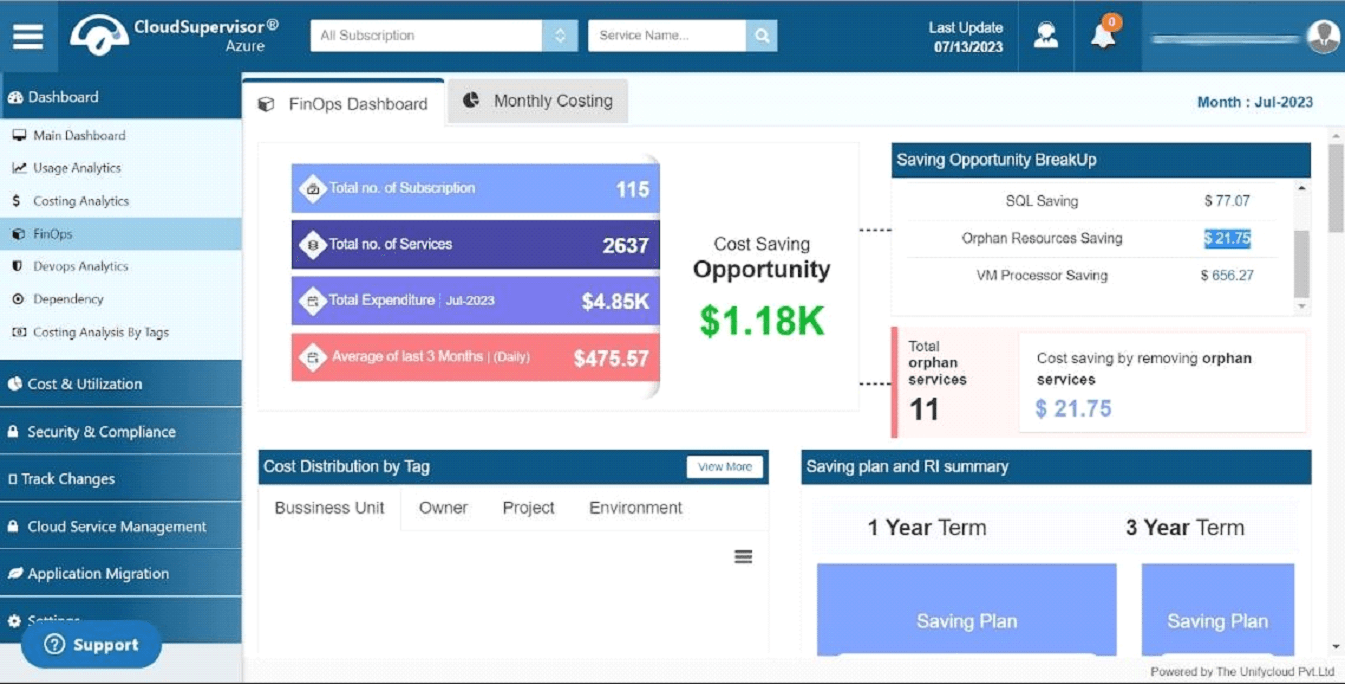
Figure 13: Orphan Resource Savings
Clicking the VM Processor Savings link (for example, $656.27) directs you to the VM Utilization Dashboard.
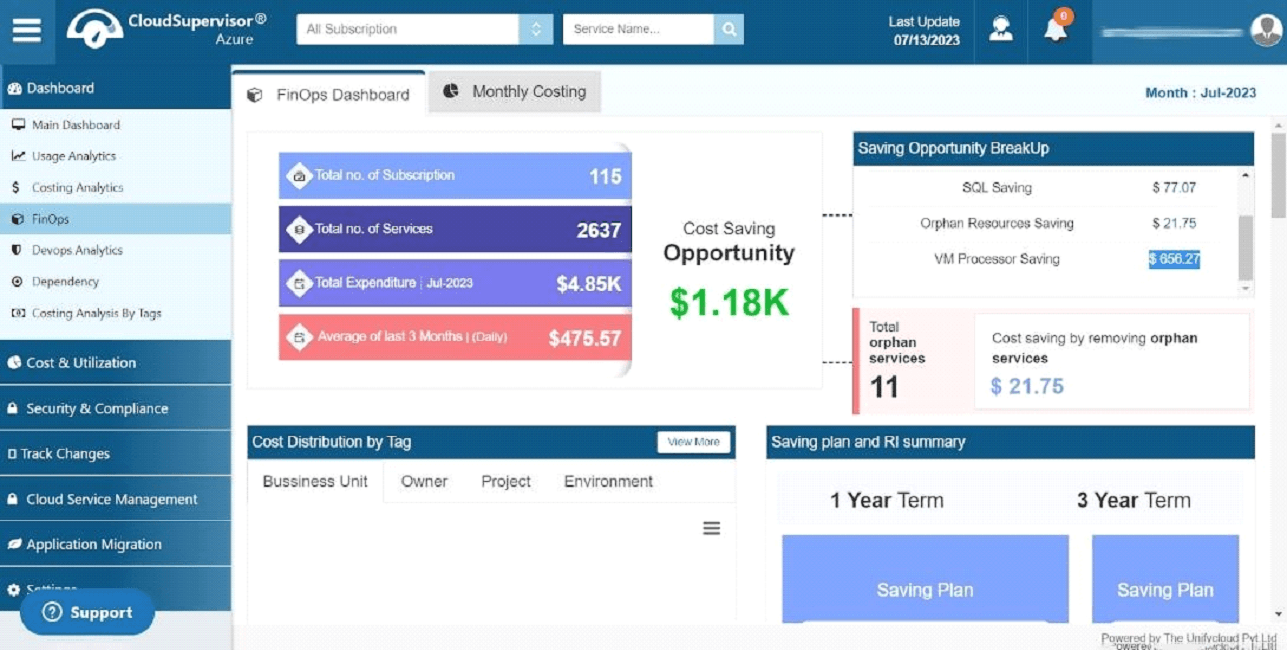
Figure 14: VM Processor Savings – Saving Opportunity Breakdown
1.1.1 Cost Distribution by Tag
1.1.1.1 Business Unit
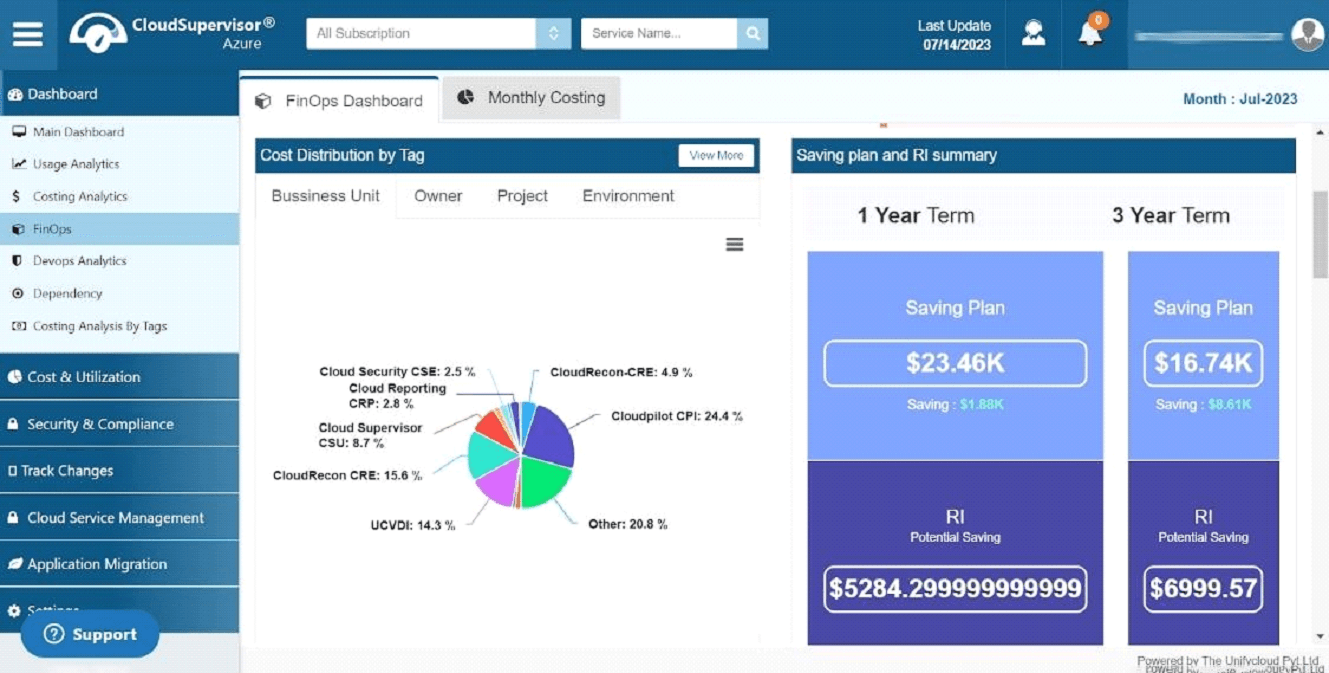
Figure 15: Business Unit
When resources are created, their costs can be distributed across different tags. Services are mapped according to the business requirements of the user.
The pie chart illustrates services such as Cloud Security, Cloud Reporting, Cloud Supervisor, CloudRecon, and others. It also displays the cost distribution across business units and each unit's percentage contribution.
1.1.1.2 Owner
The Owner chart illustrates resource allocation by owner, including each owner's percentage allocation. Cost estimates are also provided for the resources.
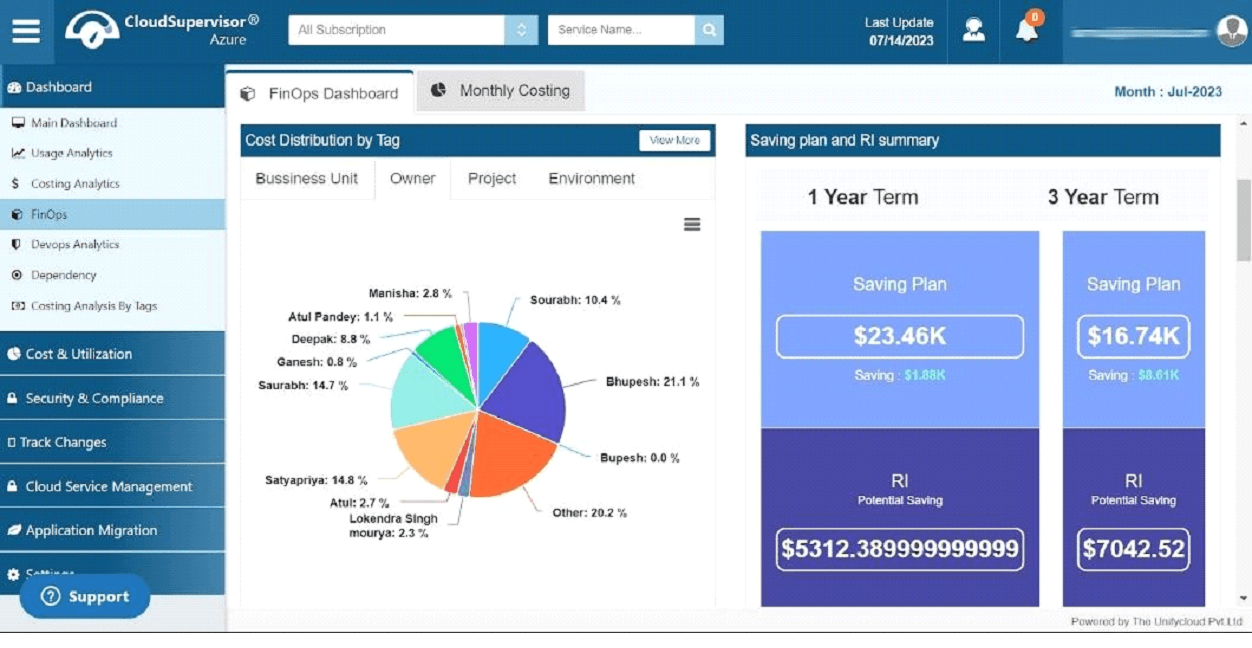
Figure 16: Owner – Cost Distribution by Tag
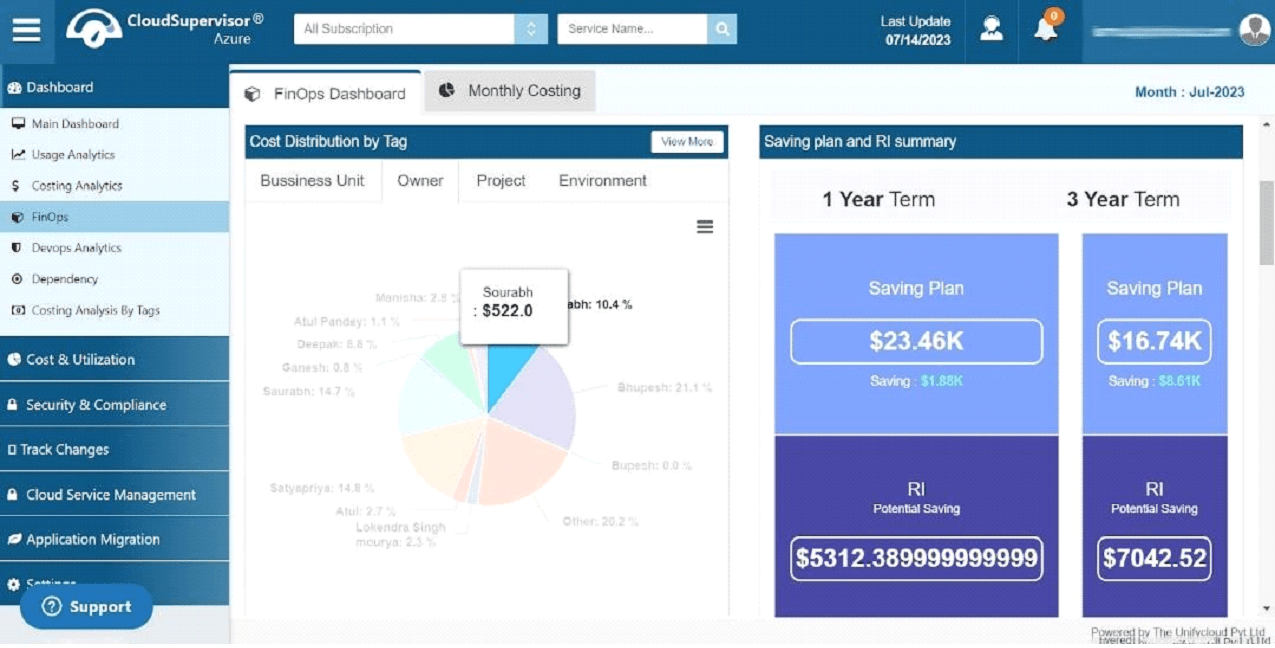
Figure 17: Owner – Cost Distribution by Tag
1.1.1.3 Project
This dashboard provides an overview of the project portfolio and the percentage distribution of costs across projects. It also displays the costs associated with each project.
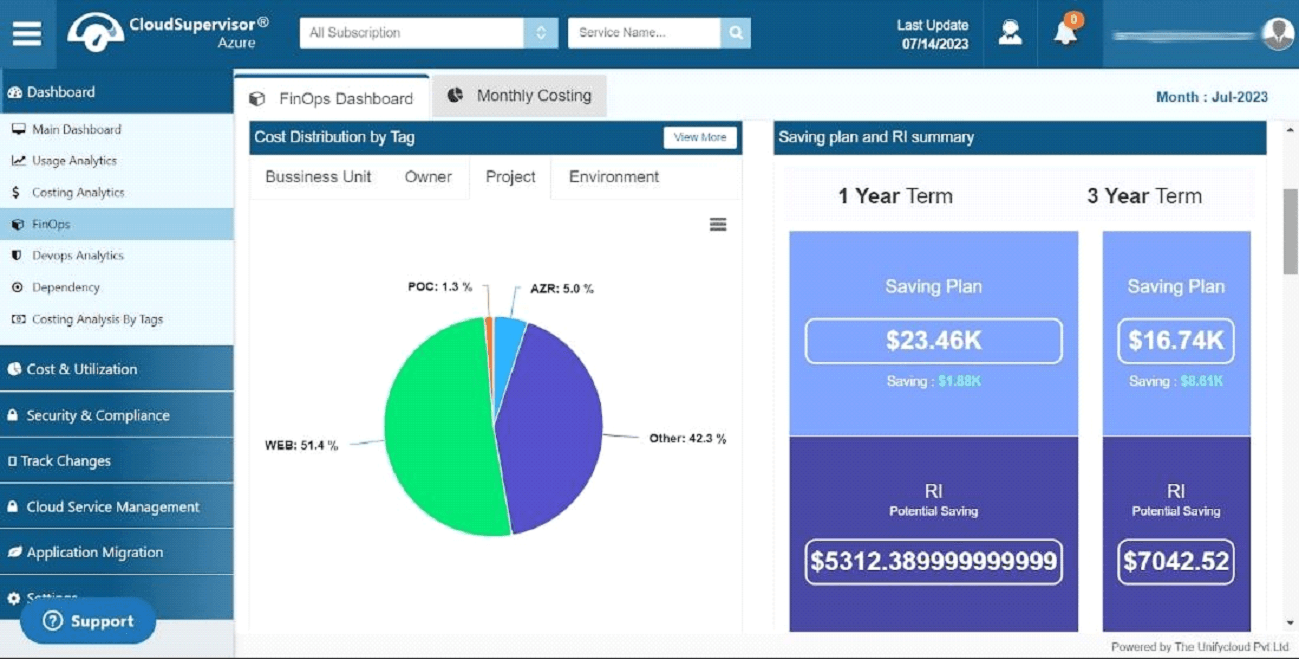
Figure 18: Project – Cost Distribution by Tag
The dashboard includes details for projects such as POC, AZR, WEB, and others.
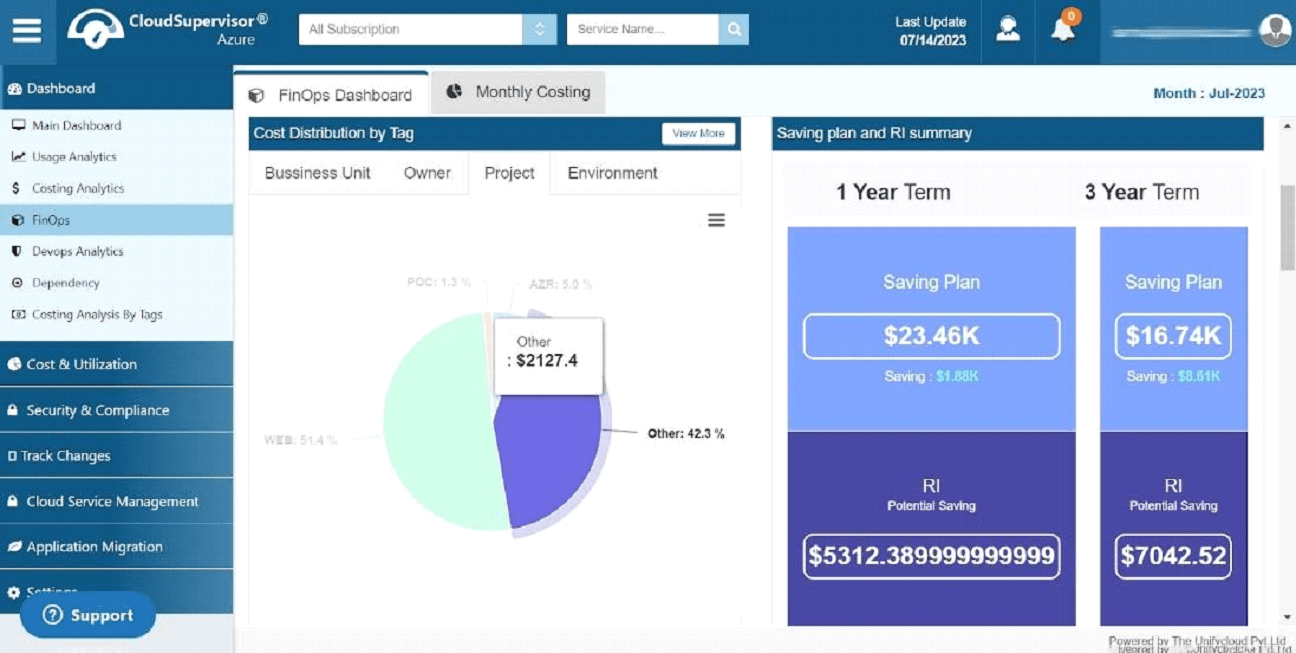
Figure 19: Project – Cost Distribution by Tag
1.1.1.4 Environment
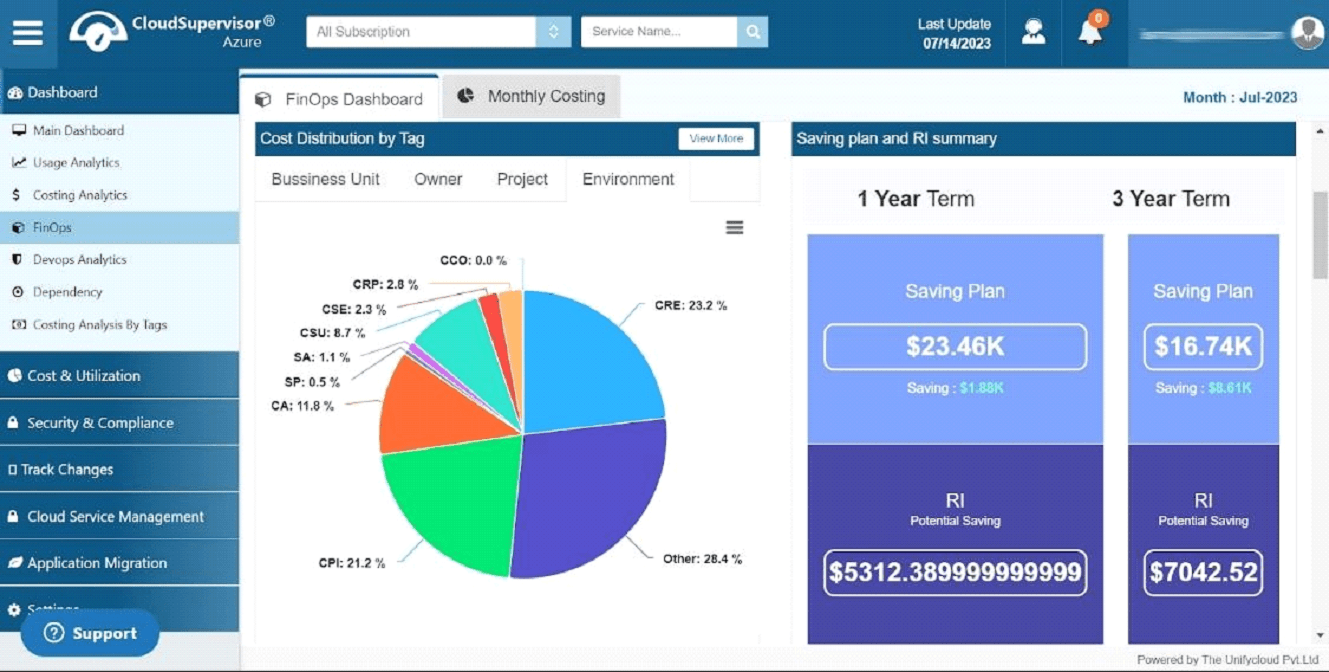
Figure 20: Environment – Cost Distribution by Tag
This dashboard provides an overview of the environments and their respective cost contributions. It also breaks down the costs associated with each environment.
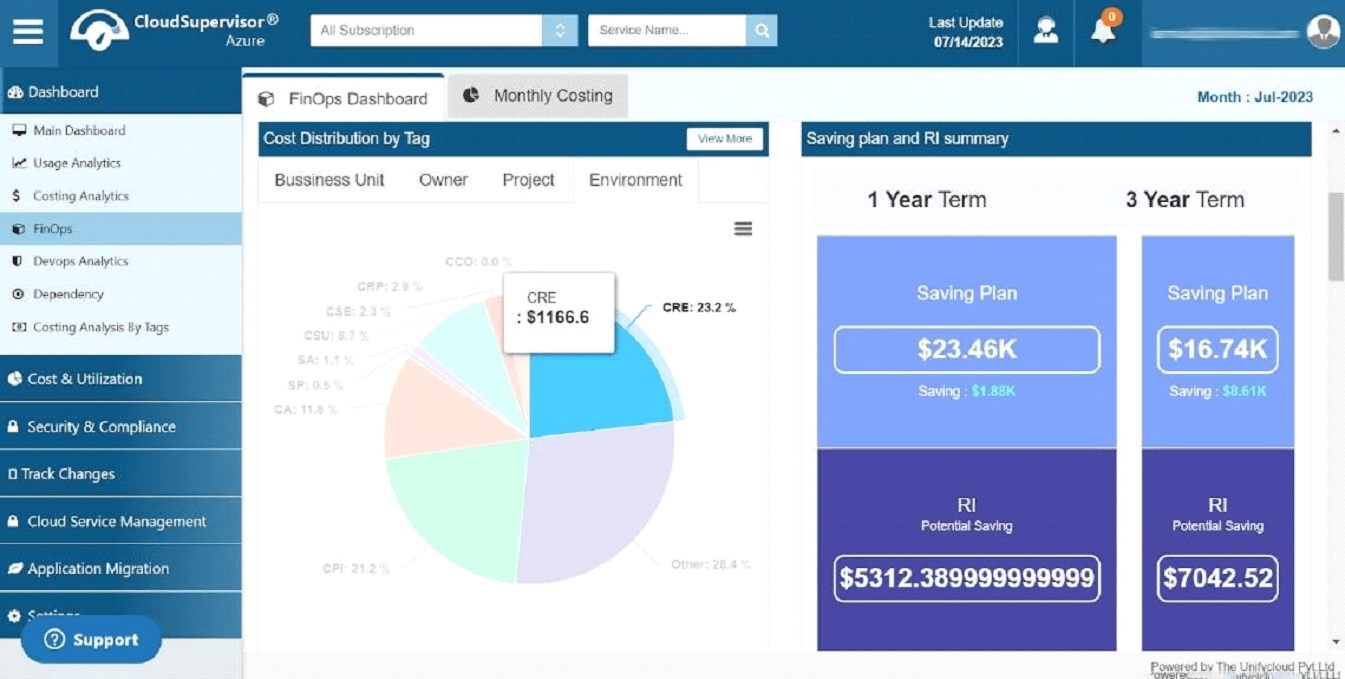
Figure 21: Cost Contribution in Each Environment
Sharing this information across teams can help improve cost visibility and support cloud cost optimization.
1.1.2 Saving Plan and RI Summary
The Saving Plan and RI Summary Dashboard provides an overview of savings plan opportunities. One-year and three-year plans are available. Compared with the Pay-As-You-Go model, users can select a savings plan based on virtual machine, memory, and CPU utilization to achieve greater savings.
RI potential savings are available for one-year and three-year terms. The three-year plan offers greater cost optimization potential than the one-year plan.
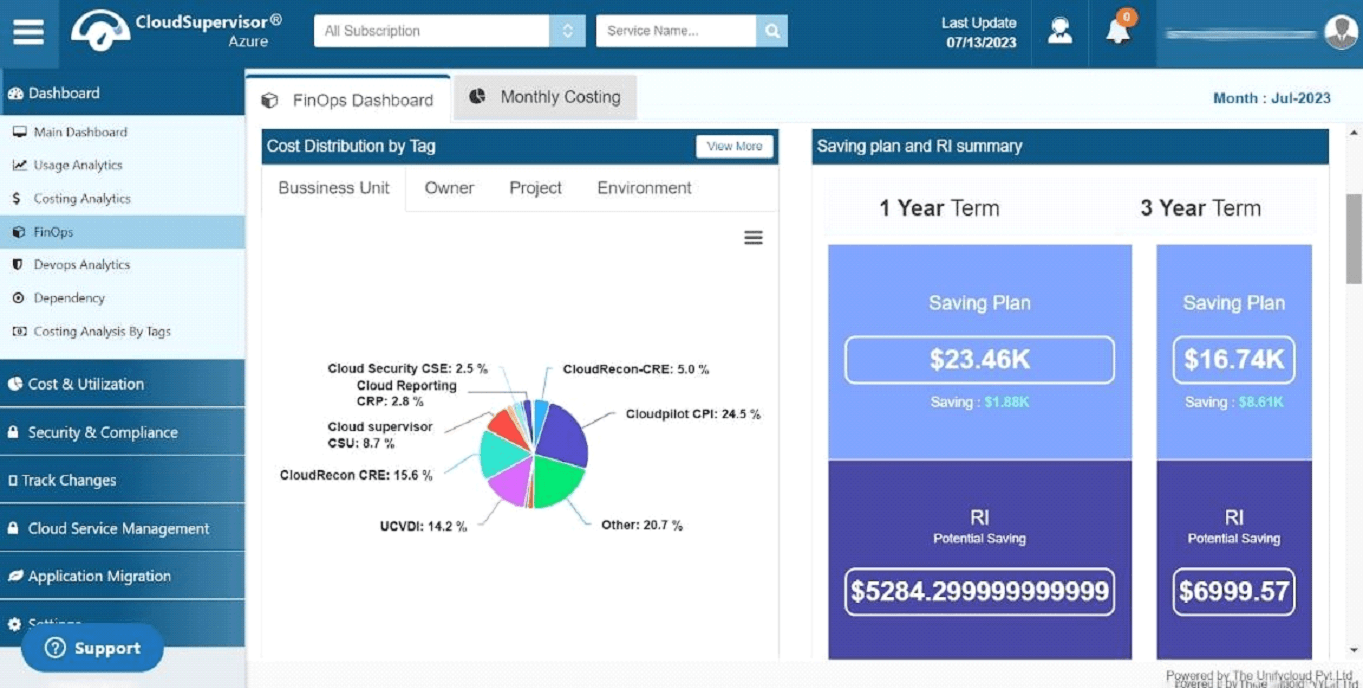
Figure 22: Saving Plan and RI Summary
1.1.3 Cost Anomalies
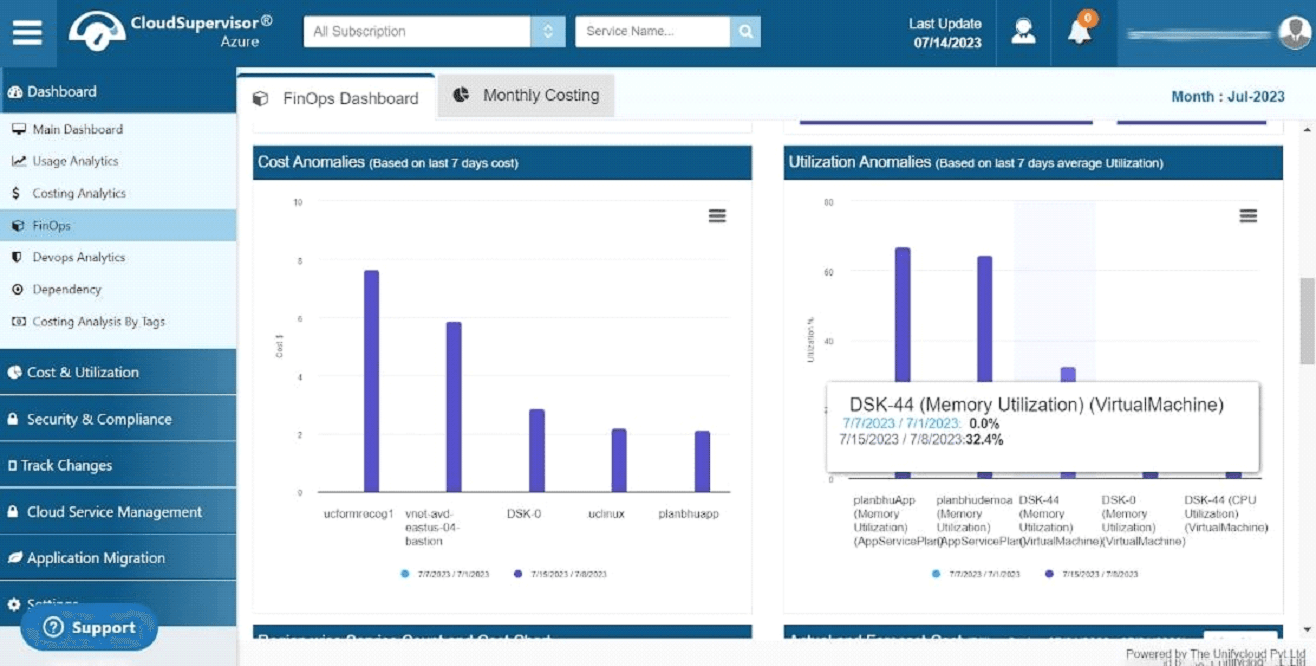
Figure 23: Cost Anomalies
The Cost Anomalies Dashboard provides an overview of resource costs over the previous seven days. It highlights cost variations within a selected period and helps identify resources associated with higher expenditure.
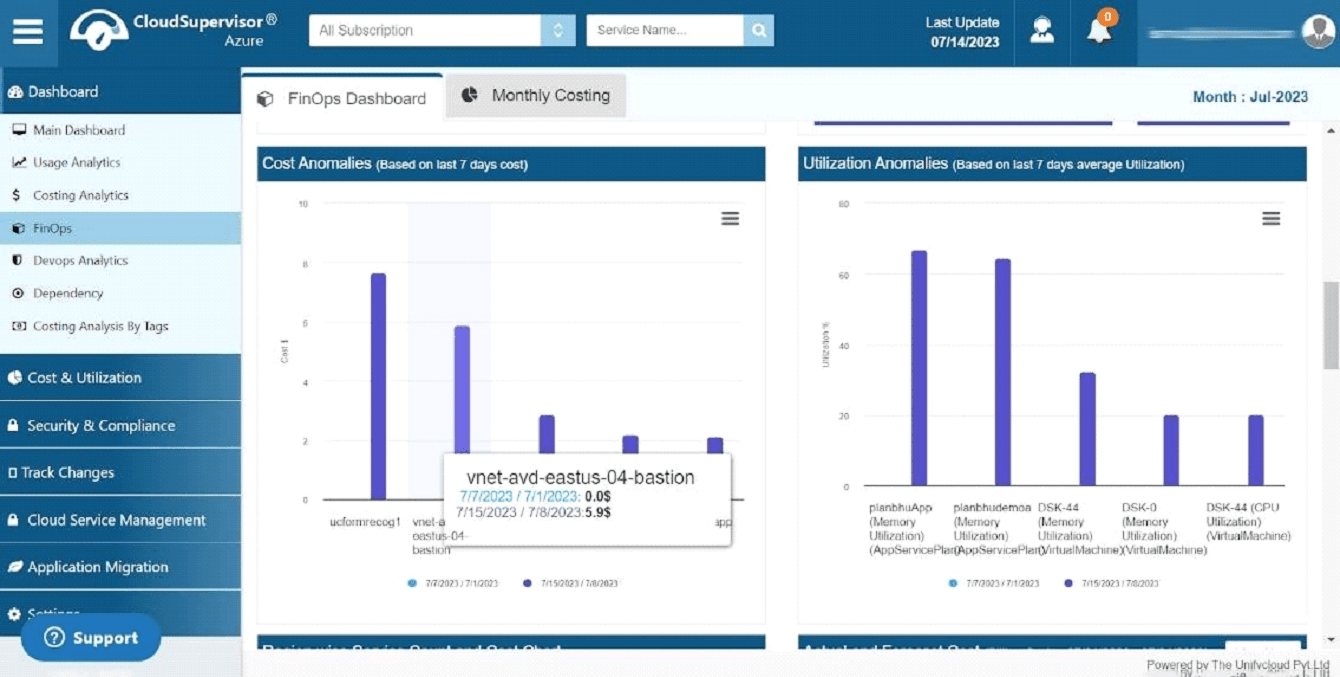
Figure 24: Cost Anomalies – Based on the Last Seven Days
1.1.4 Utilization Anomalies
The Utilization Anomalies Dashboard provides an overview of CPU and memory utilization across resources over the previous seven days. It displays utilization by resource over a specified period, helping users identify utilization patterns that may contribute to increased costs.
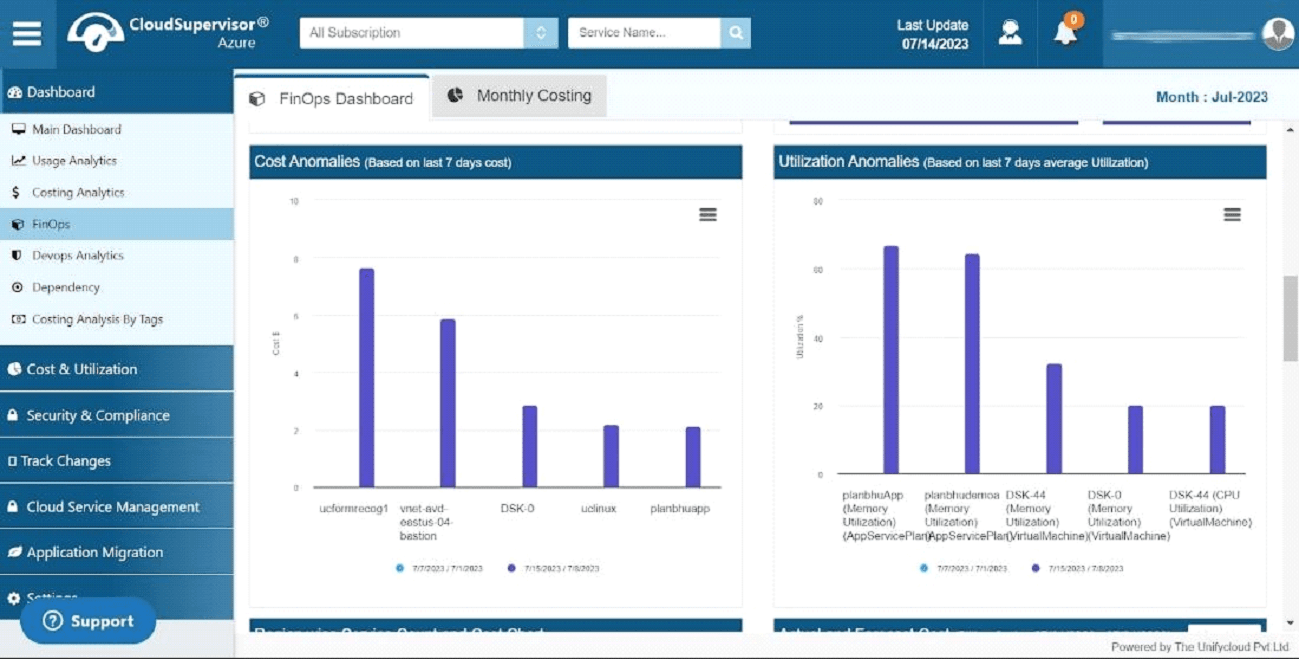
Figure 25: Utilization Anomalies
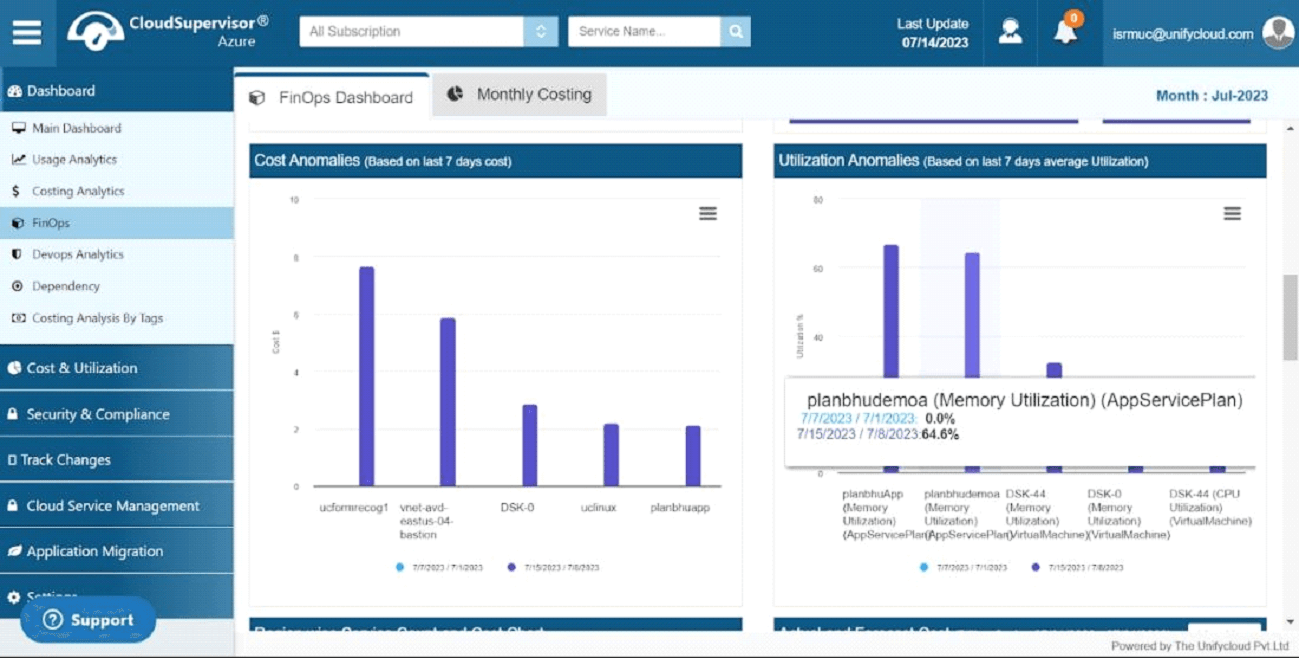
Figure 26: Utilization Anomalies – Individual Memory Utilization
1.1.5 Region-Wise Service Count and Cost Chart
This chart displays the number of services in each region and the total cost associated with those services within that region.
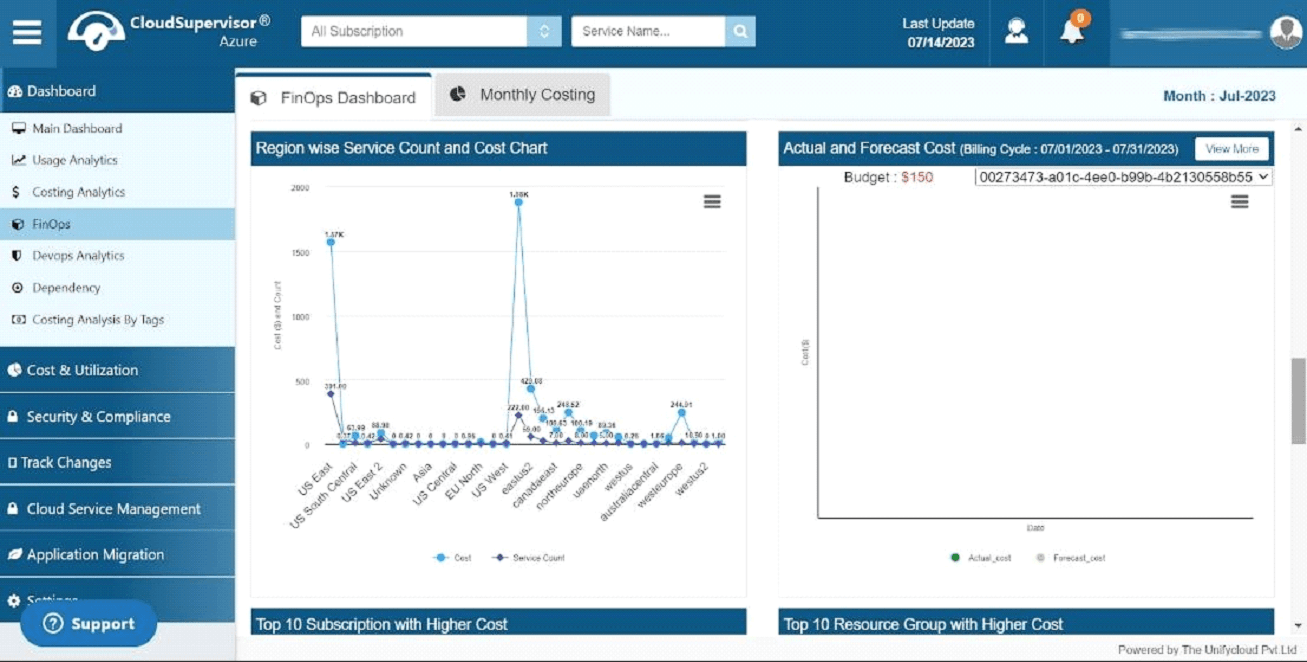
Figure 27: Region-Wise Service Count and Cost Chart
1.1.6 Actual and Forecast Cost
The dashboard displays the actual and forecast costs for a subscription during a particular billing cycle. The values vary by subscription. Dark green represents actual costs, while light green represents forecast costs. These insights help users analyze cost variations and optimize budgets.
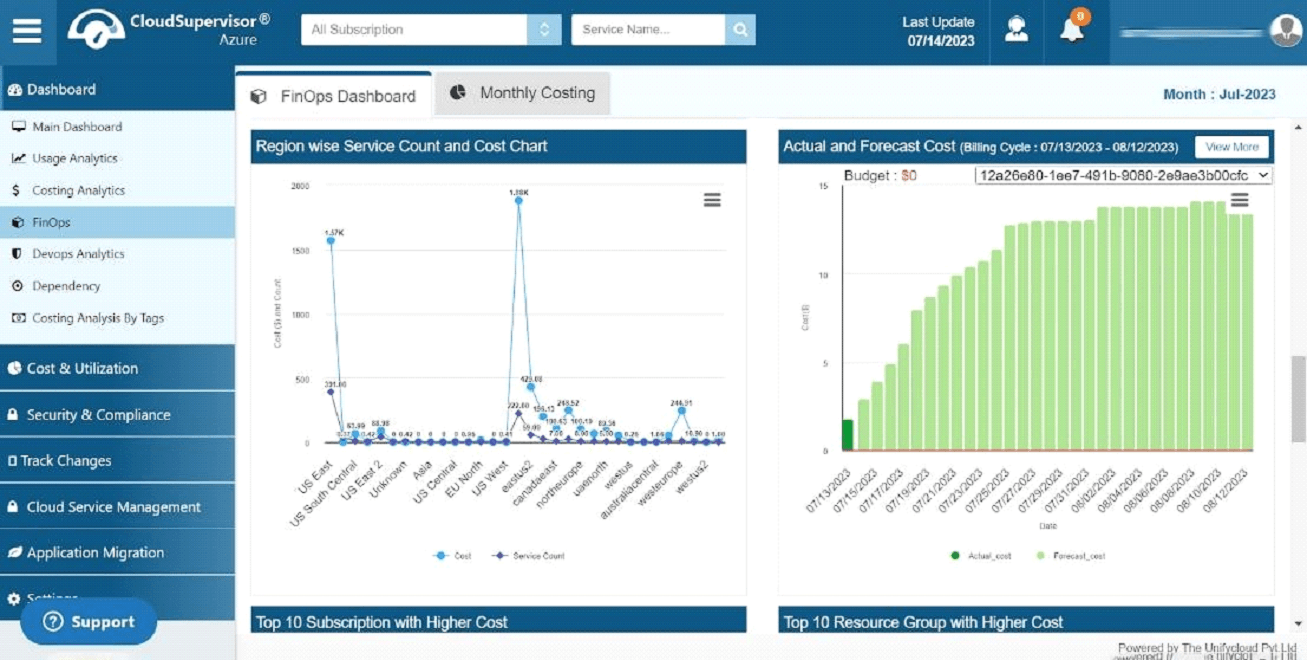
Figure 28: Actual and Forecast Cost
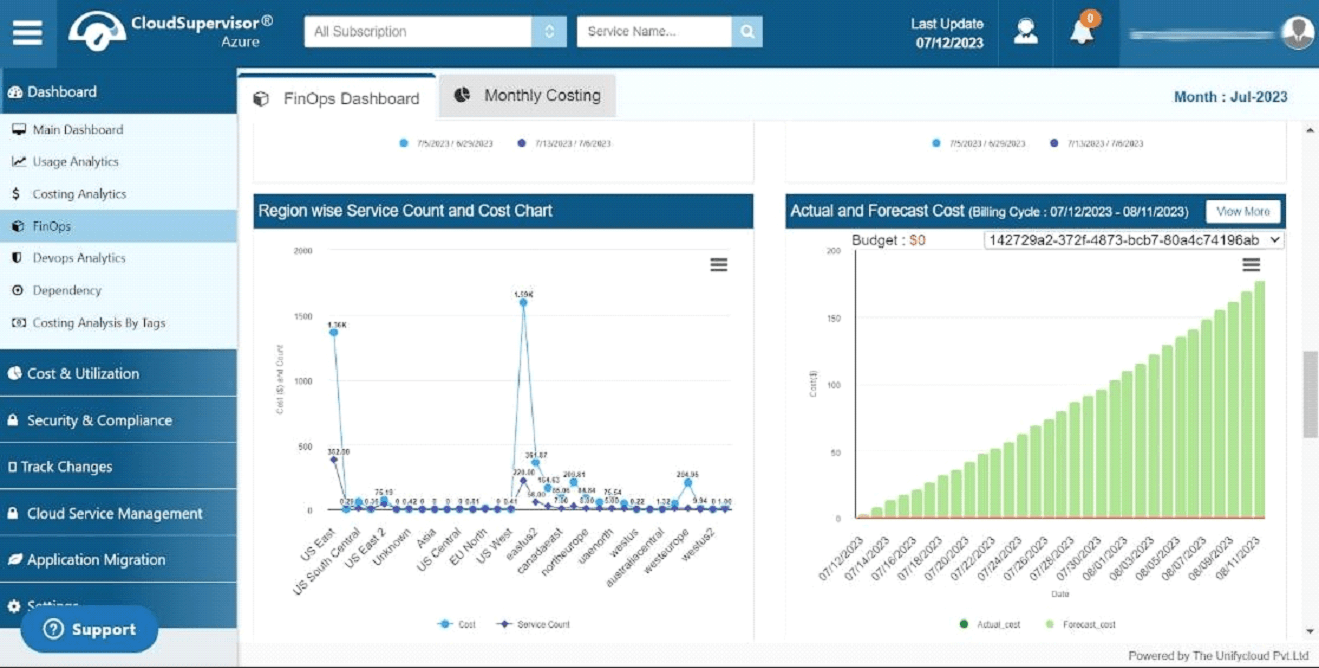
Figure 29: Actual and Forecast Cost
1.1.7 Top 10 Subscriptions with Higher Costs
This dashboard identifies the ten subscriptions with the highest costs.
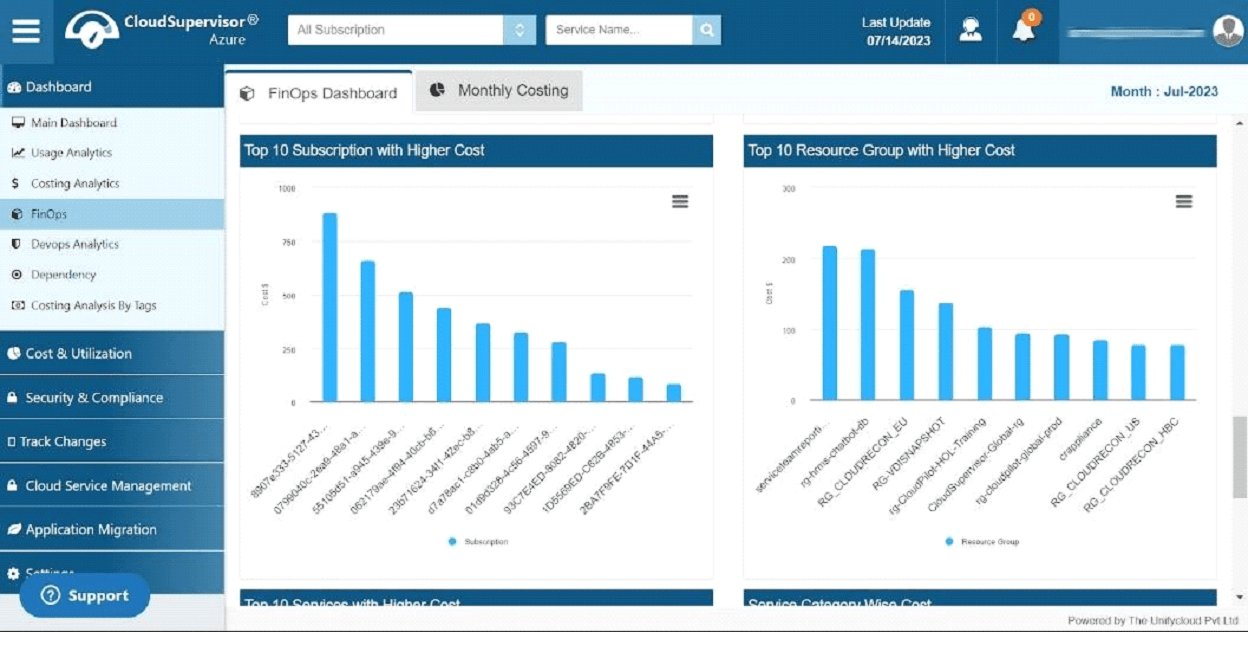
Figure 30: Top 10 Subscriptions with Higher Costs
1.1.8 Top 10 Resource Groups with Higher Costs
This dashboard displays the ten resource groups with the highest costs.
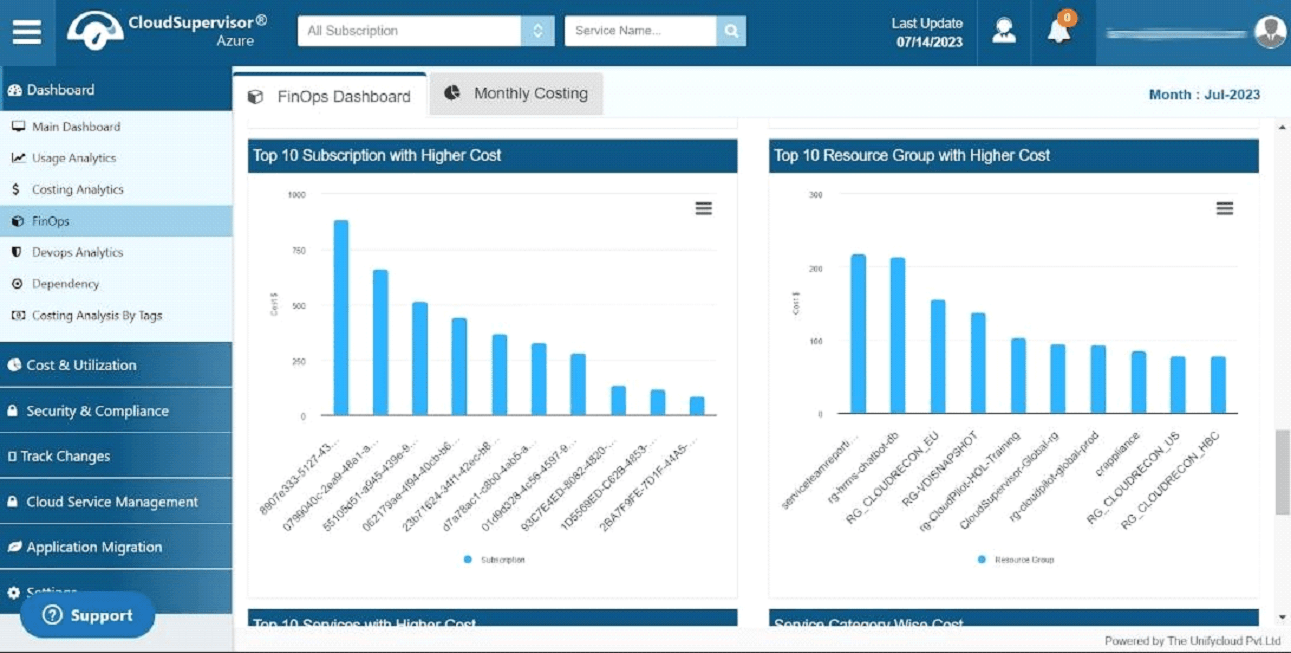
Figure 31: Top 10 Resource Groups with Higher Costs
1.1.9 Top 10 Services with Higher Costs
This dashboard highlights the ten most expensive services.
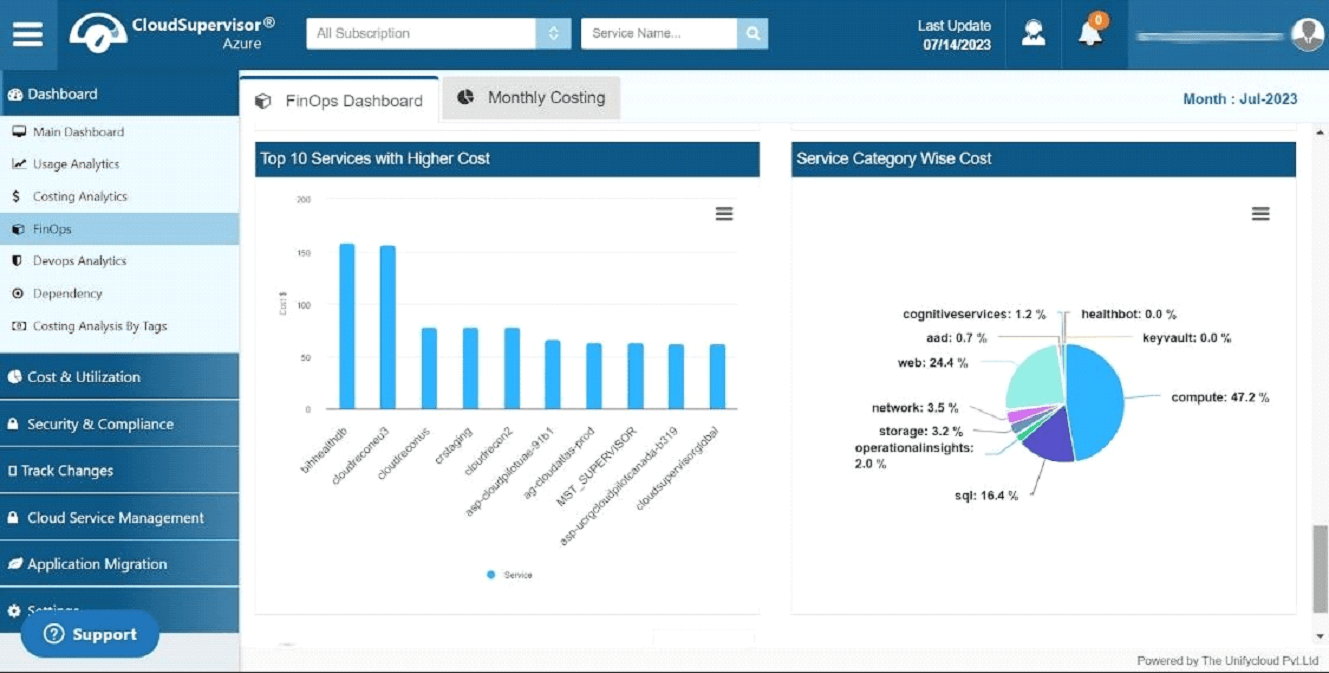
Figure 32: Top 10 Services with Higher Costs
1.1.10 Service Category-Wise Cost
This pie chart displays the different service categories and their respective percentage contributions. It also provides an overview of the individual costs associated with each category. Analyzing category-wise costs helps users identify opportunities to control expenditure.
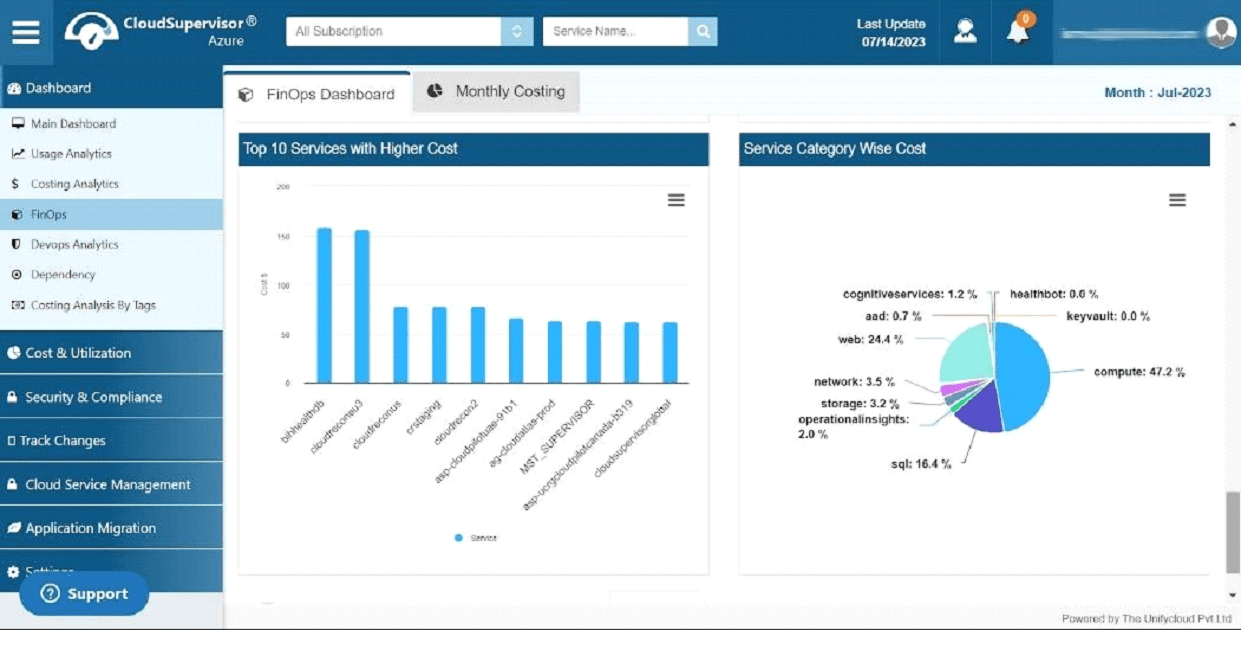
Figure 33: Service Category-Wise Cost
1.1.11 Total VMs with Auto Shutdown Schedules
The dashboard displays the number of virtual machines configured with automatic shutdown schedules. Clicking the displayed count (for example, 30) opens a grid containing the details of scheduled virtual machines, including subscription name, resource group, machine name, creation date, daily running time, status, and owner information.
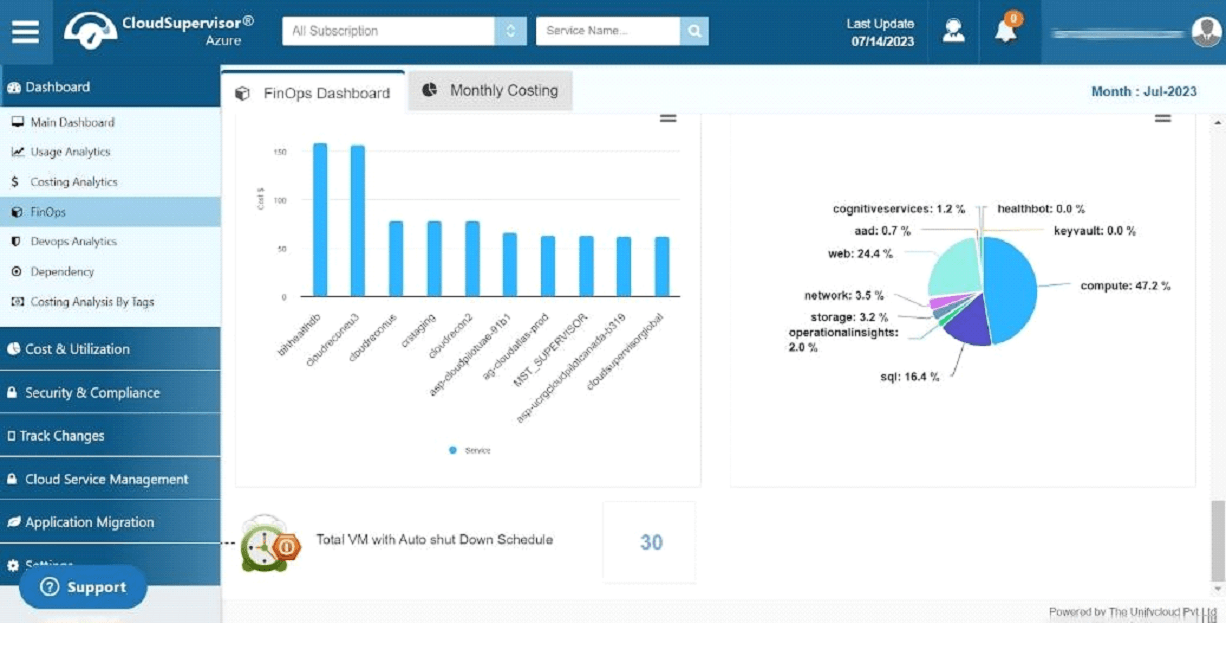
Figure 34: Total VMs with Auto Shutdown Schedules
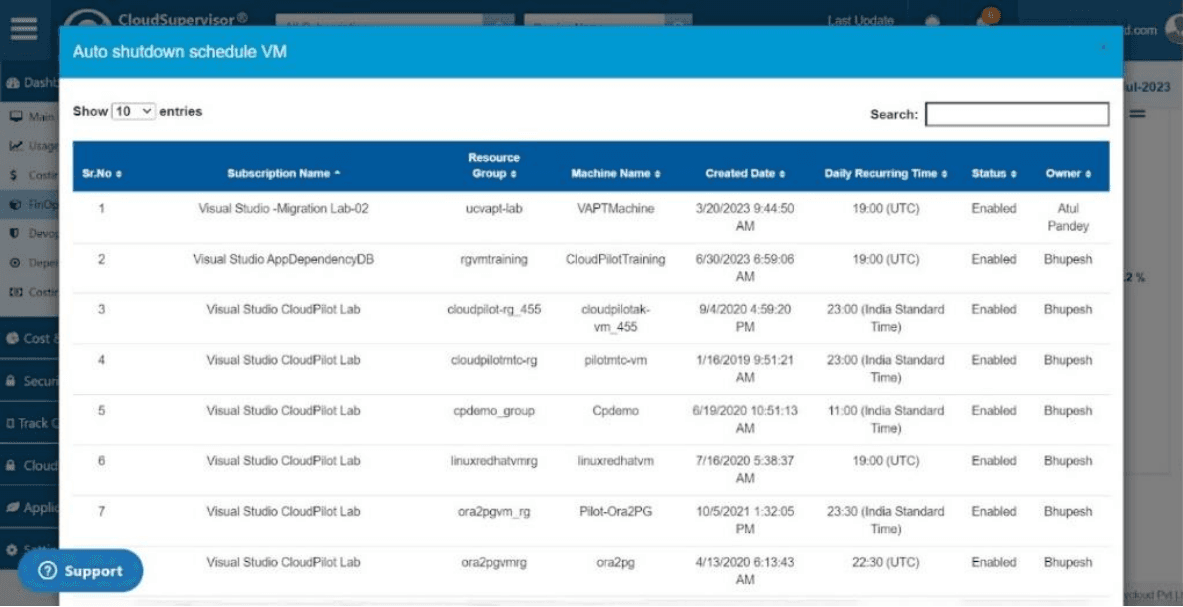
Figure 35: Total VMs with Auto Shutdown Schedules
2. FinOps Dashboard – Monthly Costing
The Monthly Costing Dashboard provides subscription-level costing details for a selected month. It also summarizes owner information, total costs, and average costs.
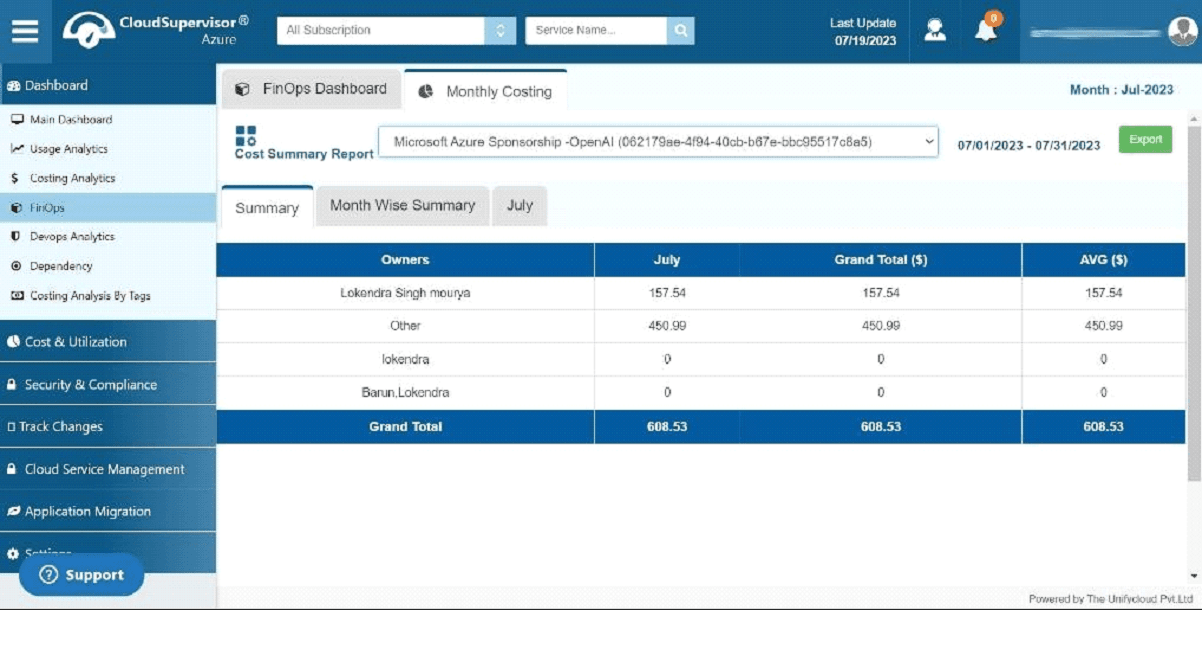
Figure 36: Monthly Costing
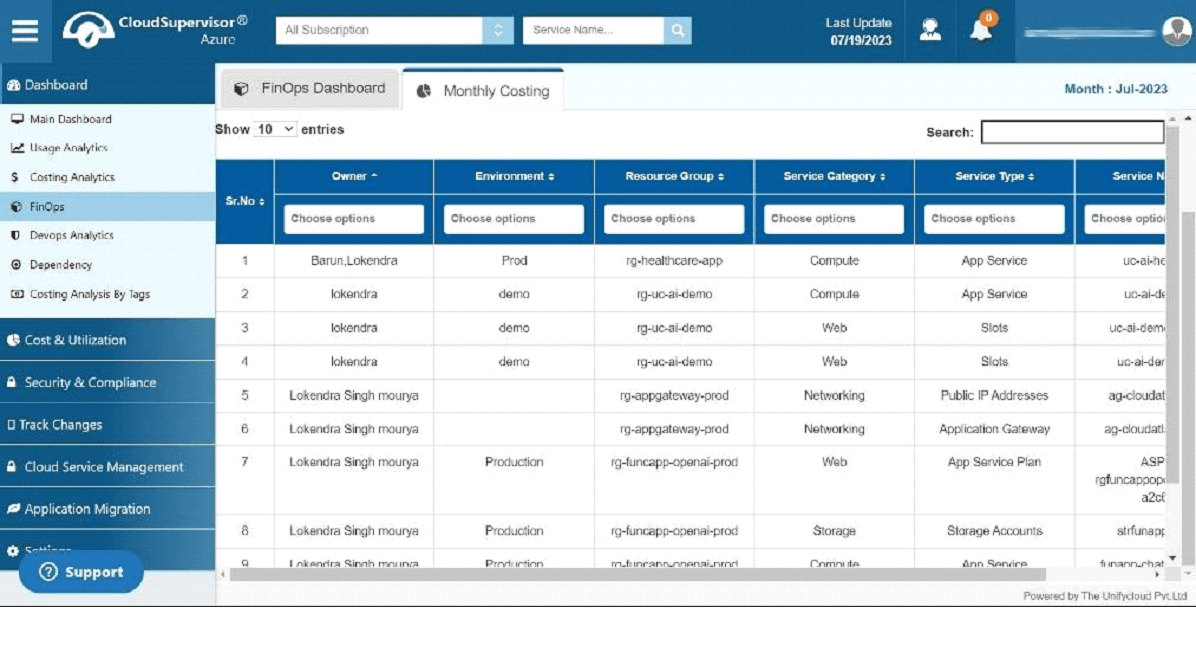
Figure 37: Monthly Costing
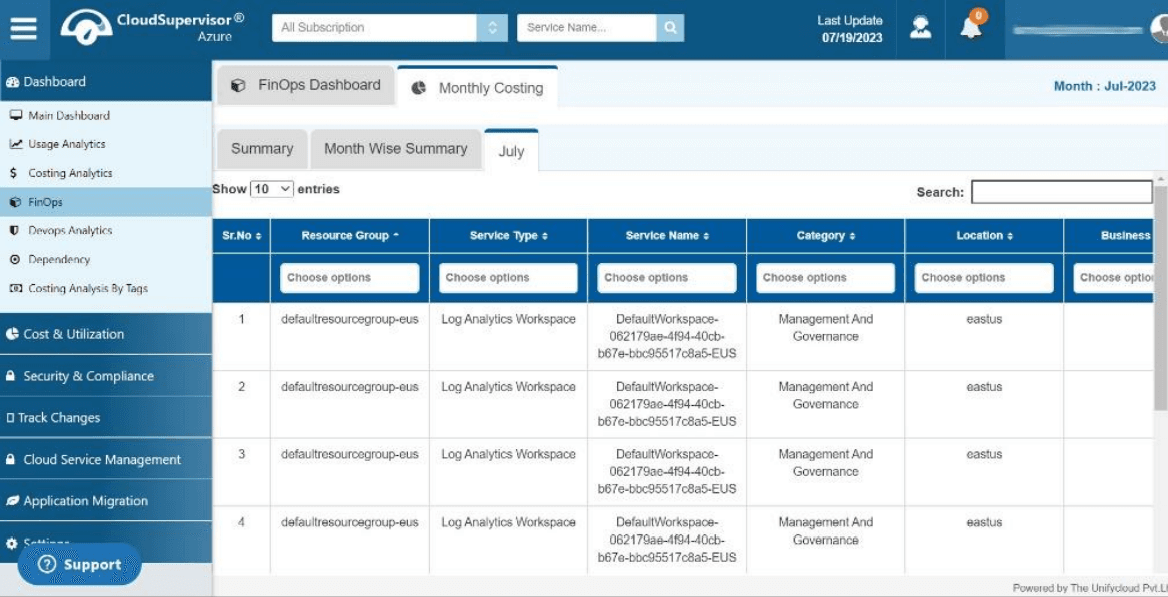
Figure 38: Monthly Costing
The dashboard provides a month-wise costing summary, along with details for environments, resource groups, service categories, service types, and service names.
3. Cost Control
3.1 Virtual Machine
3.1.1 VM Processor Optimization Opportunity
The VM Processor Optimization Opportunity Dashboard provides an overview of current costs, recommended costs, and potential cost optimization opportunities. It also displays recommended resources, resources that do not require changes, and the total number of resources.
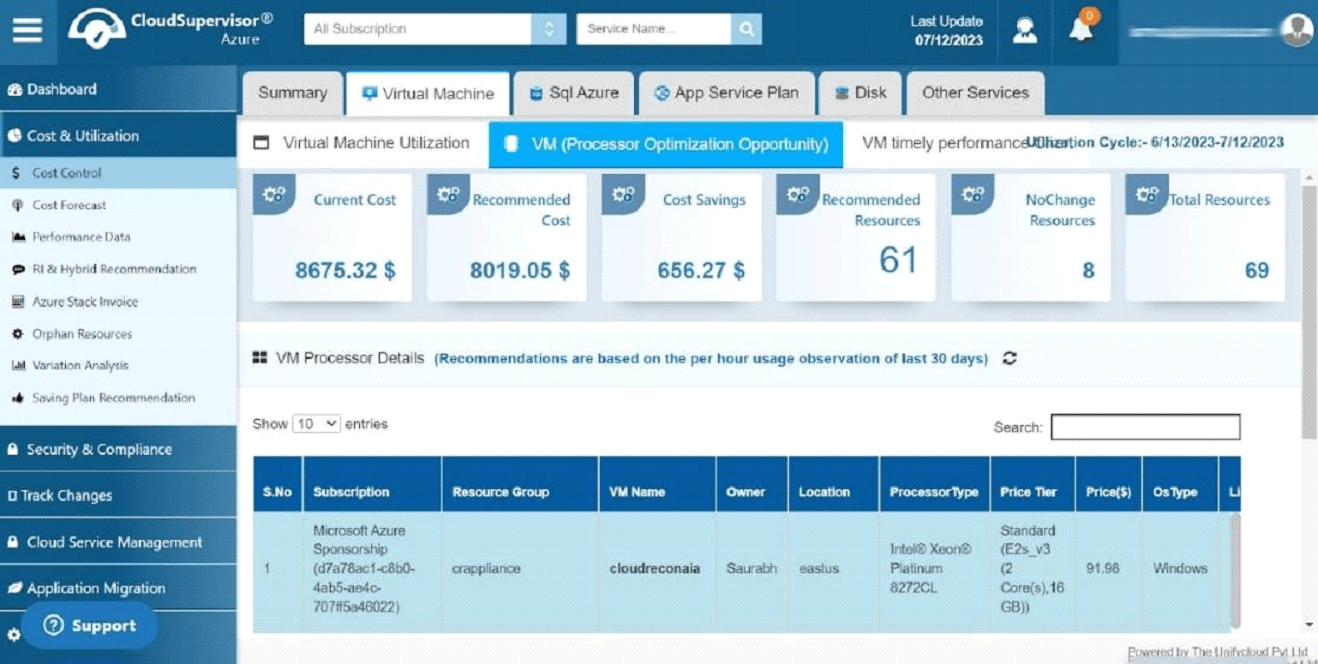
Figure 39: VM Processor Optimization Opportunity
The dashboard displays client subscription details and information about virtual machines across different tiers. Available details include owner, location, processor type, pricing, and operating system.
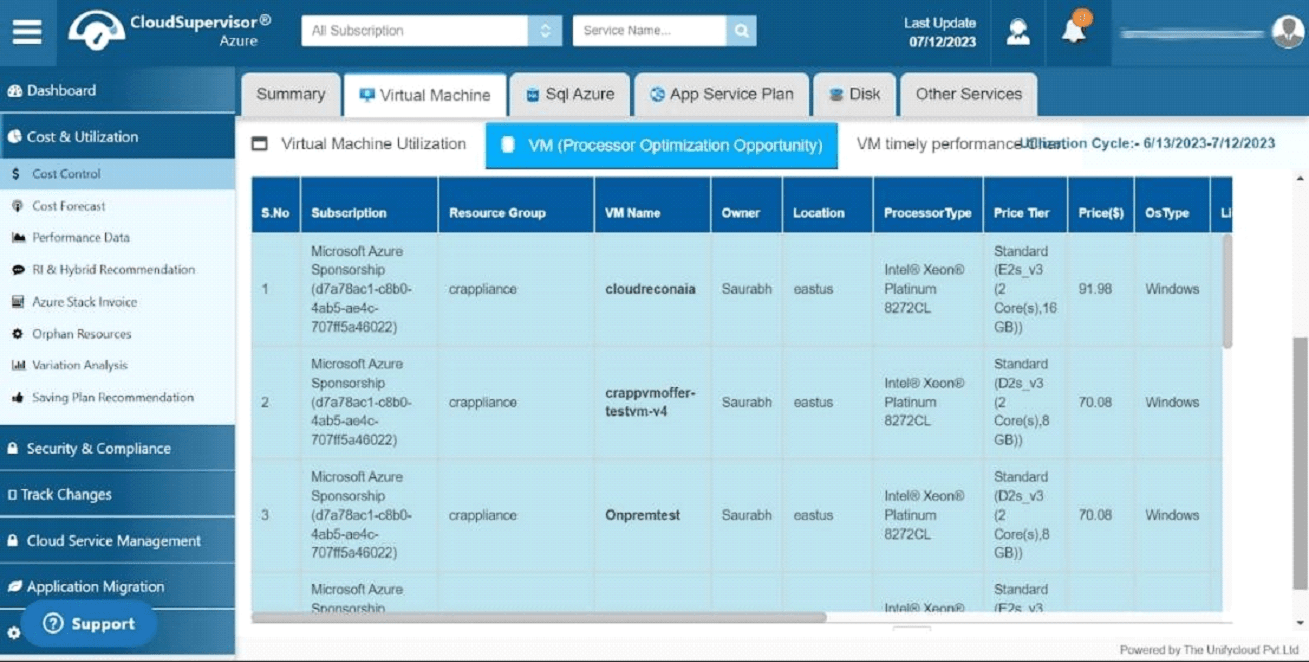
Figure 40: VM Processor Optimization Opportunity
The price tier and processor type grid displays processor information, such as Intel processors, along with memory capacity. Based on hourly usage observations from the previous 30 days, the platform may recommend switching from an Intel processor to an AMD processor with the same memory capacity at a lower cost. Upgrading the processor can help achieve additional savings.
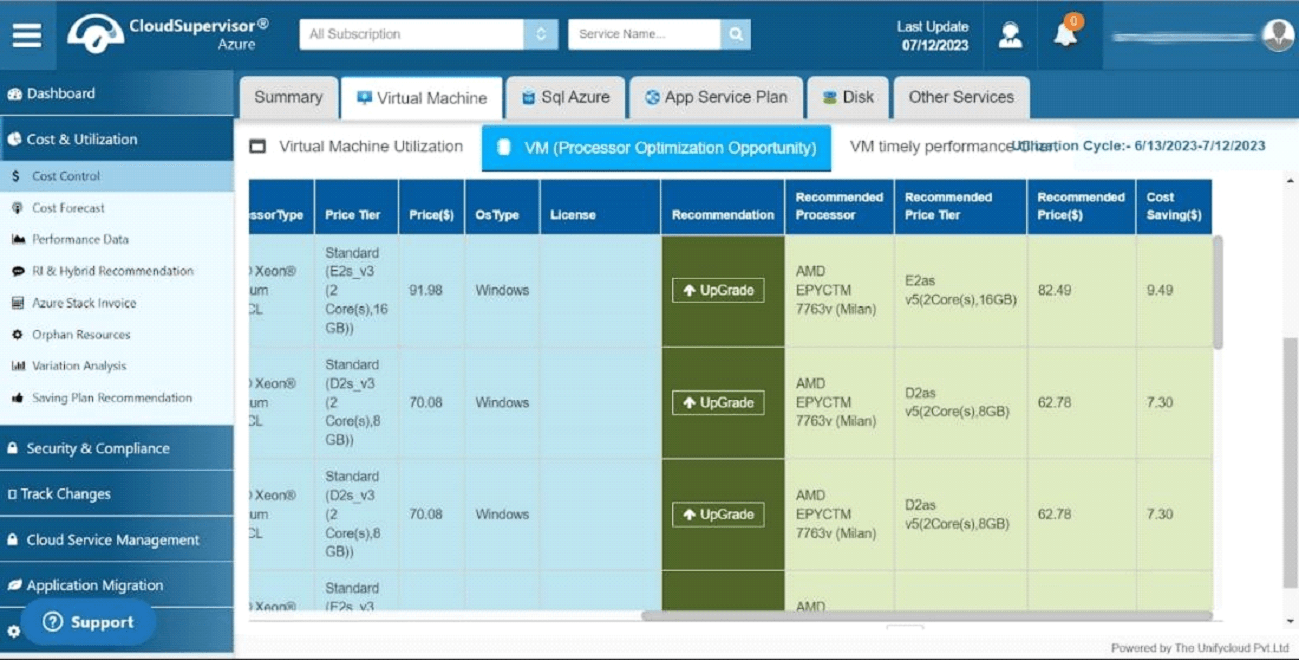
Figure 41: VM Processor Optimization Opportunity
3.1.2 VM Timely Performance Chart
The VM Timely Performance Chart presents hourly virtual machine utilization over time. It includes information about services, CPU and memory utilization percentages, and virtual machine operating periods.
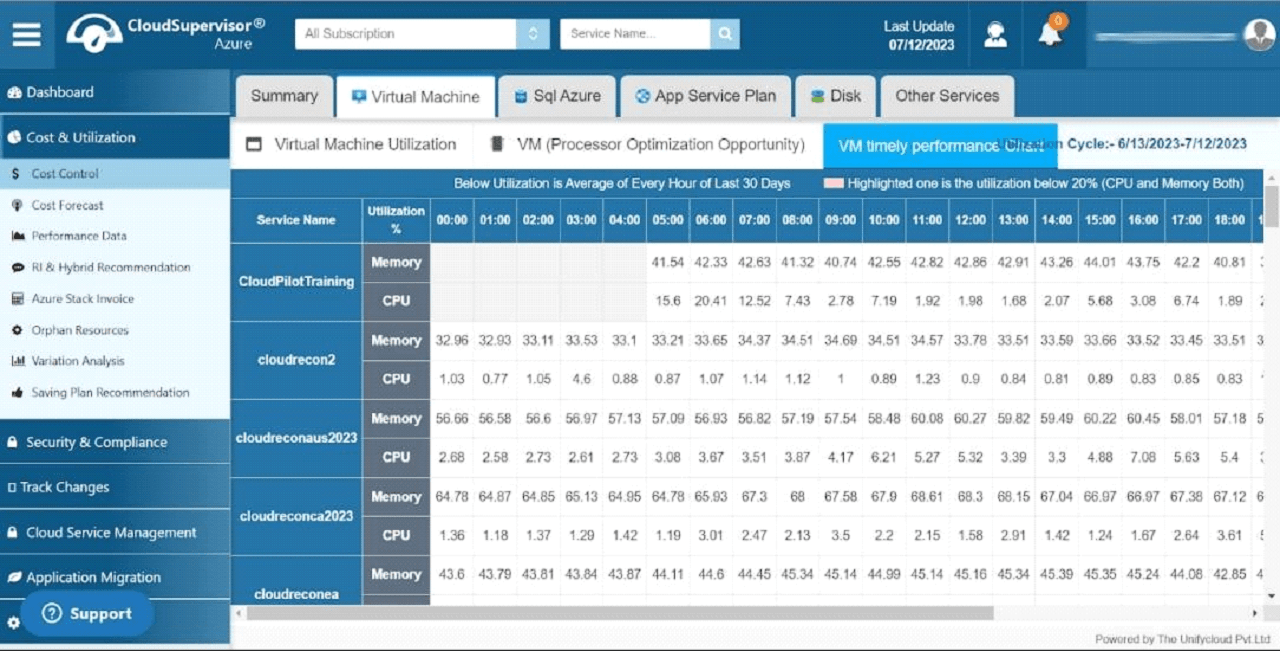
Figure 42: VM Timely Performance Chart
A blank grey area in the chart represents a period during which the CloudPilot training virtual machine is deallocated or unused, such as between 00:00 and 04:00. Users can analyze virtual machine performance and deallocation intervals over the previous 30 days.
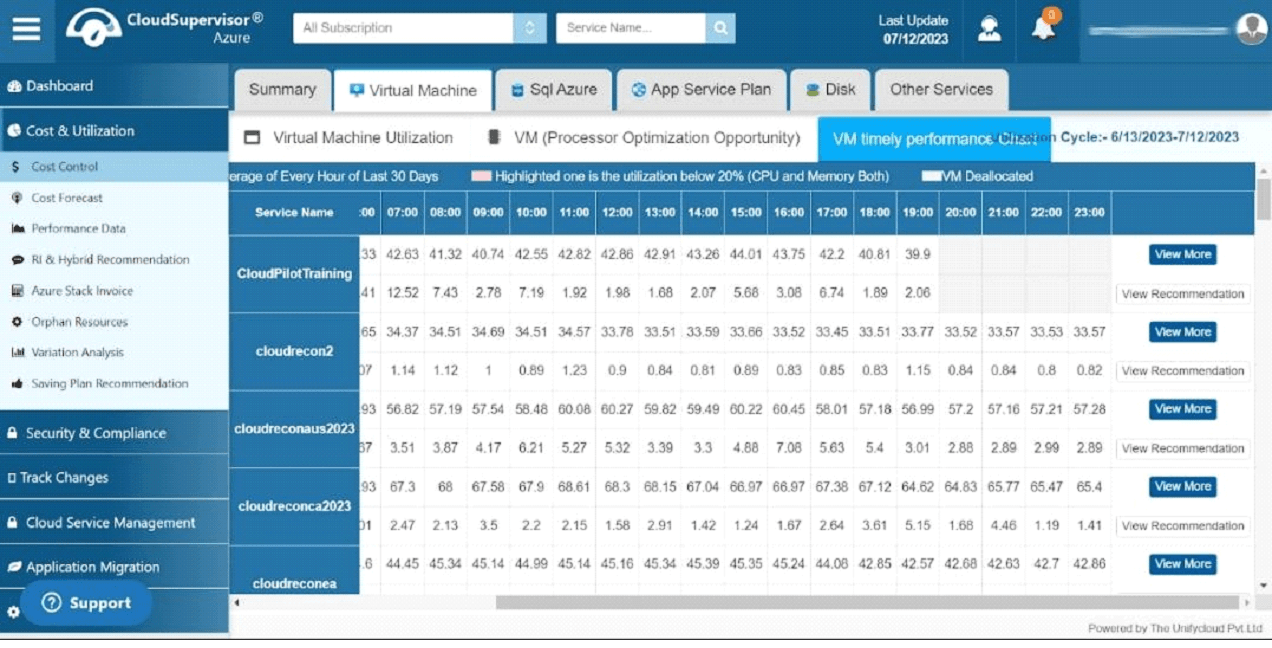
Figure 43: VM Timely Performance Chart
Clicking the View More button displays the total and average utilization for each hour over the previous 30 days. If a virtual machine has limited utilization, users can consider downsizing it to improve cost optimization.
The grid highlighted in pale red indicates periods when CPU or memory utilization is below 20%, based on the average over 30 days. Users can consider downsizing or deactivating virtual machines during these periods to reduce costs.
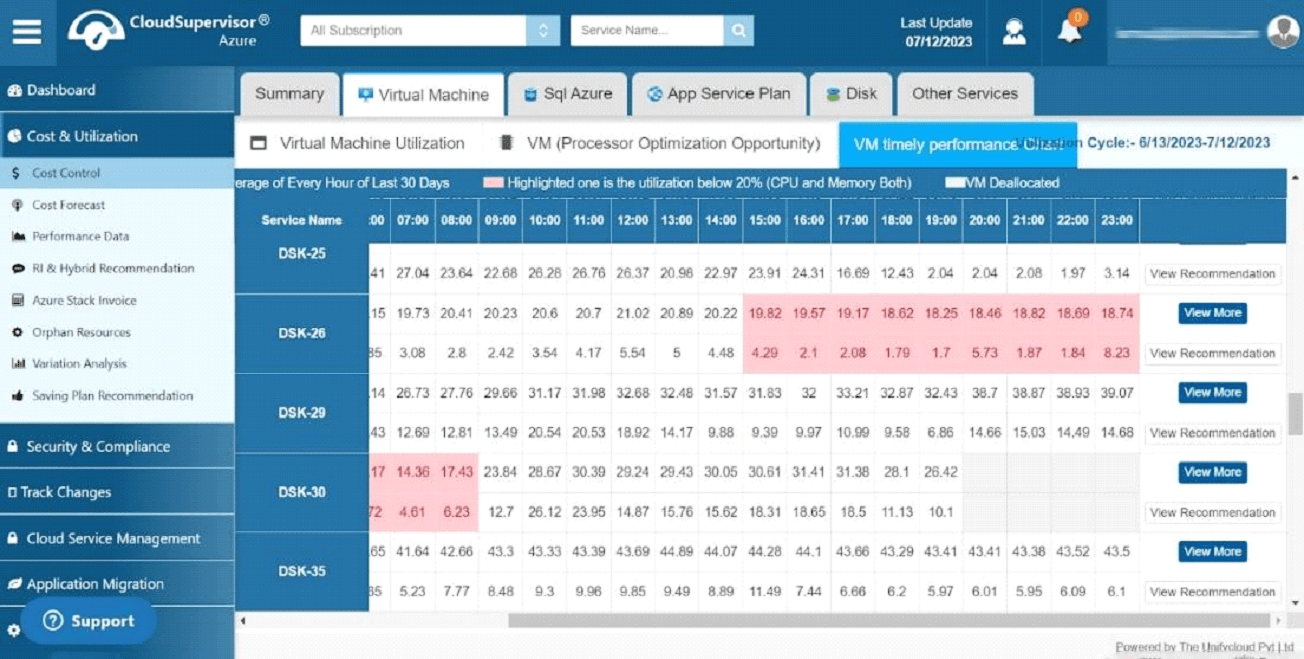
Figure 44: VM Timely Performance Chart
Clicking View More opens an hourly virtual machine utilization grid covering the entire day. The grid provides utilization information based on the previous 30 days.
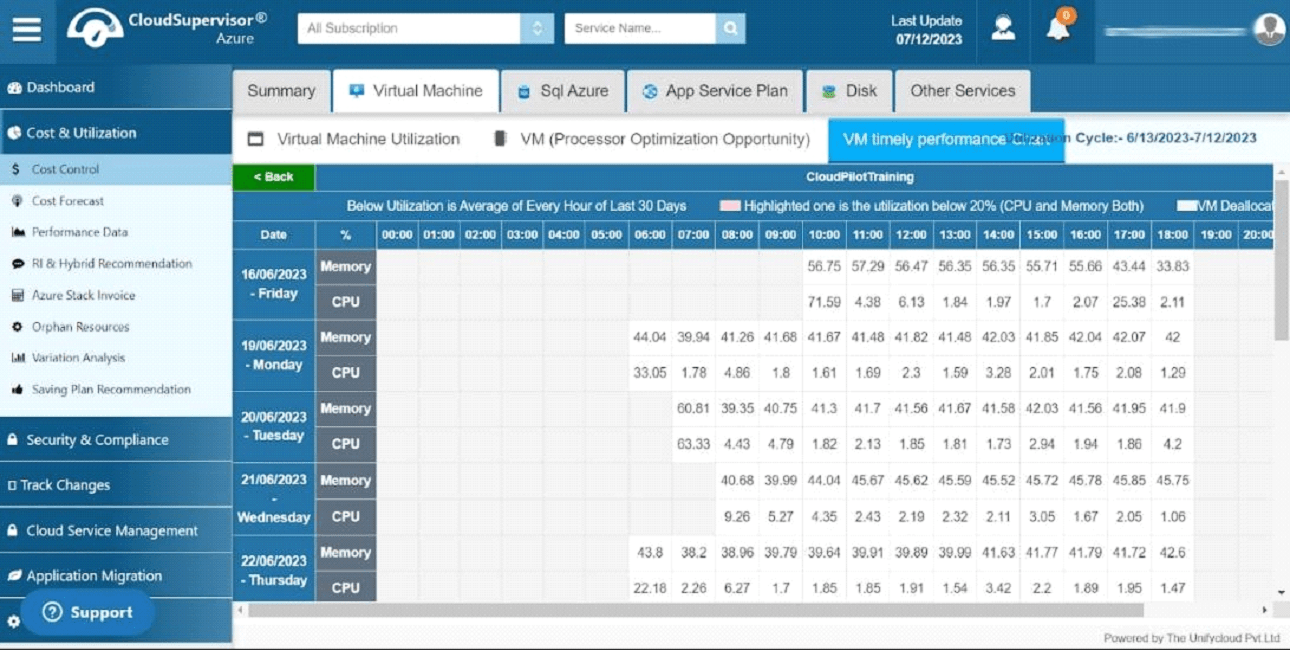
Figure 45: VM Timely Performance Chart
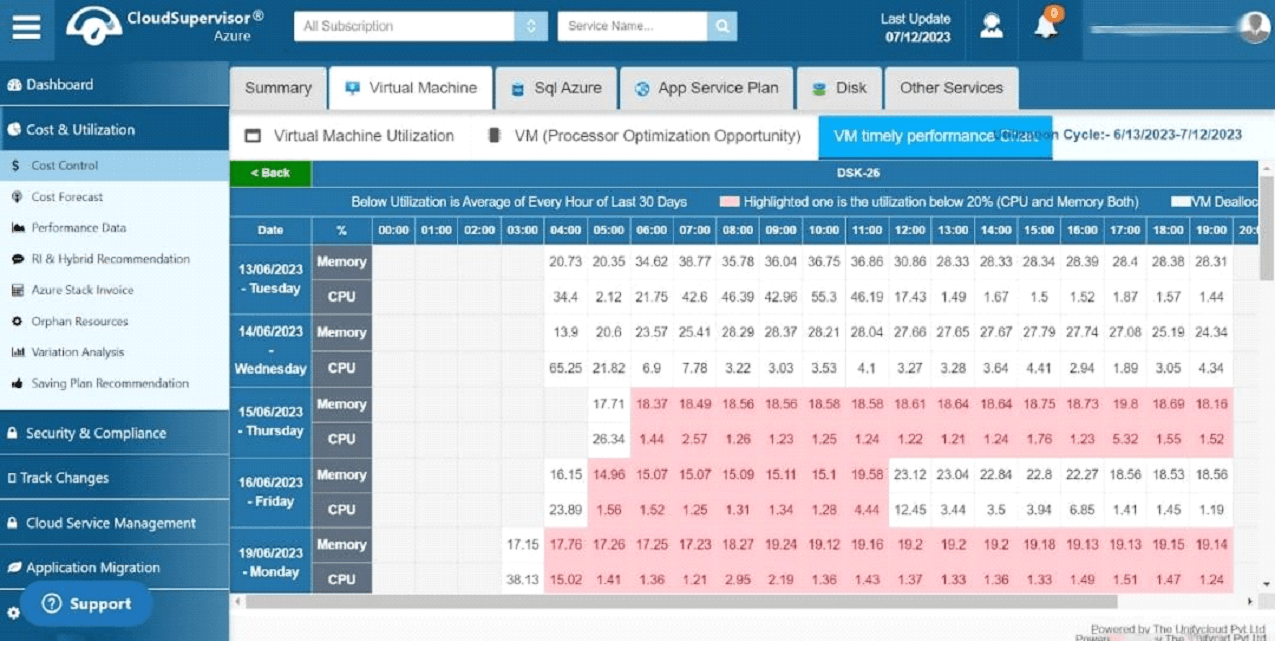
Figure 46: VM Timely Performance Chart – VM Utilization Below 20%
The dashboard identifies virtual machines whose CPU and memory utilization is below 20%.
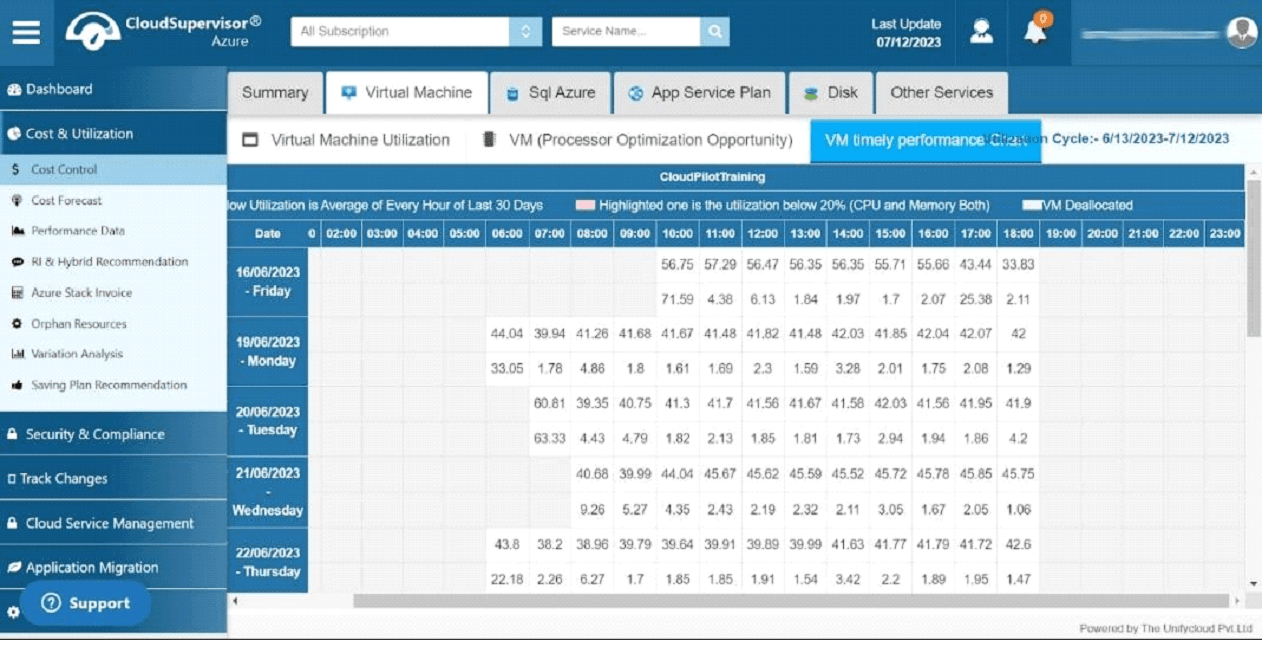
Figure 47: VM Timely Performance Chart
Clicking View More opens the detailed utilization dashboard. Based on the utilization grid, the platform provides recommendations for optimizing virtual machines when CPU or memory utilization is below 20%.
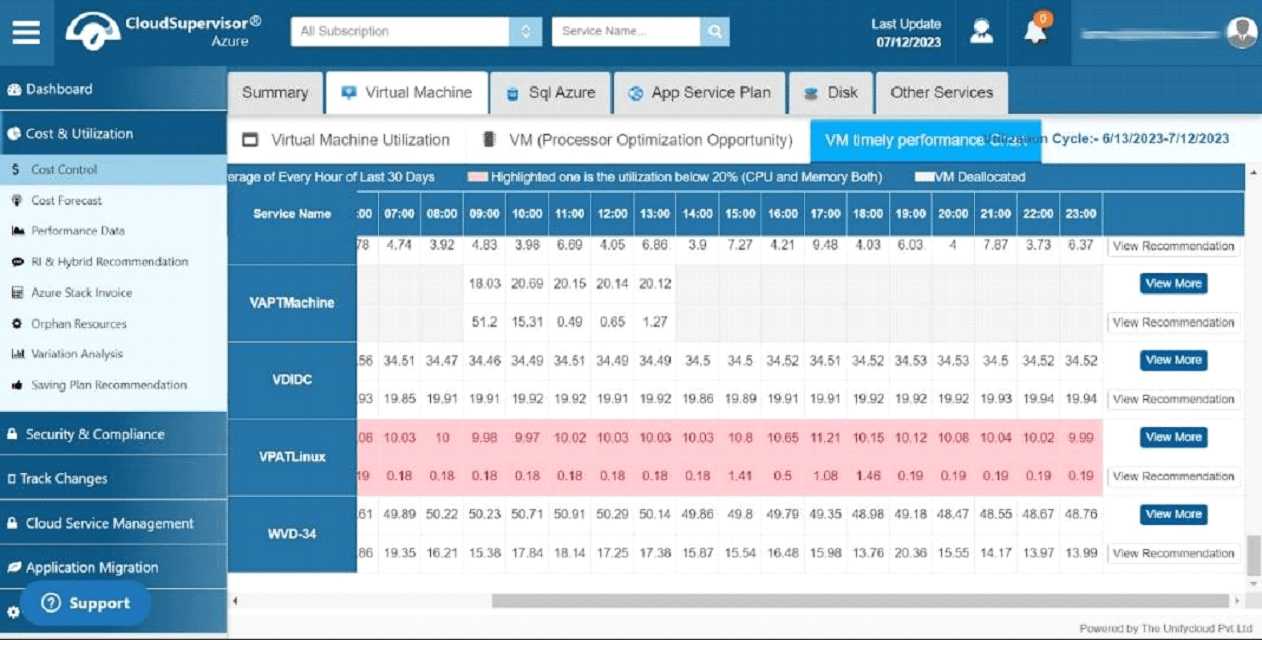
Figure 48: VM Timely Performance Chart
For the virtual machine named VPATLinux, CPU and memory utilization is below 20%. The platform therefore recommends downsizing the machine to improve resource utilization and cost efficiency.
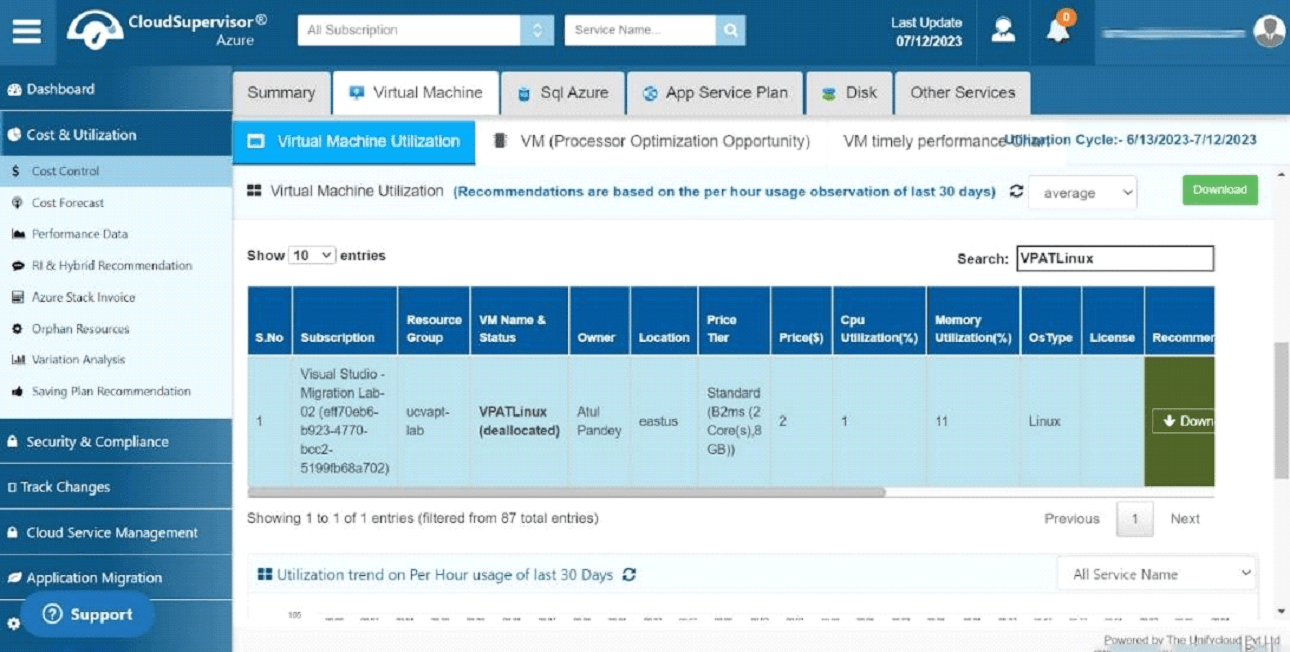
Figure 49: Virtual Machine Utilization
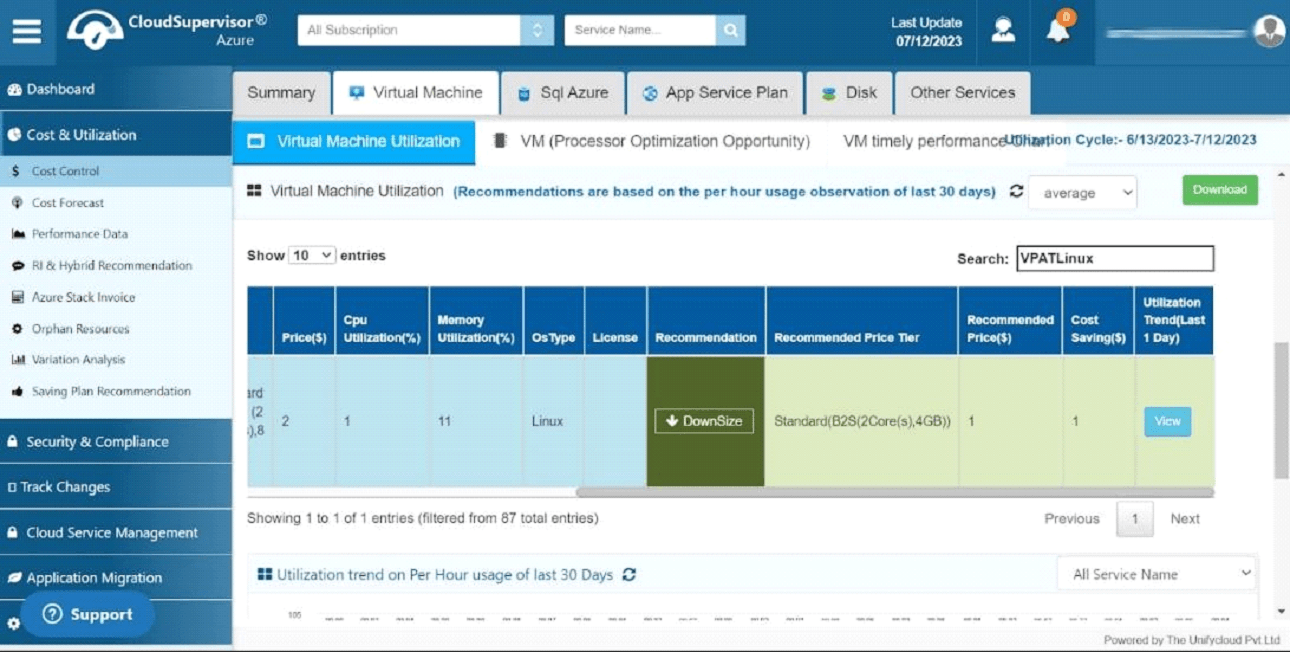
Figure 50: Virtual Machine Utilization
3.2 Disk
The Disk Dashboard provides information about different disk types.
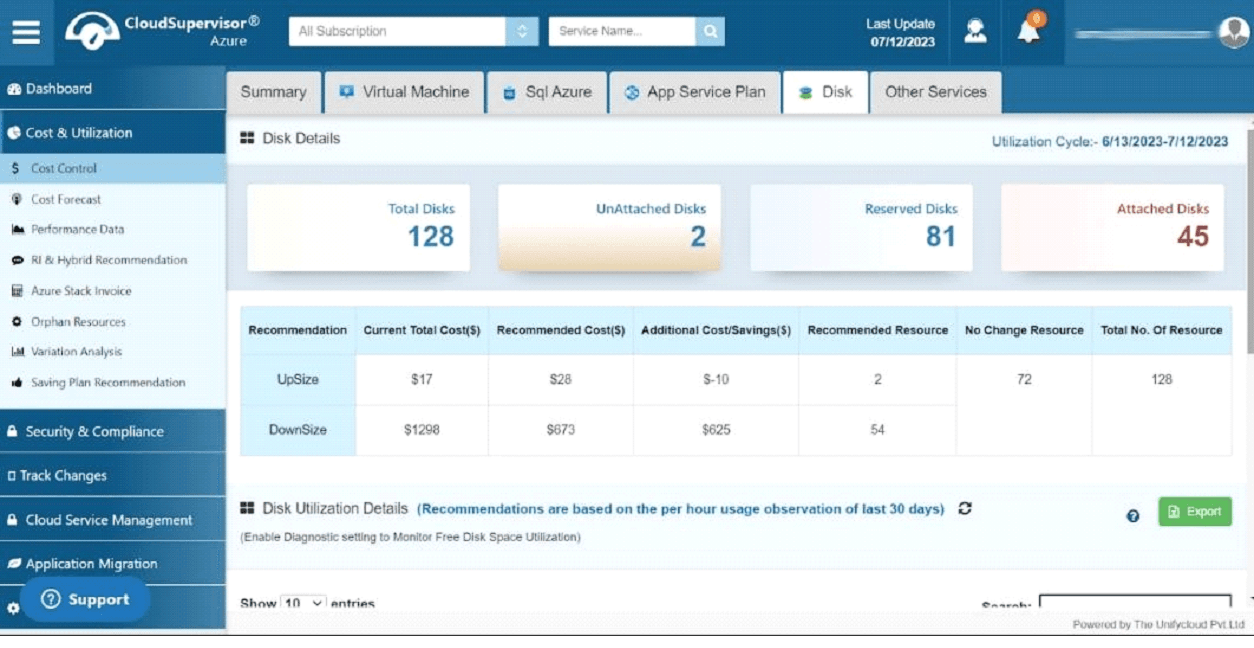
Figure 51: Disk
The dashboard displays the total number of disks, the number of unattached disks, reserved disk counts, and details about attached disks.
Unattached disks may continue to incur charges even when they are not being actively used.
The dashboard also provides a recommendation grid to help users evaluate upsizing and downsizing options and identify potential savings.
3.2.1 Disk Utilization Details
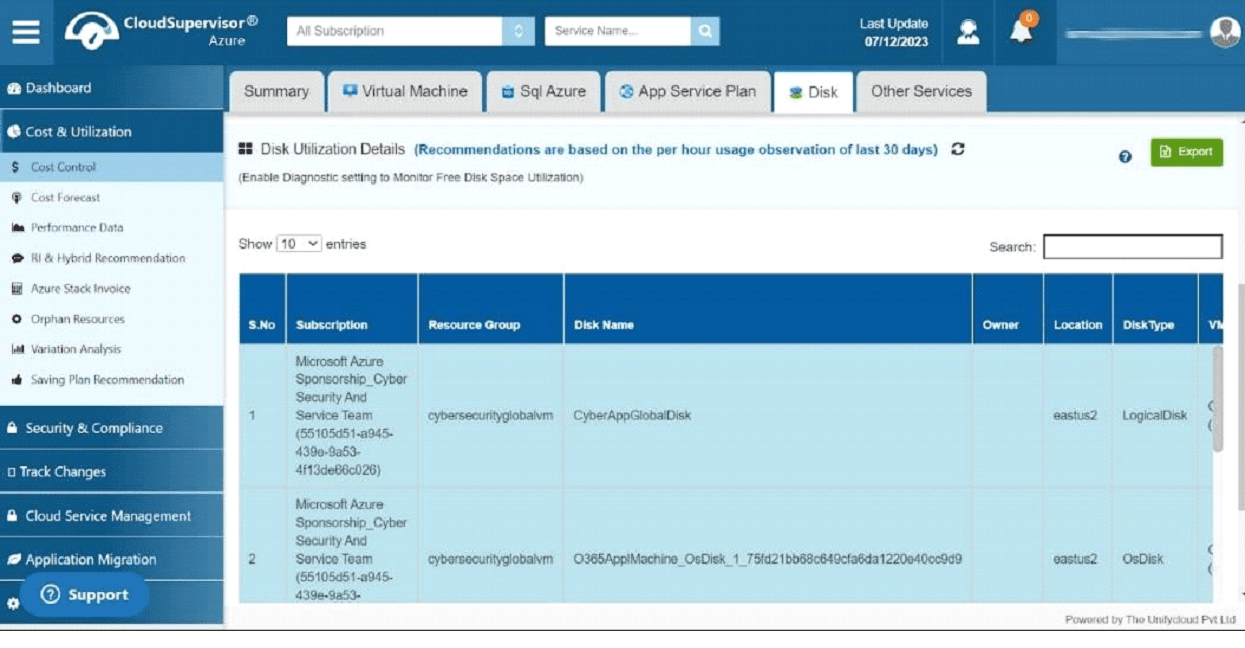
Figure 52: Disk Utilization Details
This dashboard provides subscription, resource group, disk name, location, disk type, disk state (attached or reserved), and price tier information.
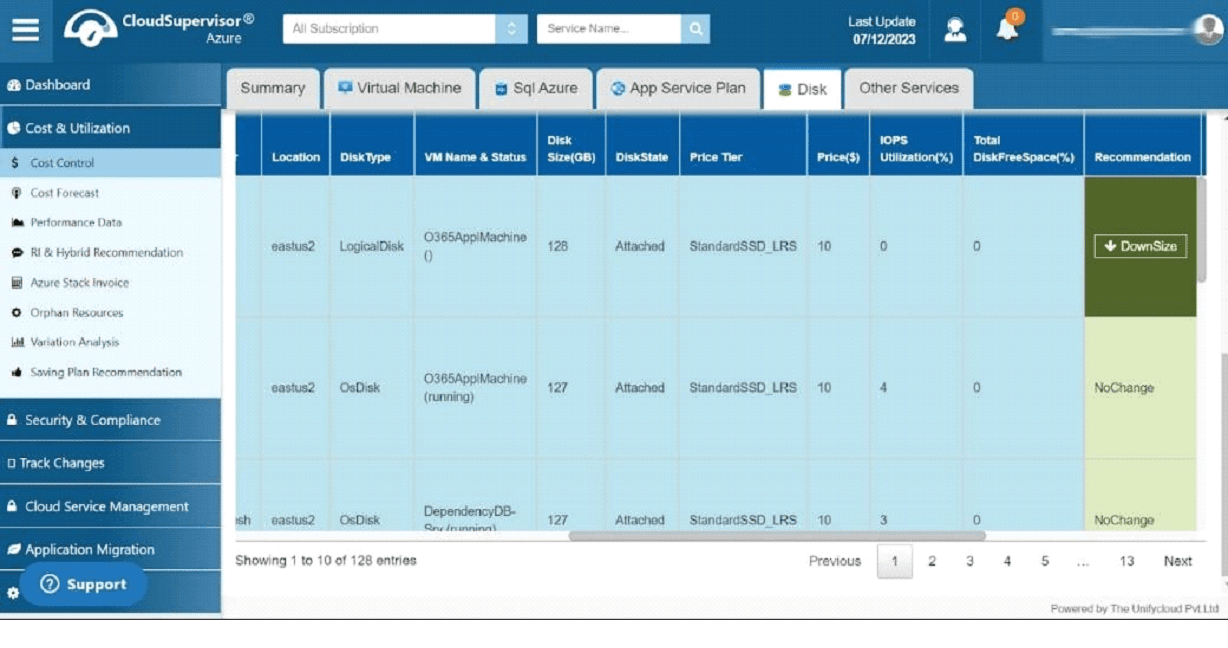
Figure 53: Disk Utilization Details
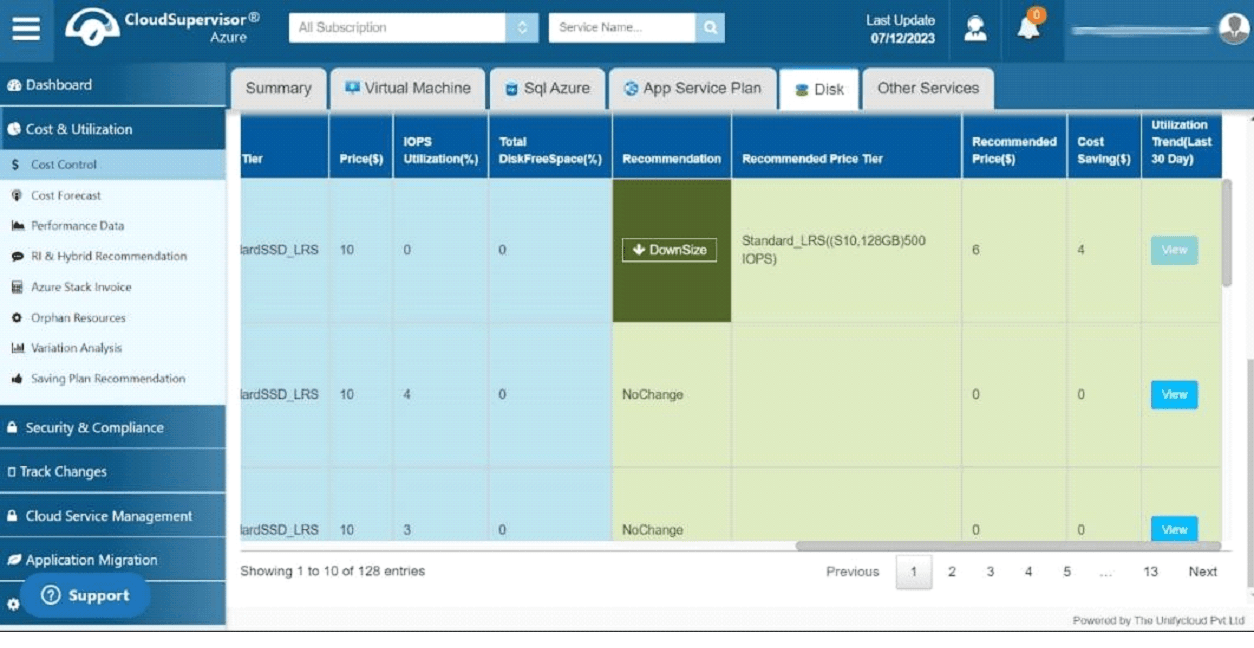
Figure 54: Disk Utilization Details
Based on IOPS utilization, the platform provides recommendations to upsize, downsize, or retain the current configuration to optimize resource usage and reduce costs. Recommendations can also be exported to an Excel spreadsheet.
3.3 Other Services
This dashboard provides utilization details for Azure Database for MySQL and Azure Database for PostgreSQL.
3.3.1 Azure Database for MySQL
The dashboard provides an overview of total subscriptions, services, and associated costs.
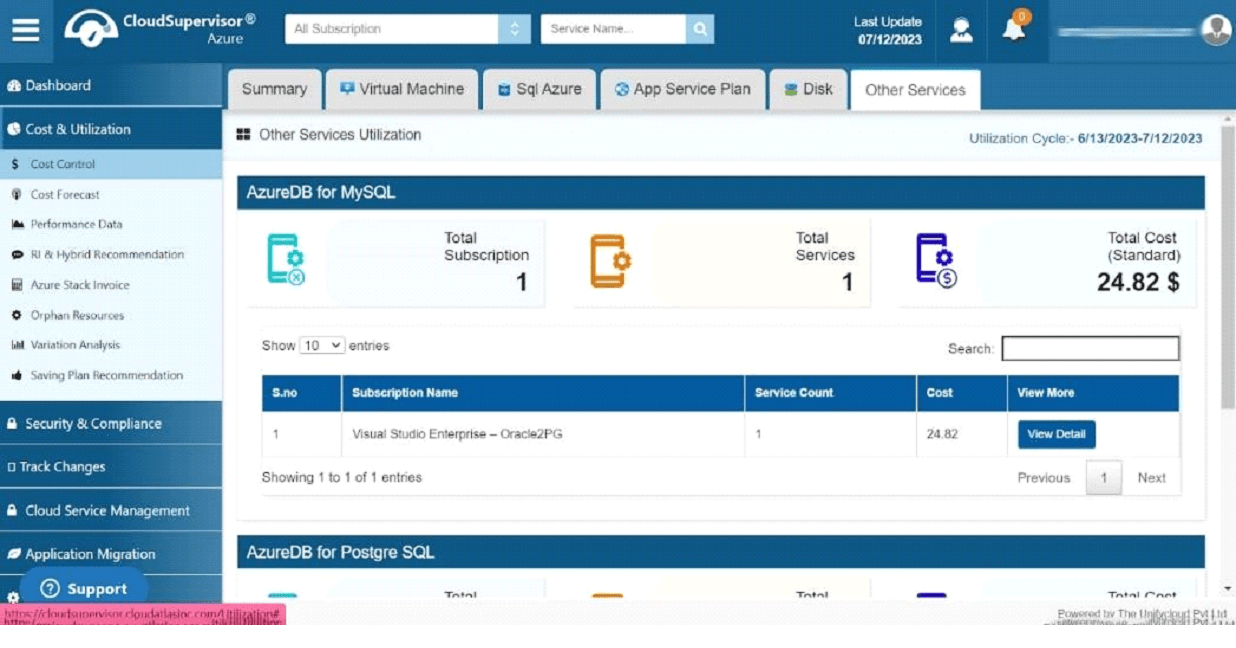
Figure 55: Azure Database for MySQL
Detailed subscription information includes the subscription name, number of services, and cost associated with each subscription.
Clicking the view icon opens the Azure Database for MySQL Utilization Dashboard, which provides service-specific details, CPU and memory utilization percentages, and version history.
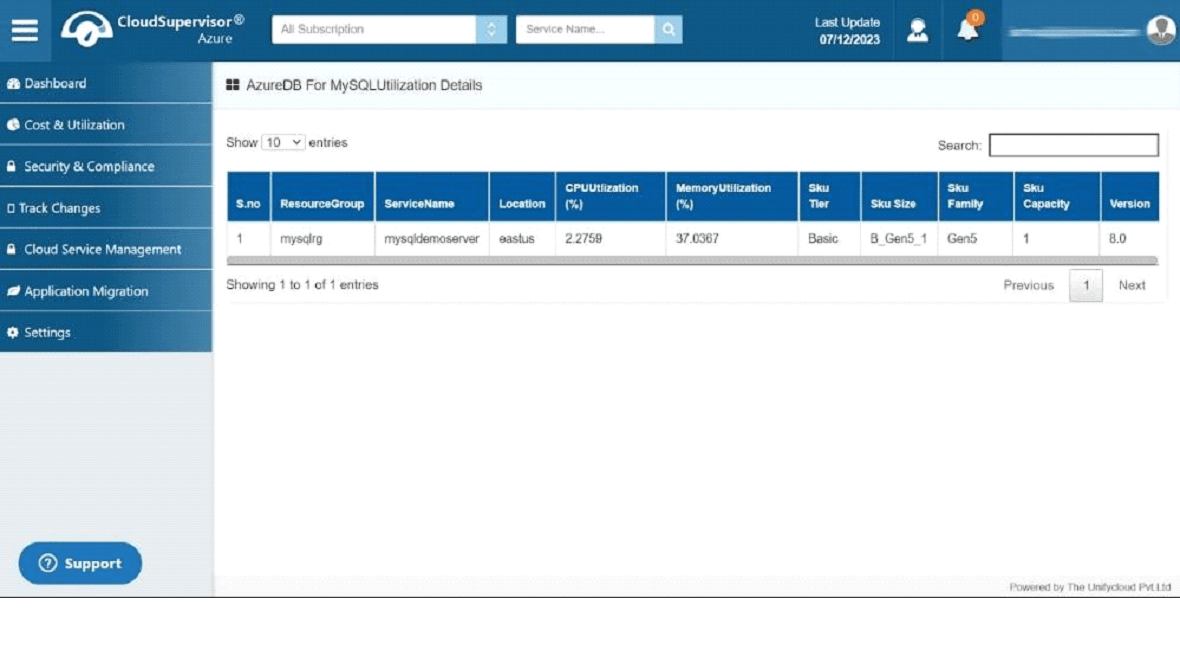
3.3.2 Azure Database for PostgreSQL
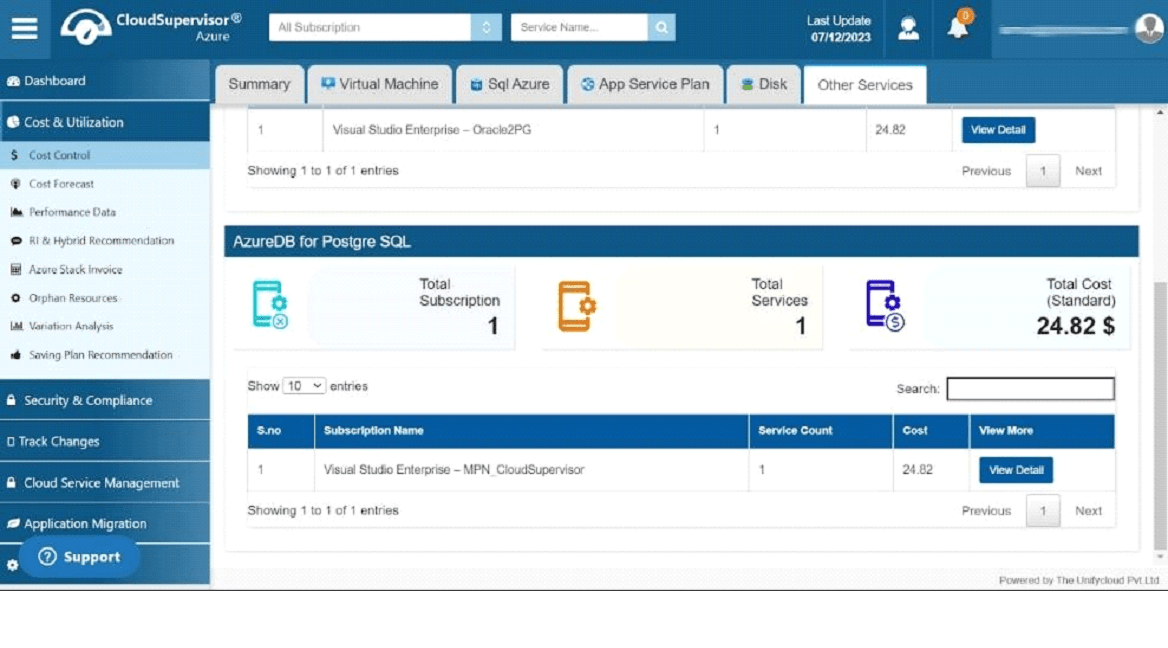
Figure 57: Azure Database for PostgreSQL
The dashboard displays the total number of subscriptions, total number of services, and total cost. The grid includes subscription names, service counts, and costs for each subscription.
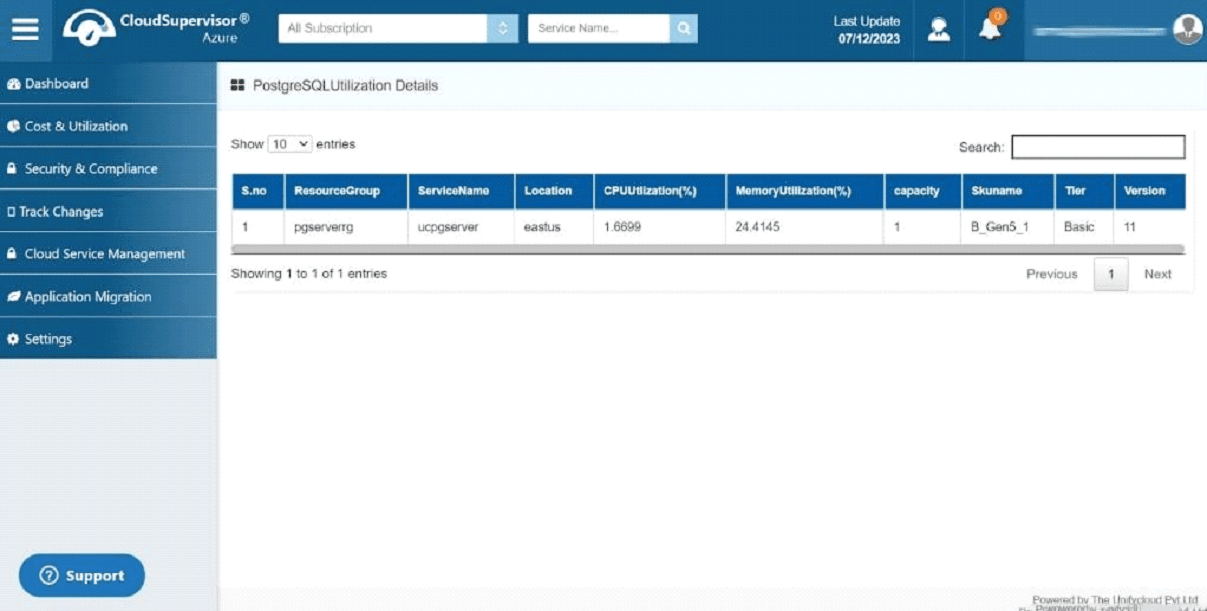
Figure 58: PostgreSQL Utilization Details
Clicking the view icon opens the PostgreSQL Utilization Details dashboard, which provides an overview of service details, CPU and memory utilization percentages, and version history.
4. Orphaned Resources
The Orphaned Resources Dashboard displays the total number of orphaned services and their associated costs.
4.1 Orphaned Resources
Orphaned resources can continue to incur costs despite being unused. The dashboard helps users identify and track these resources to reduce unnecessary expenditure.
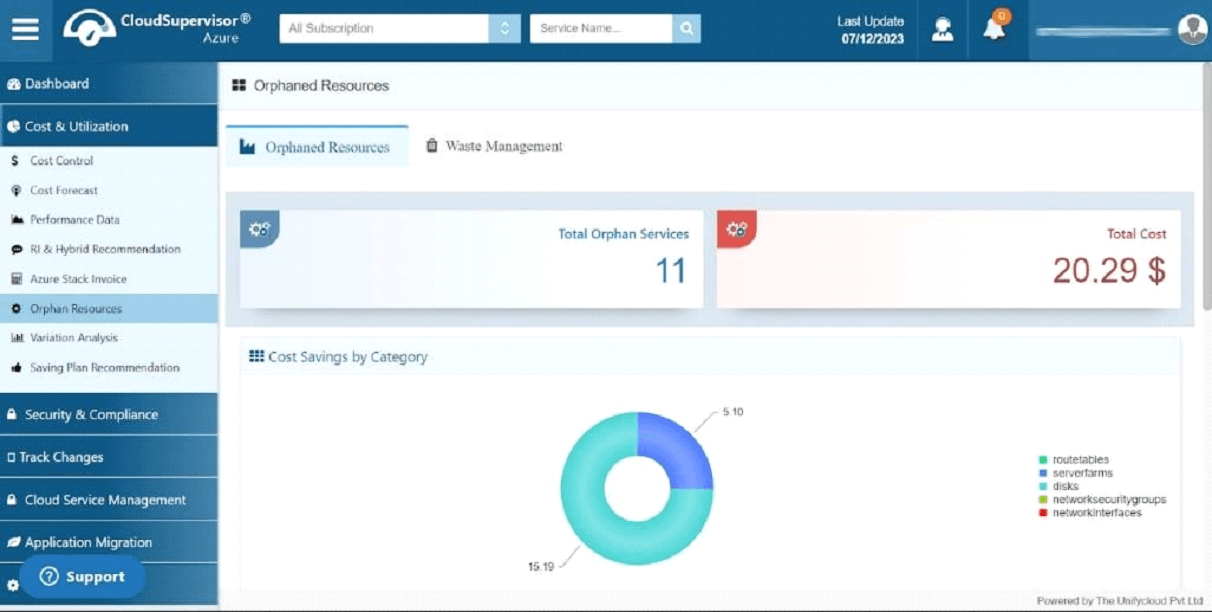
Figure 59: Orphaned Resources
The Cost Savings by Category pie chart displays costs associated with different resource categories, including route tables, server farms, disks, network security groups, and network interfaces.
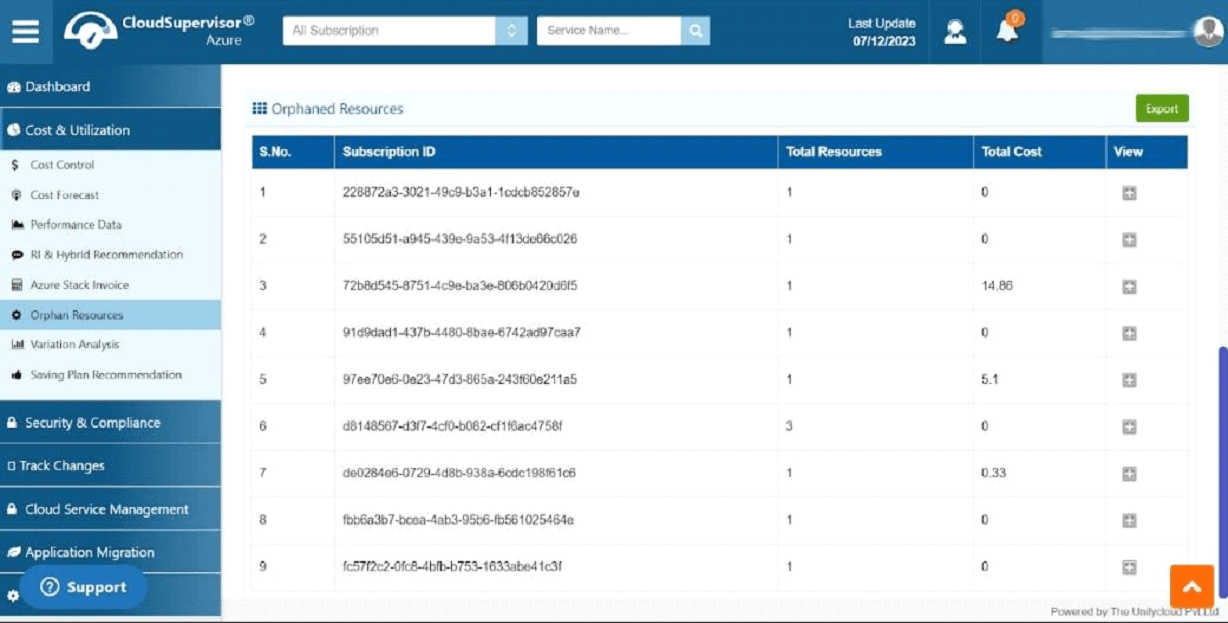
Figure 60: Orphaned Resources – Subscription Details
The dashboard lists orphaned resources and provides details such as subscription ID, total resources, and total cost. Clicking the plus icon displays additional information about a specific subscription.
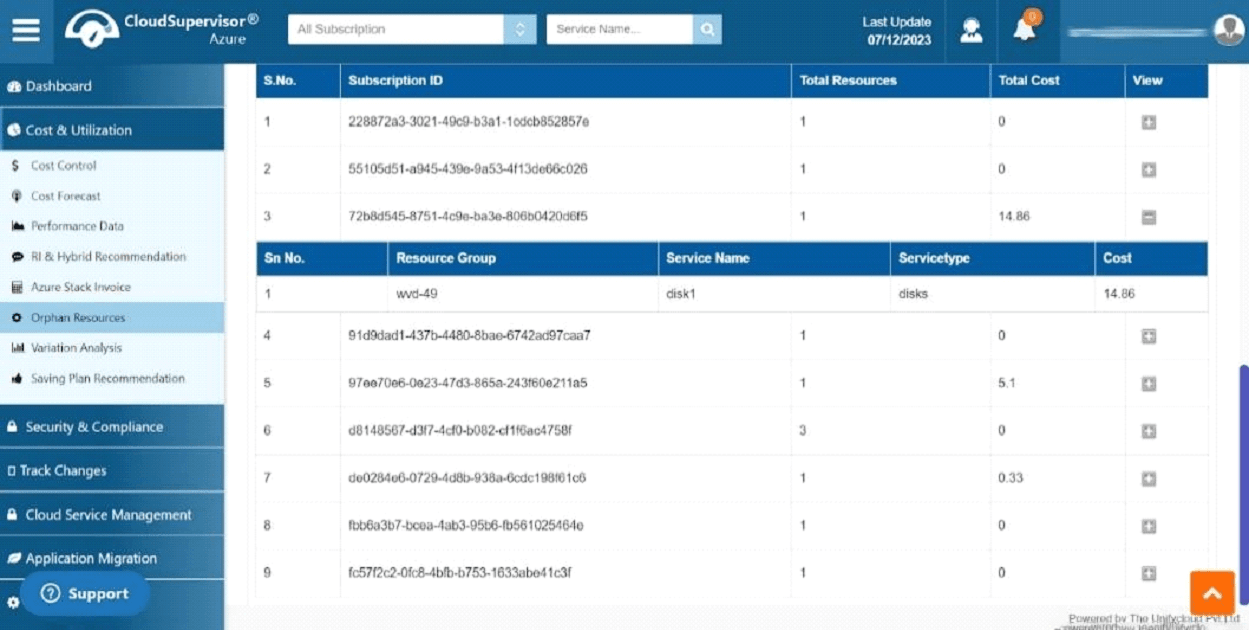
Figure 61: Orphaned Resources
This opens a grid containing details about the resource group responsible for the unnecessary costs.
4.2 Waste Management
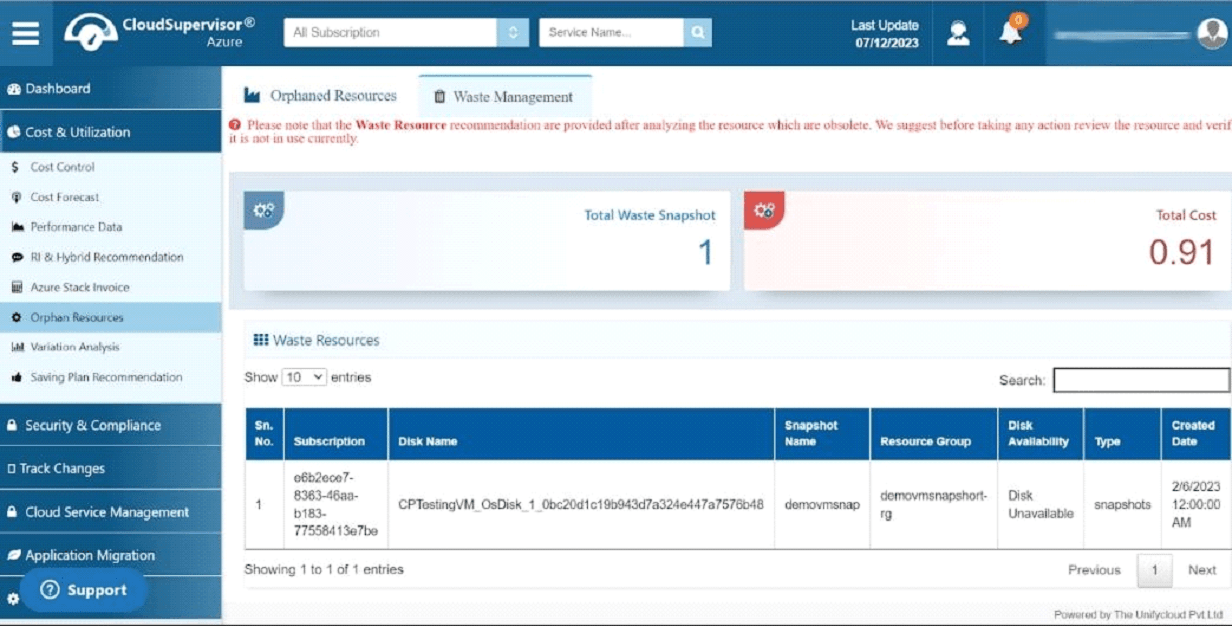
Figure 62: Waste Management
The Waste Management Dashboard helps identify and manage unused resources to reduce cloud expenditure. It also provides recommendations to support effective resource management.