
CloudRecon Product Release
INTRODUCTION
PURPOSE
This document outlines the new features being rolled out on the CloudRecon portal in February 2021. Customers can use this document as a guide to understand and leverage the benefits of these features.
INTENDED AUDIENCE AND PERTINENT SECTIONS
This document is intended as a reference for company internal personnel, customers, and partners.
1. NEW FEATURES
1.1 Upload Block64 Template
To upload your Block64 template, navigate to the “Upload Inventory” section on the portal and select the “Block64” option at the bottom of the available list. Drag and drop your template file to upload it as an inventory, as shown in Figure 1.
Use Case: This feature allows customers to upload their on-premises inventory when they have the corresponding Block64 template data.
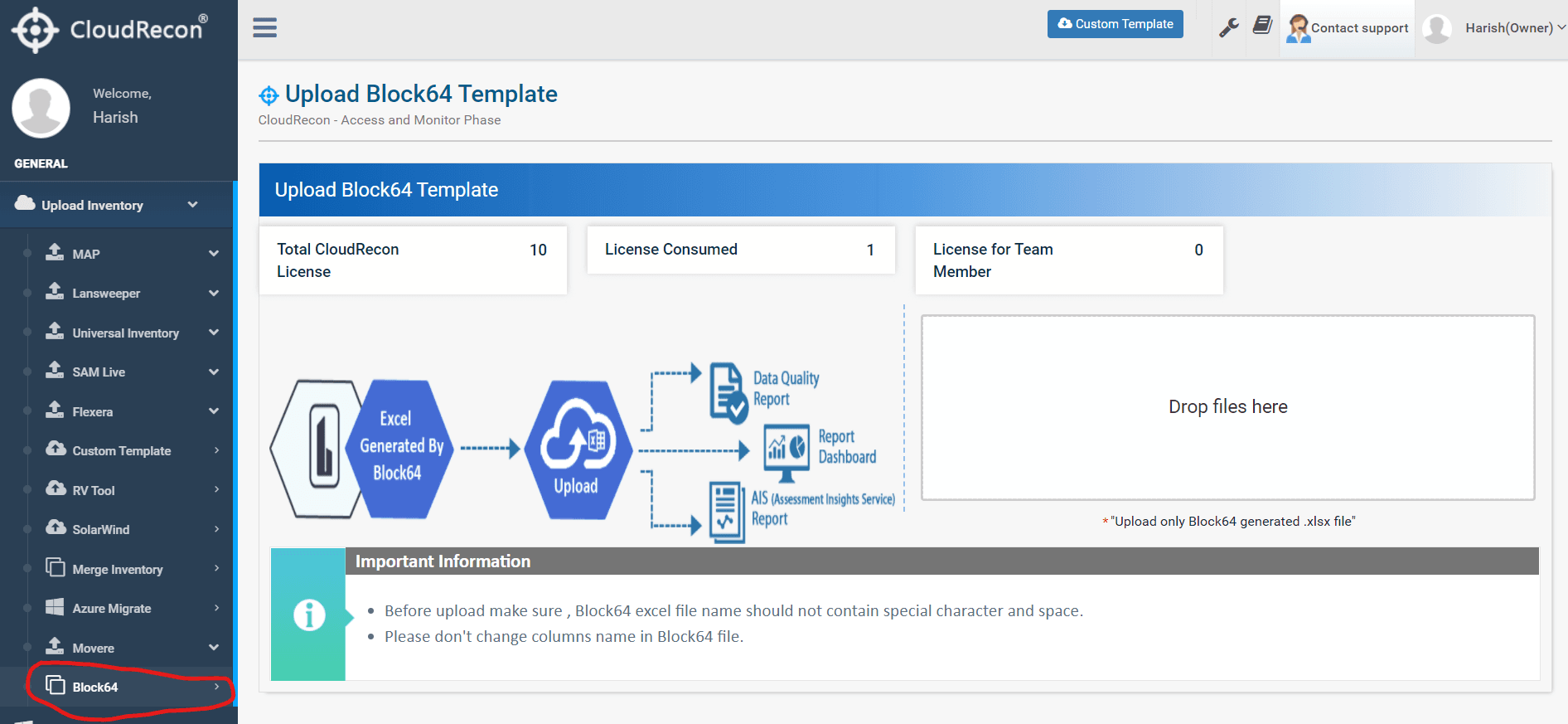
Figure 1: Block64 Template Upload
1.2 Bulk Apply
1.2.1 BulkApply (Environment)
You can now upload environment information in bulk through the inventory dashboard. Navigate to the “Missing/Update Info” section and select “BulkApply(Environment)” to access this feature.
Use Case: This feature allows customers to upload a template containing multiple changes instead of making the same changes manually in the report. Follow these steps, as shown in Figure 2:
- Step 1: Download the prefilled environment template.
- Step 2: Enter the required details, modify the template, and upload it.
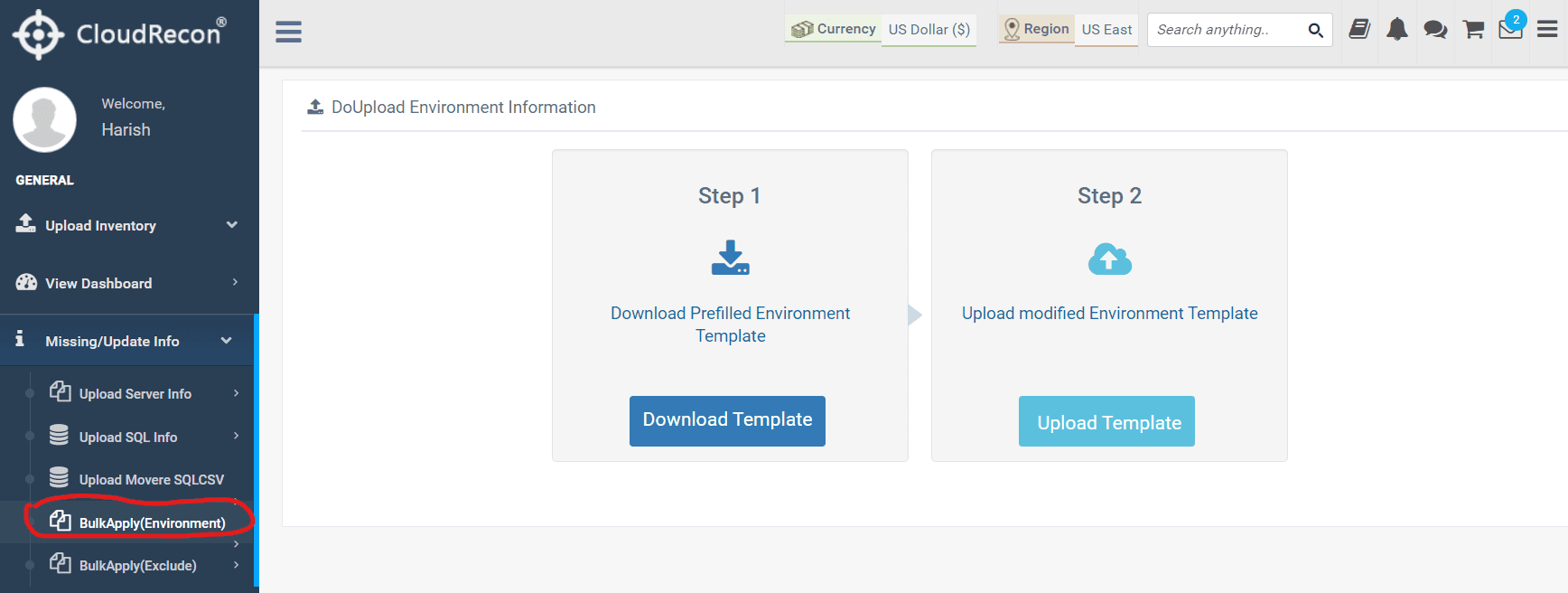
Figure 2: BulkApply (Environment)
1.2.2 BulkApply (Exclude)
You can now bulk-include or bulk-exclude machines to manage which inventory machines are considered in the report. Select “BulkApply(Exclude)” from the “Missing/Update Info” section of the dashboard to access this feature.
Use Case: This feature allows customers to include or exclude machines by editing and uploading a file containing bulk changes, instead of updating machines individually through the report. Follow these steps, as shown in Figure 3:
- Step 1: Download the prefilled template containing machine details.
- Step 2: Enter the required machine details to include or exclude, then upload the modified template.
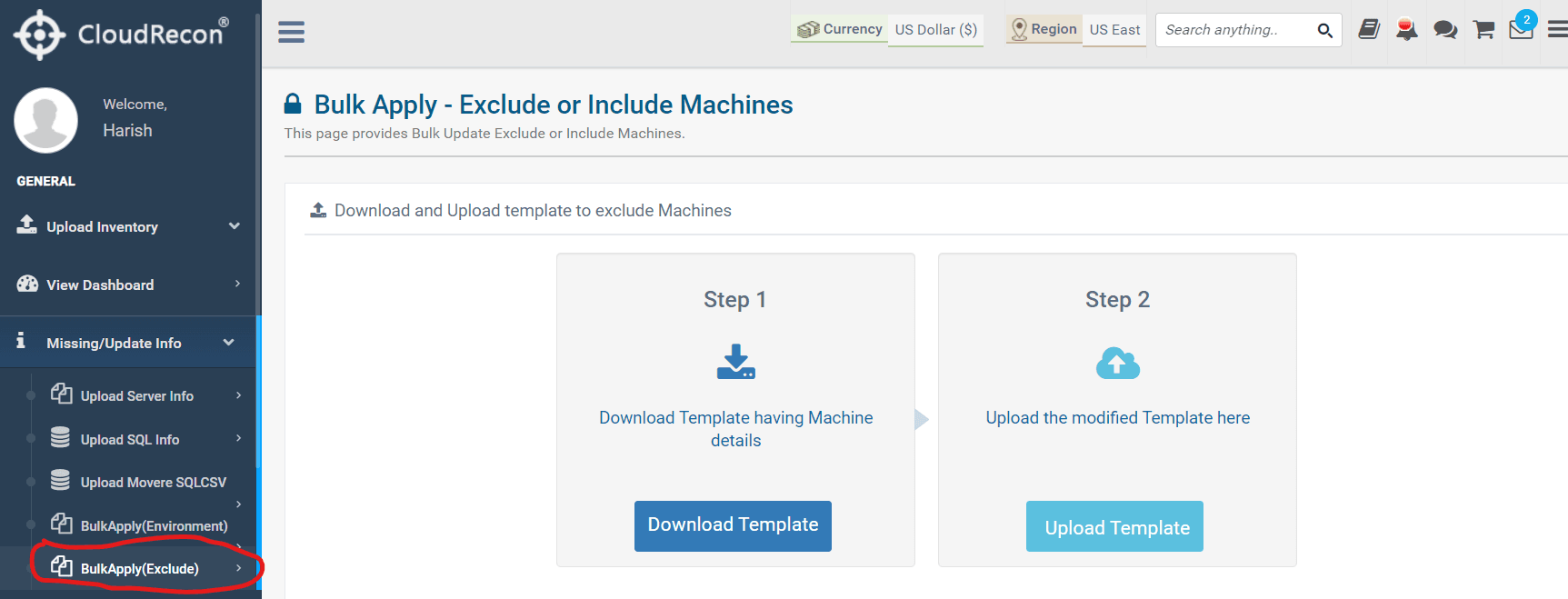
Figure 3: BulkApply (Exclude)
1.3 Elastic Pool
1.3.1 Elastic Pool Report
This new report is available in the “Data Estate” section of the dashboard. The Elastic Pool Report provides relevant information about SQL Azure Elastic Pool, along with associated cost analysis.
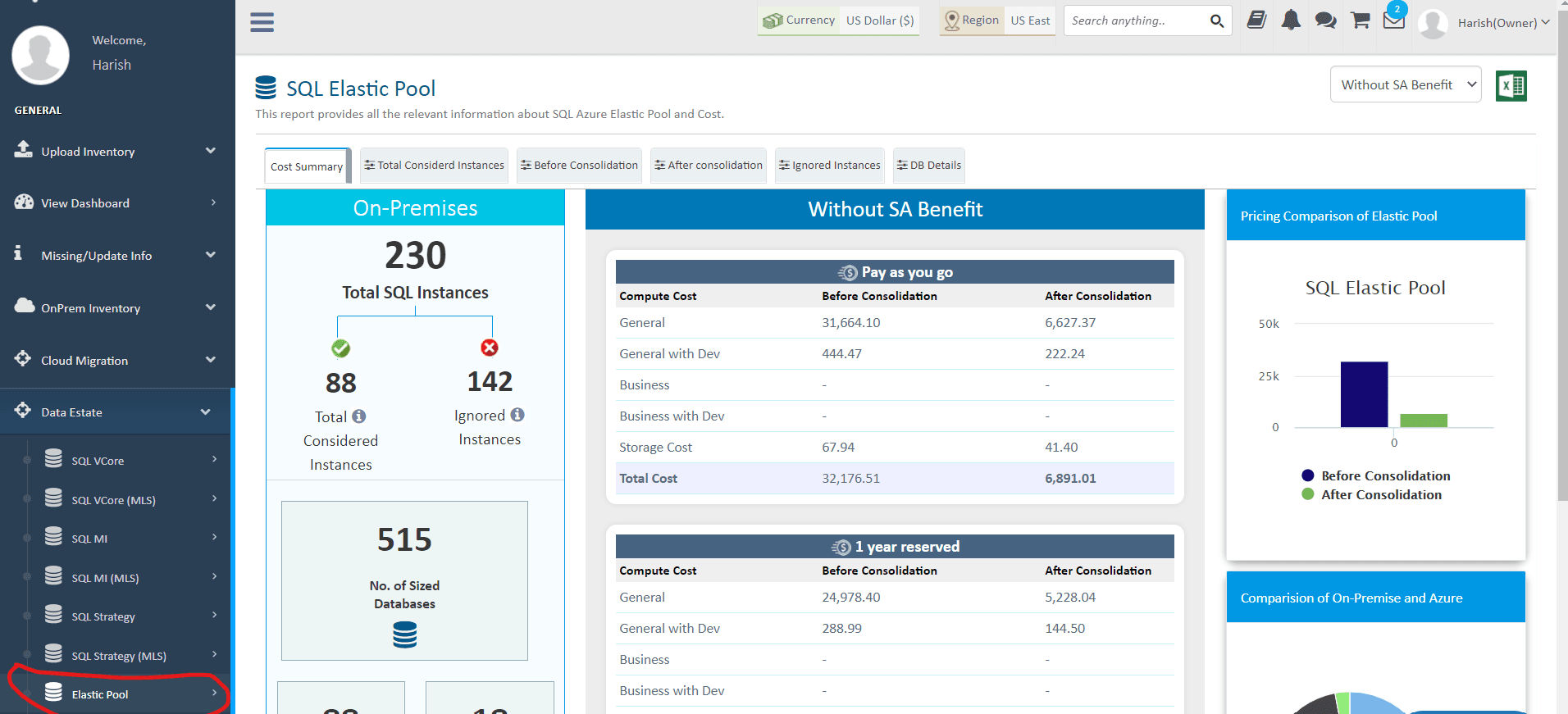
Figure 4: Elastic Pool Report
1.3.2 Elastic Pool with MLS
This report provides relevant information and cost analysis for SQL Azure Elastic Pool with MLS.
Use Case: You can upload your Microsoft License File to identify additional cost-saving opportunities for SQL Elastic Pool and generate a report based on that information. This report is available under the “Data Estate” section of the dashboard as “Elastic Pool with MLS,” as shown in Figure 5.
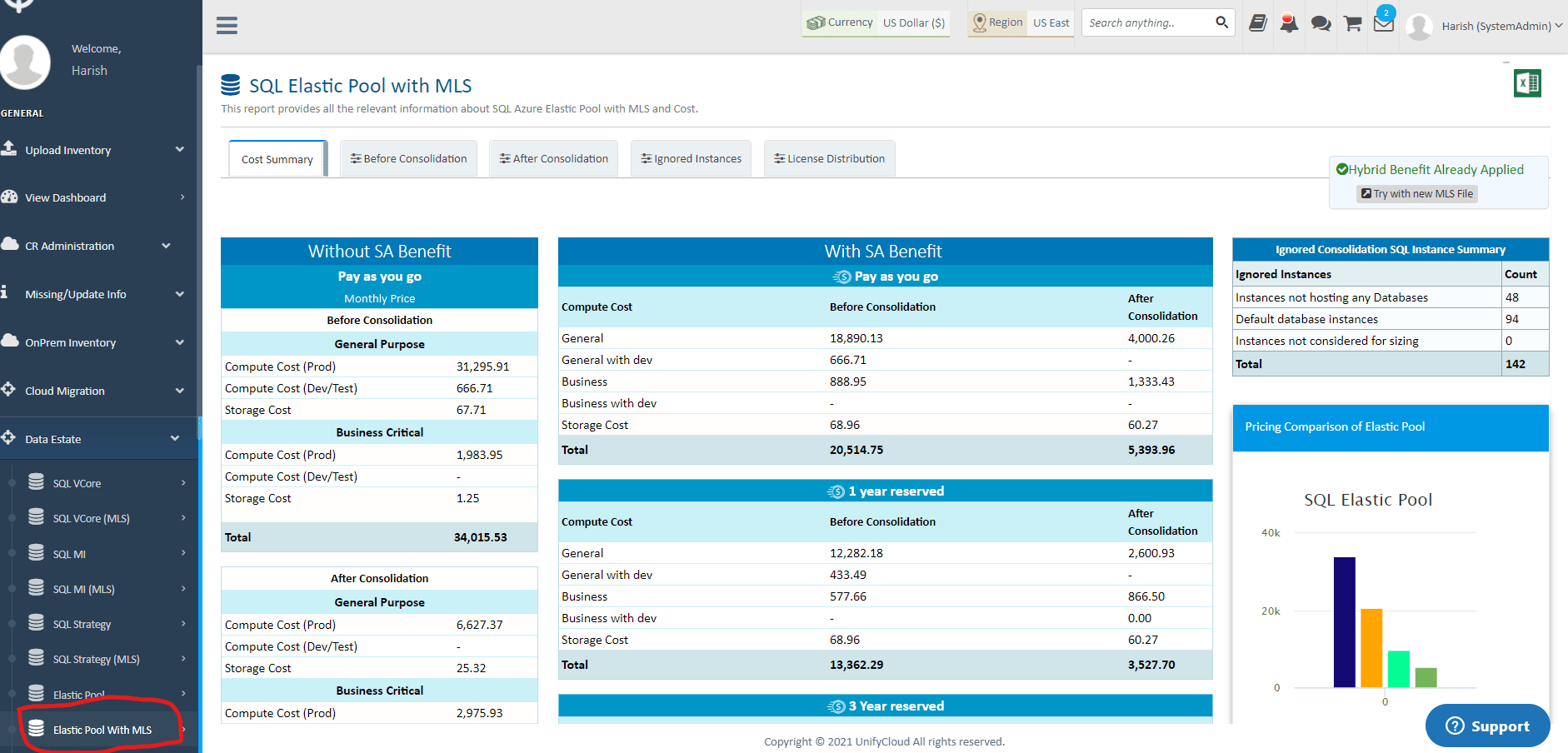
Figure 5: Elastic Pool with MLS Report
1.4 Lift & Shift (MLS): Manual License Apply
You can now apply MLS licensing manually when an MLS file is unavailable. Select “Apply License Manually” in the Lift & Shift (MLS) report to enter the license details.
Use Case: This feature allows you to use MLS functionality without an MLS file. Enter the license details and save the information, as shown in Figure 6.
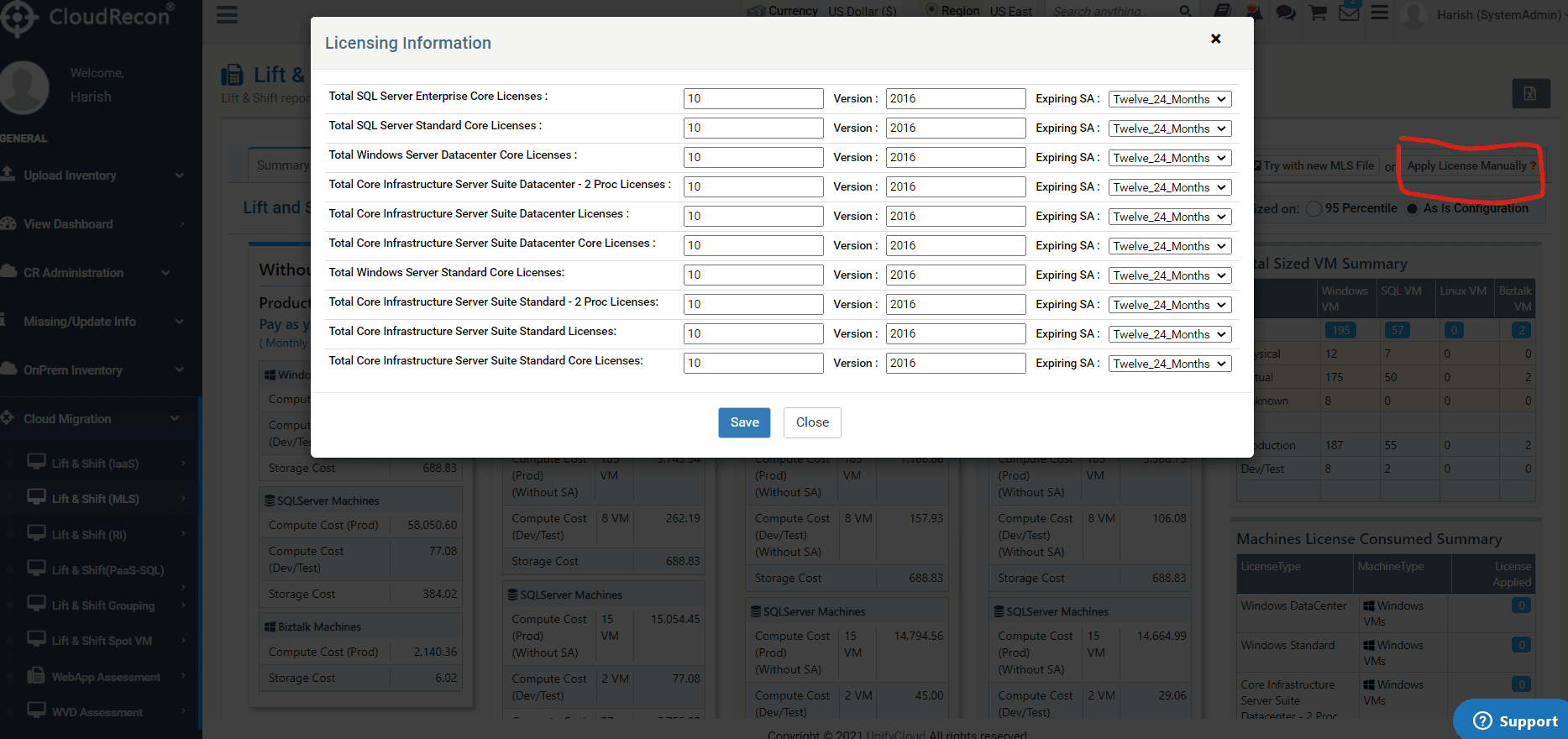
Figure 6: Manual License Application in Lift & Shift (MLS)
1.5 RHEL (Linux)
RHEL (Linux) has been added as a new benefit option in the Lift & Shift reports. You can use this option in both the Lift & Shift (IaaS) and Lift & Shift (PaaS-SQL) reports.
Use Case: You can choose to include the license or apply the Hybrid Benefit (Pay as You Go) option for additional cost savings. The selected option will be reflected in the final TCO report.
Step 1: Select the RHEL (Linux) option under “Pricing Filter” in the Lift & Shift (IaaS) report, as shown in Figure 7.
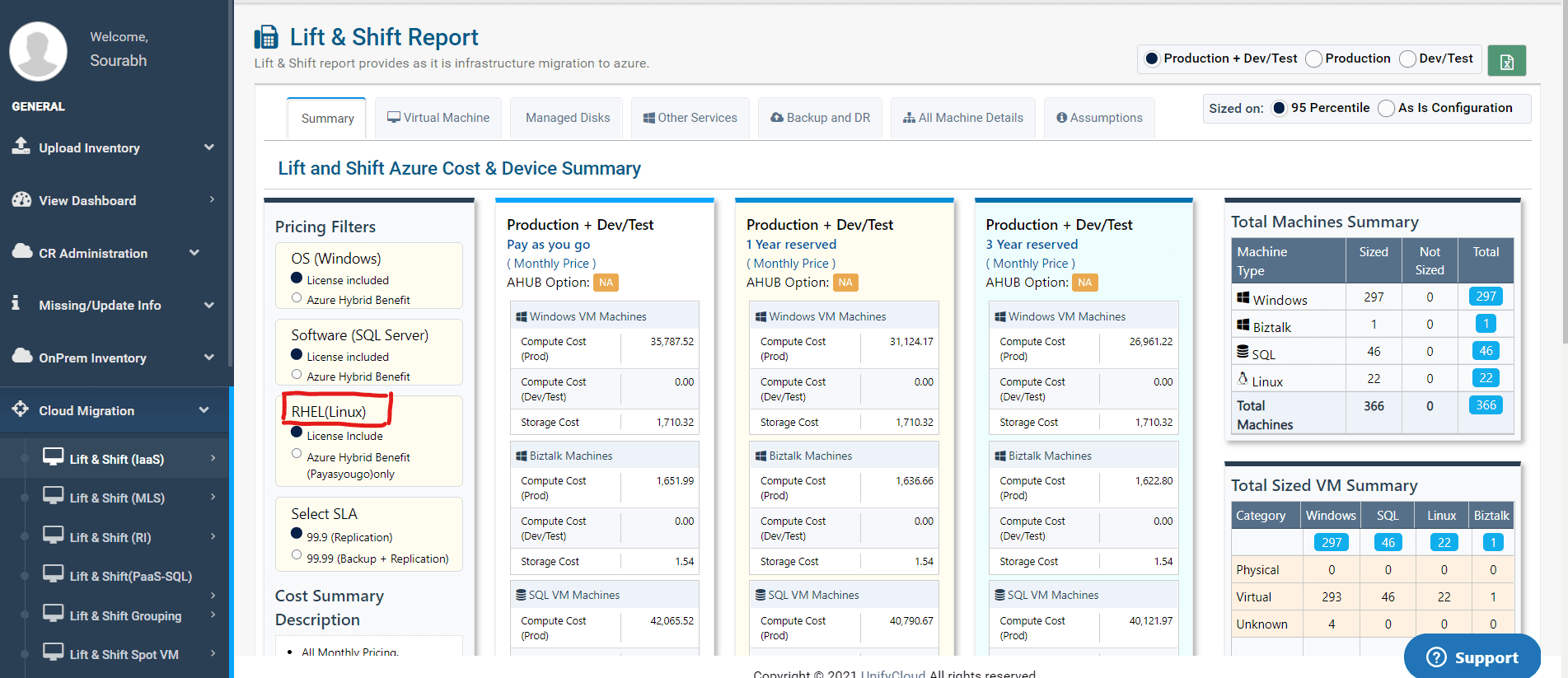
Figure 7: RHEL (Linux) in Lift & Shift (IaaS)
Step 2: Select the RHEL License option under “Machine Details” in the Lift & Shift (PaaS-SQL) report, as shown in Figure 8.
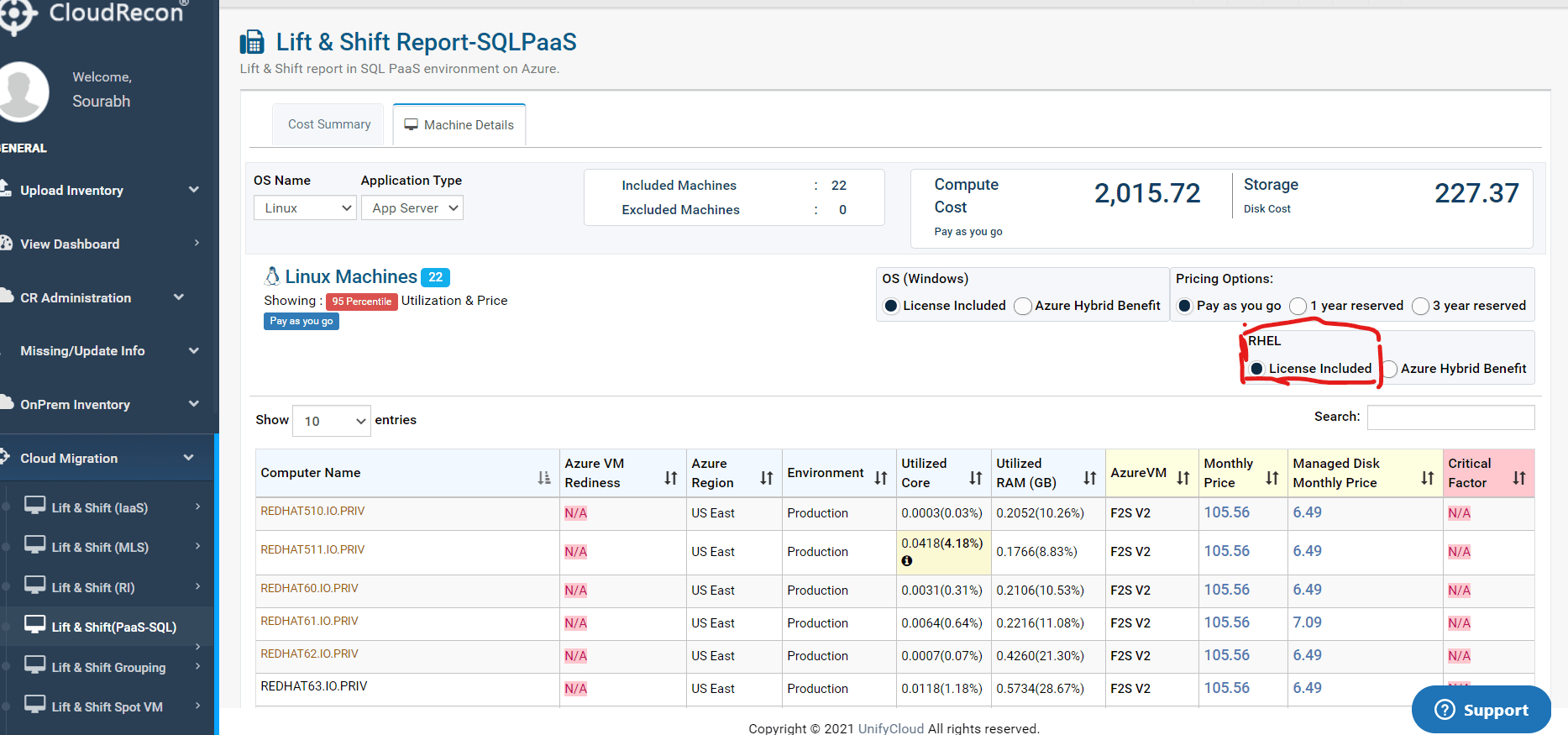
Figure 8: RHEL (Linux) in Lift & Shift (PaaS-SQL)
2. FEATURE UPDATES
2.1 Managed Disk Details
Previously, the Lift & Shift report recommended one consolidated Managed Disk for each sized VM. The report now uses individual Managed Disks to size VMs and displays their details in the “Managed Disks” section.
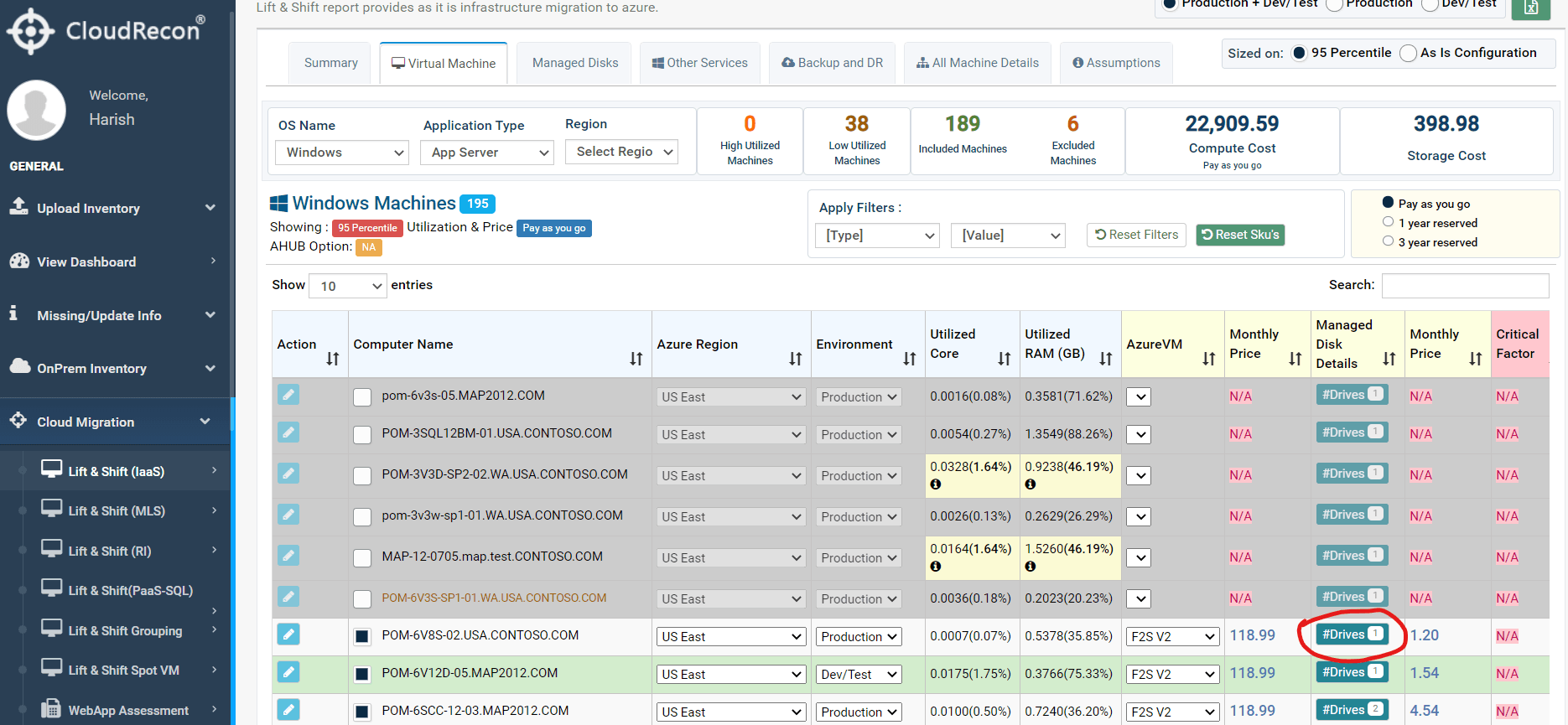
Figure 9: Drive Option for a VM Under Managed Disk Details
Click the “#Drives” option to view the Managed Disk drives associated with that VM, as shown in Figure 10.
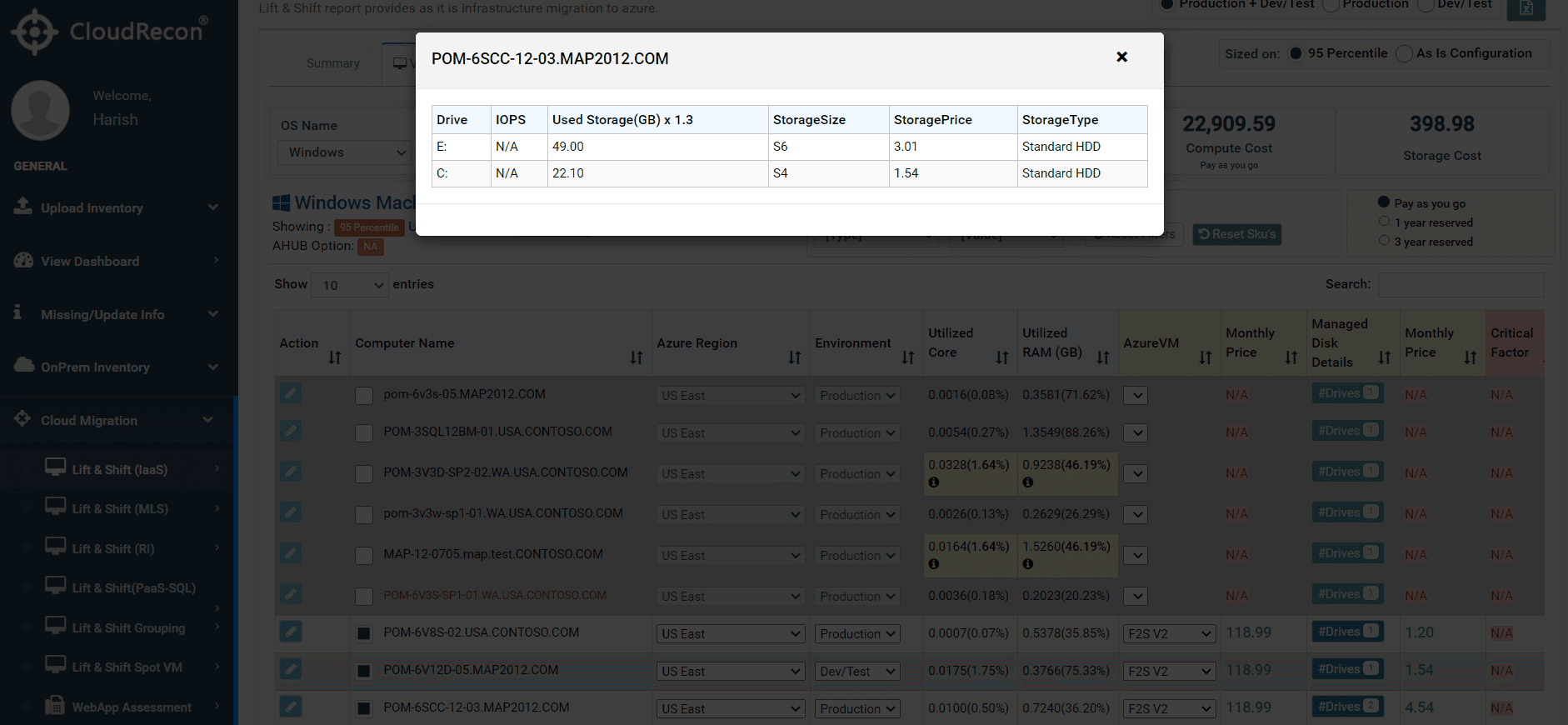
Figure 10: Drive Details
Navigate to the “Managed Disks” section of the report to view the Managed Disk details.
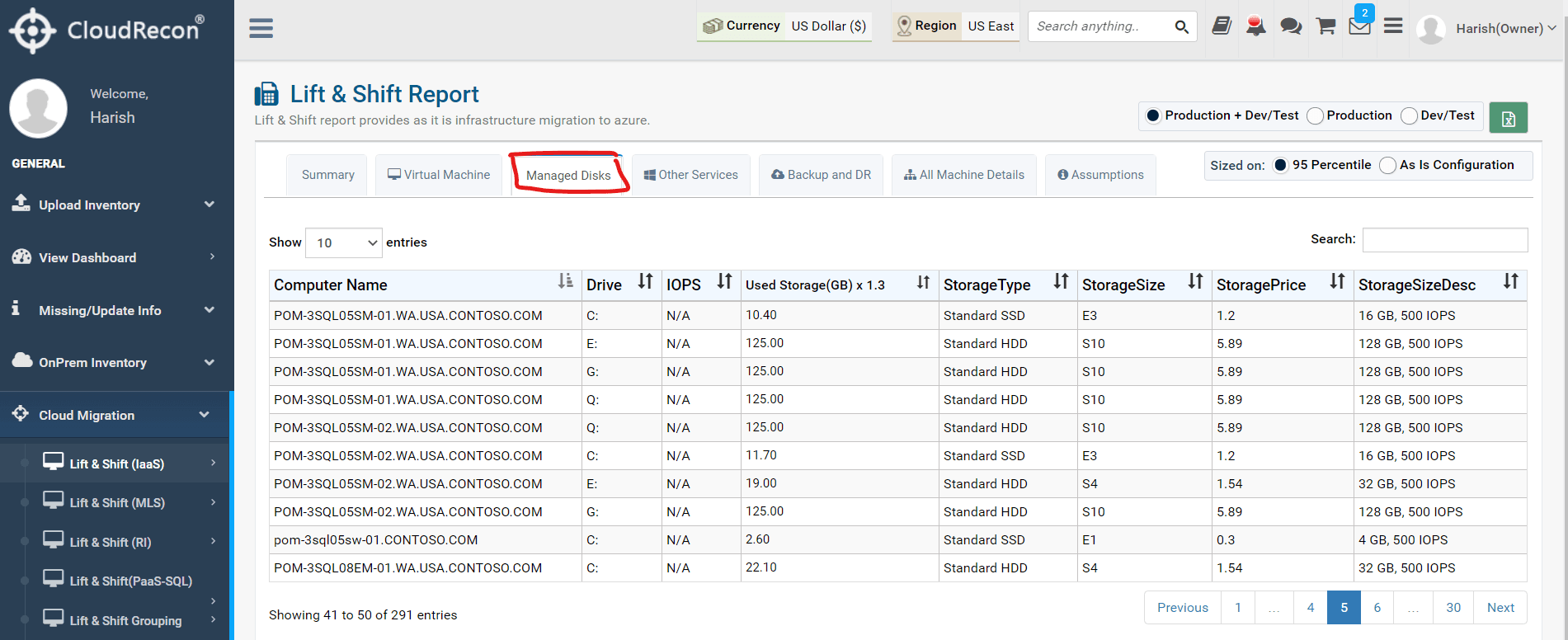
Figure 11: Managed Disks
2.2 IOPS
For each Managed Disk, IOPS will now be displayed as “N/A” when no IOPS information is available, instead of retaining a value of “0,” as shown in Figure 12.
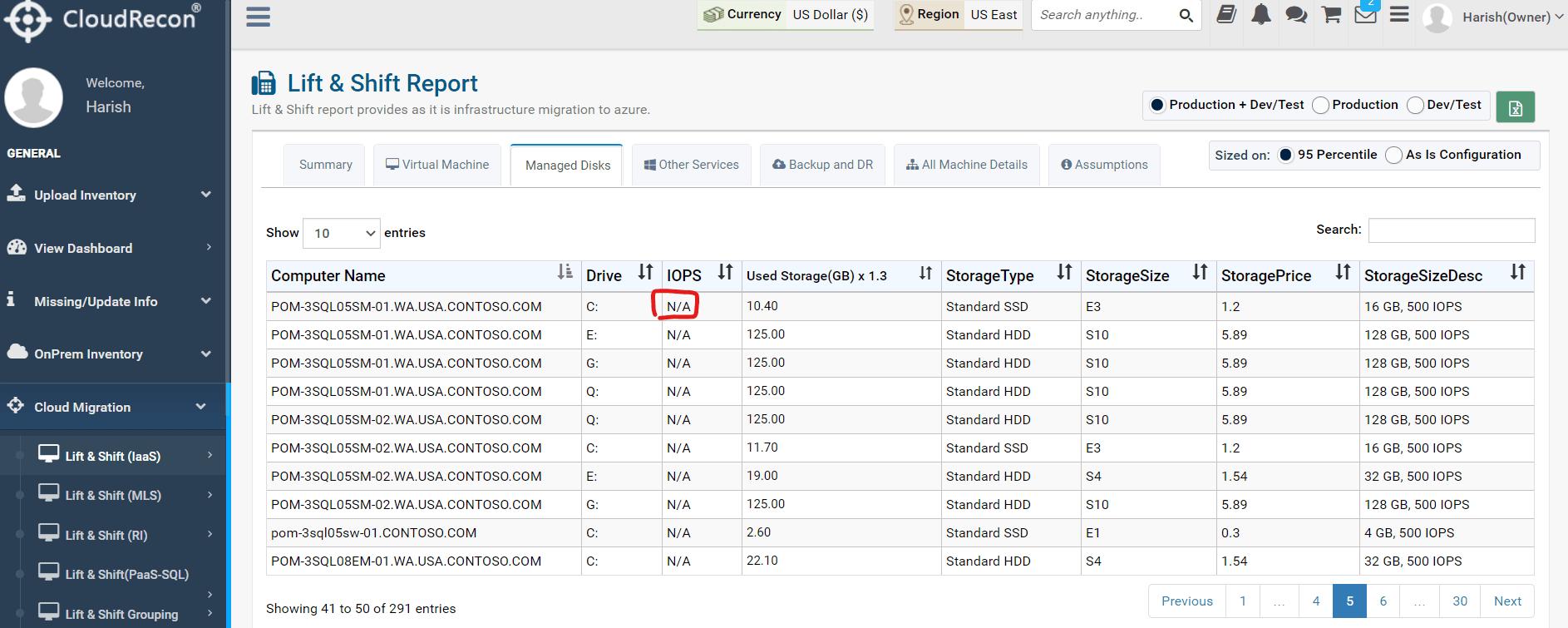
Figure 12: IOPS Value