
INTRODUCTION
PURPOSE
This document outlines the new features being rolled out on the CloudRecon portal in May 2021. Customers can use this document as a guide to understand and leverage the benefits of these features.
INTENDED AUDIENCE AND PERTINENT SECTIONS
This document is intended as a reference for company internal personnel, customers, and partners.
NEW FEATURES
1. Blob Storage and File Storage Recommendations for Lift & Shift
Use Case: CloudRecon can now recommend File Storage and Blob Storage based on the storage type (DAS, NAS, or SAN) and server workload type (Backup Server or File Server).
CloudRecon now provides three storage categories and recommends the corresponding Azure storage option based on the following rules:
- Direct Attached Storage (DAS): CloudRecon recommends Managed Disk.
- Network Attached Storage (NAS): CloudRecon recommends File Storage.
- Storage Attached Network (SAN): CloudRecon recommends Blob Storage.
CloudRecon also recommends Blob Storage for Backup Servers and File Storage for File Servers, calculating the corresponding storage costs.
- Backup Server: All drives except the operating system (OS) drive are recommended for Blob Storage.
- File Server: All drives except the OS drive are recommended for File Storage.
Note: If the on-premises inventory contains a non-SQL server with more than 5 TB of used storage, CloudRecon will recommend Blob Storage in Azure by default.
1.1 Update Storage & Server Workload Info
1.1.1 Manual Update
You can manually mark storage types directly from the Lift & Shift report. Navigate to the “Blob Storage” or “File Storage” section and select the appropriate “OnPremiseStorageType,” as shown below.
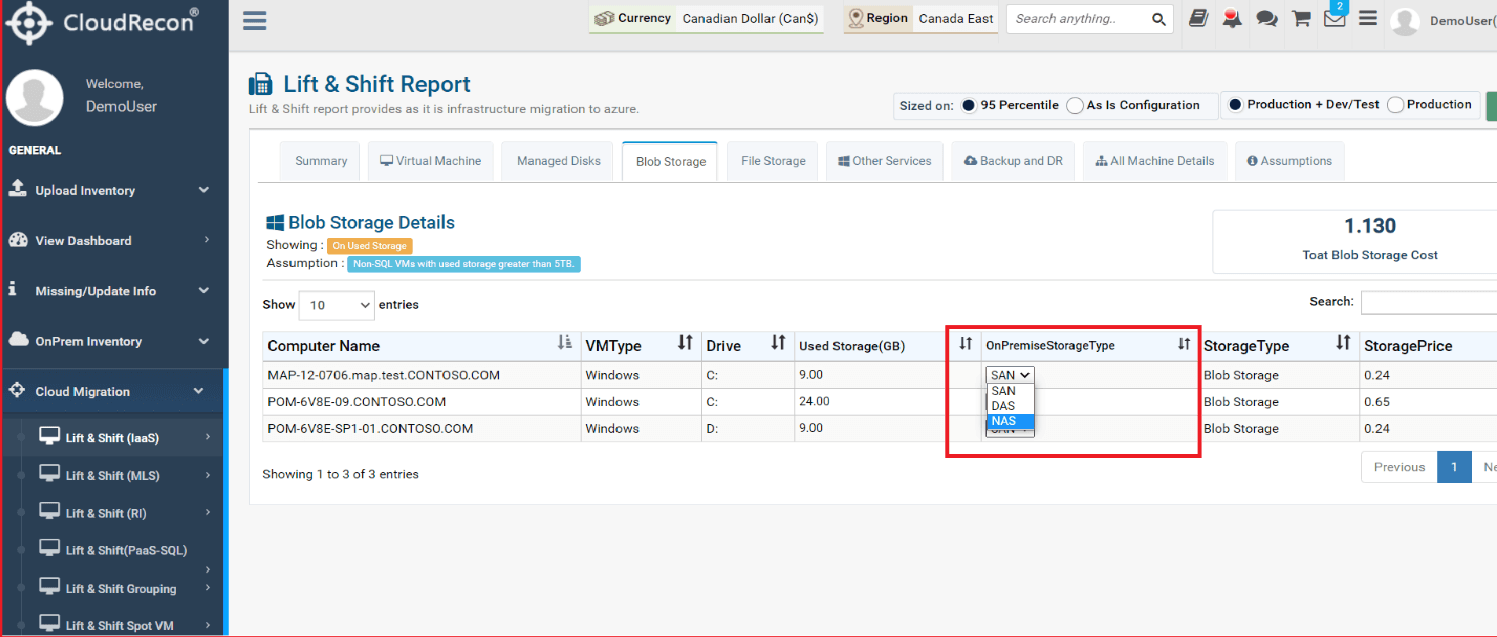
Figure 1: Manual Storage Marking
1.1.2 Bulk Update
1. Update Storage Info: You can update storage selections in bulk by downloading a template from the portal, marking the required storage types, and uploading the completed template.
Navigate to “Missing/Update Info” → “UpdateVMStorage.” Download the template in Step 1, apply the required markings, and upload the completed template in Step 2, as shown below.
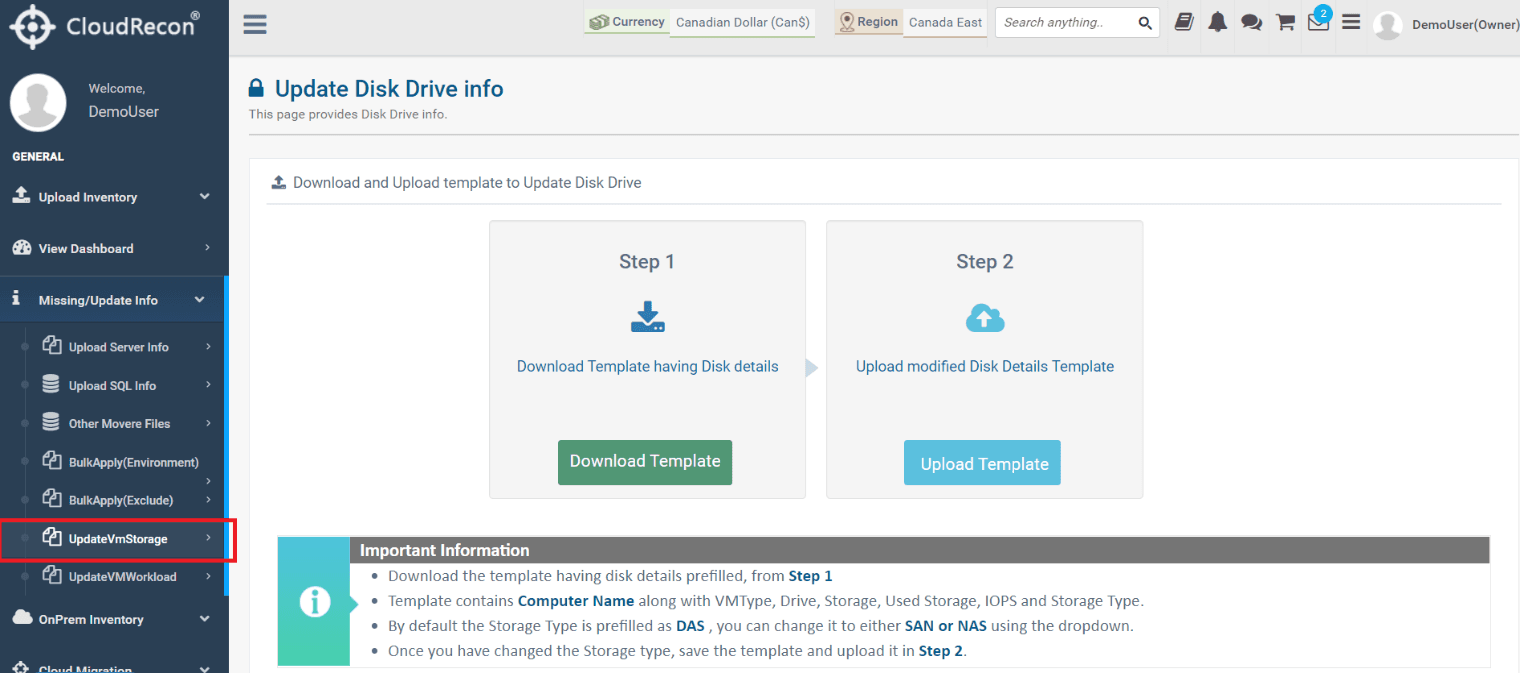
Figure 2: Bulk Upload Storage Info
2. Update Server Workload Info: You can also update server workload information and specify whether a server is a Backup Server or File Server. Download the template by navigating to “Missing/Update Info” → “UpdateVMWorkload,” apply the required markings, and upload the completed template in Step 2.
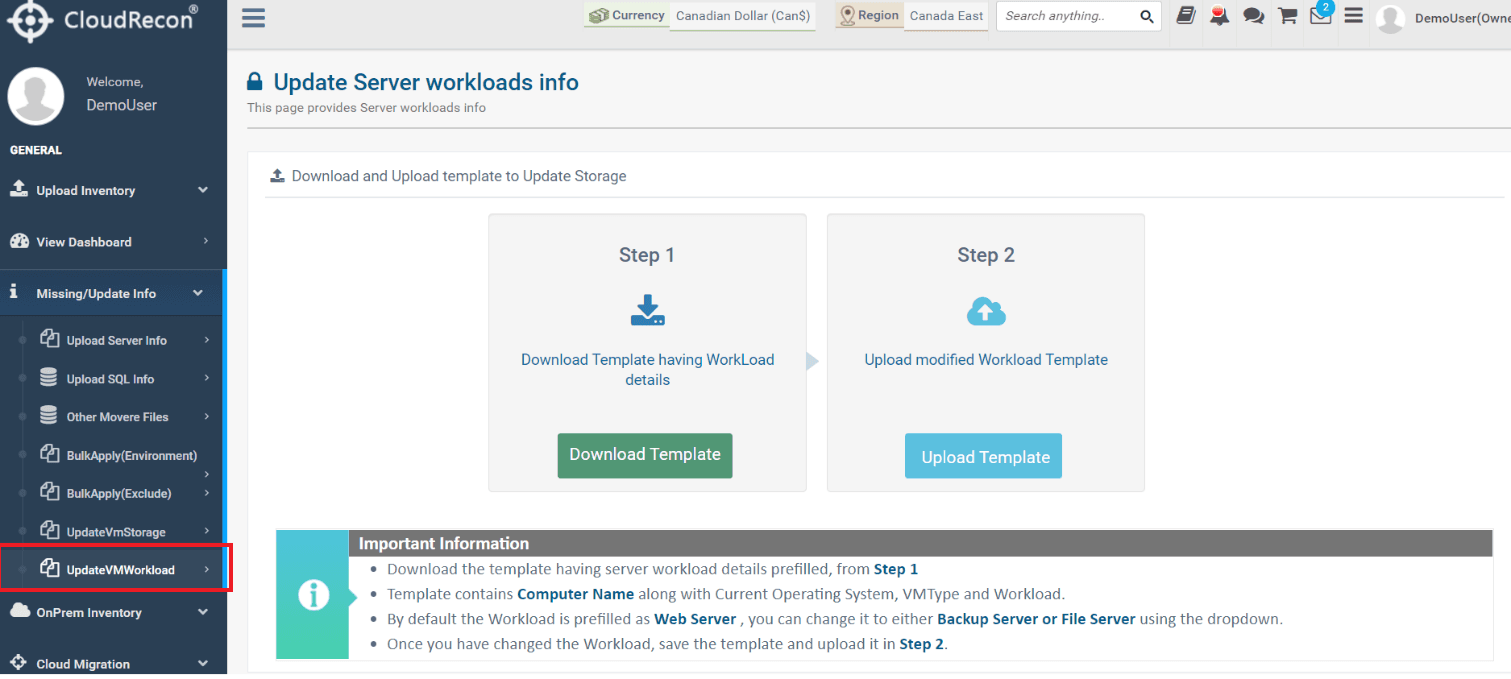
Figure 3: Bulk Update Server Workload Info
After analysis, the updated pricing is reflected under “Azure Cost Summary” in the Lift & Shift IaaS, MLS, RI, and PaaS-SQL reports. The Azure Storage Cost Summary in Lift & Shift now includes File Storage and Blob Storage costs alongside Managed Disk costs.
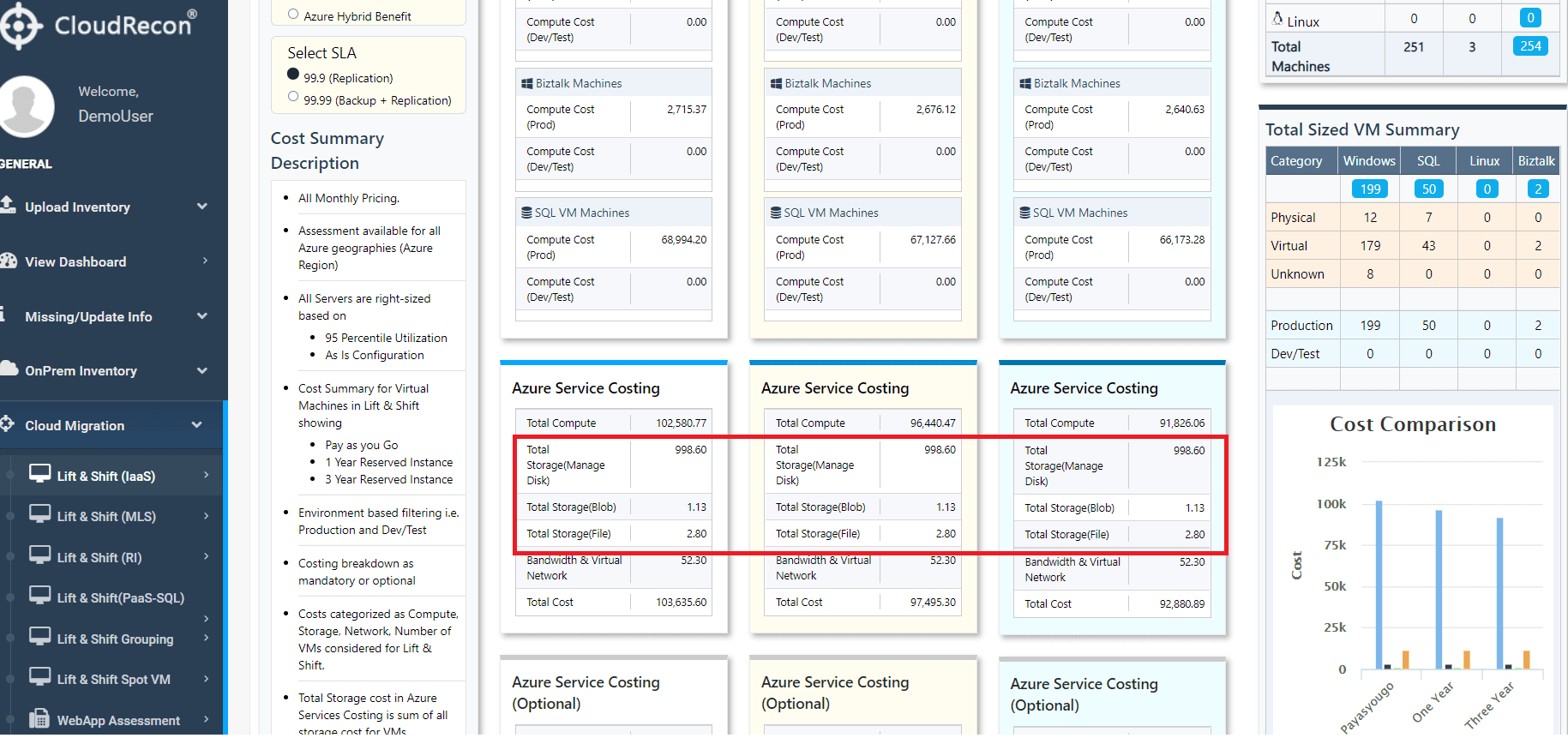
Figure 4: Updated Azure Storage Cost Summary in Lift & Shift IaaS
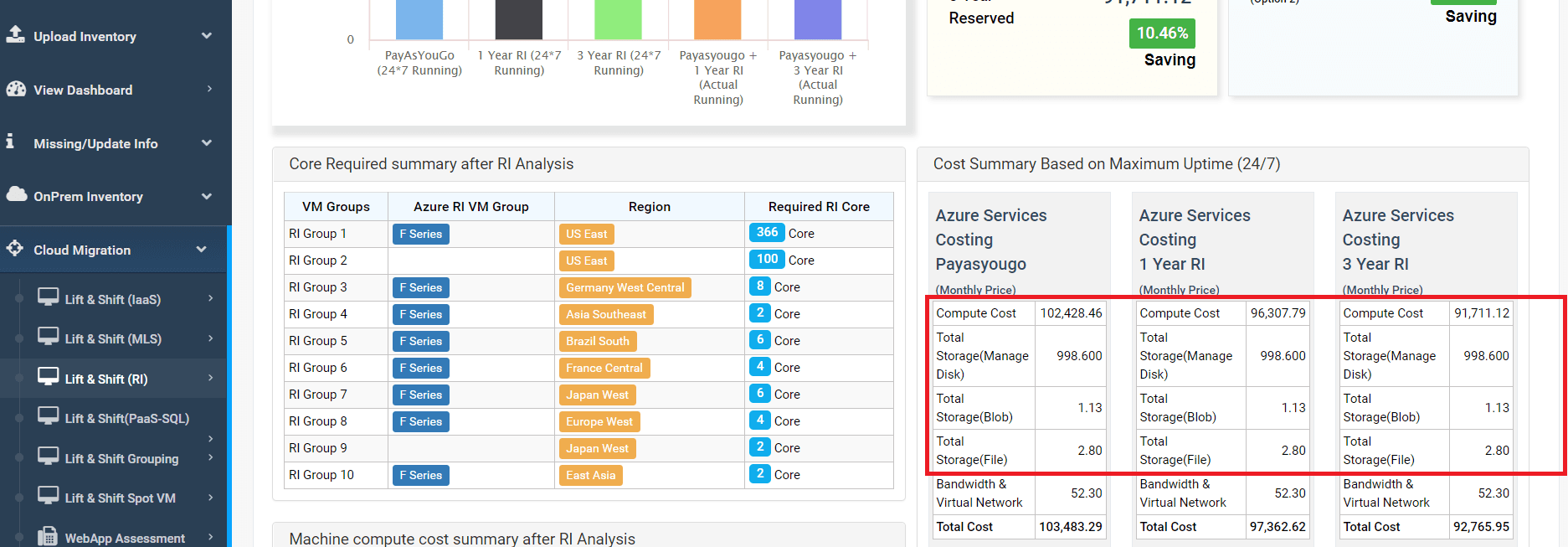
Figure 5: Updated Azure Storage Cost Summary in Lift & Shift RI
2. Reset Button for Network & Other Services Under Lift & Shift
Use Case: This feature allows customers to reset Other Services pricing in Lift & Shift, restoring the default pricing even after making changes to the values.
You can edit the price for Other Services and click the “Reset” button to restore the original default price recommended by CloudRecon.
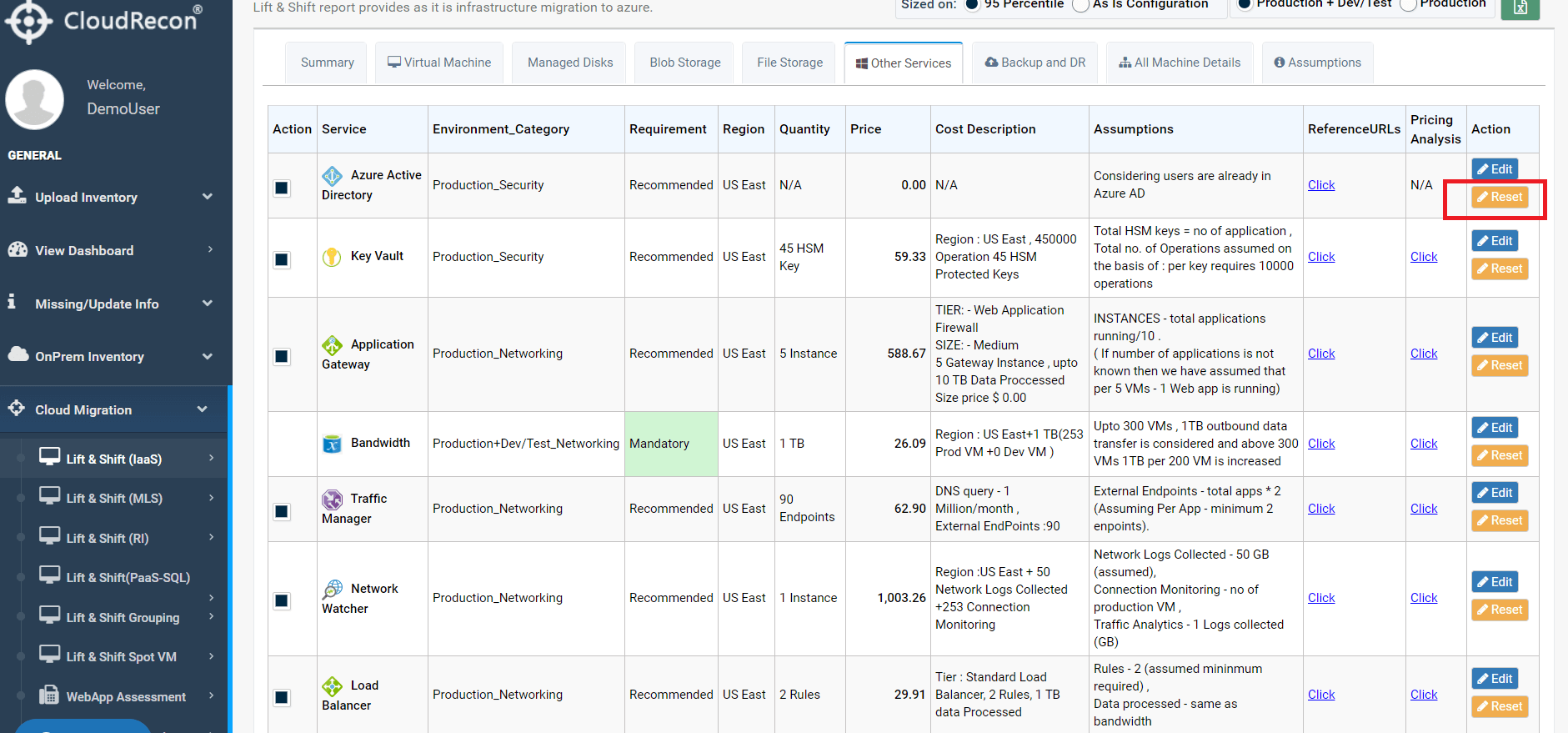
Figure 6: Reset Option for Other Services
3. Region & Currency Auto Freeze
Use Case: Customers can apply region and currency settings to an individual inventory and freeze those settings using this feature.
You can apply inventory-specific region or currency settings and automatically freeze the changes. These settings will not revert when you switch to another inventory.
When you return to the inventory, the last-applied region and currency settings will be retained.
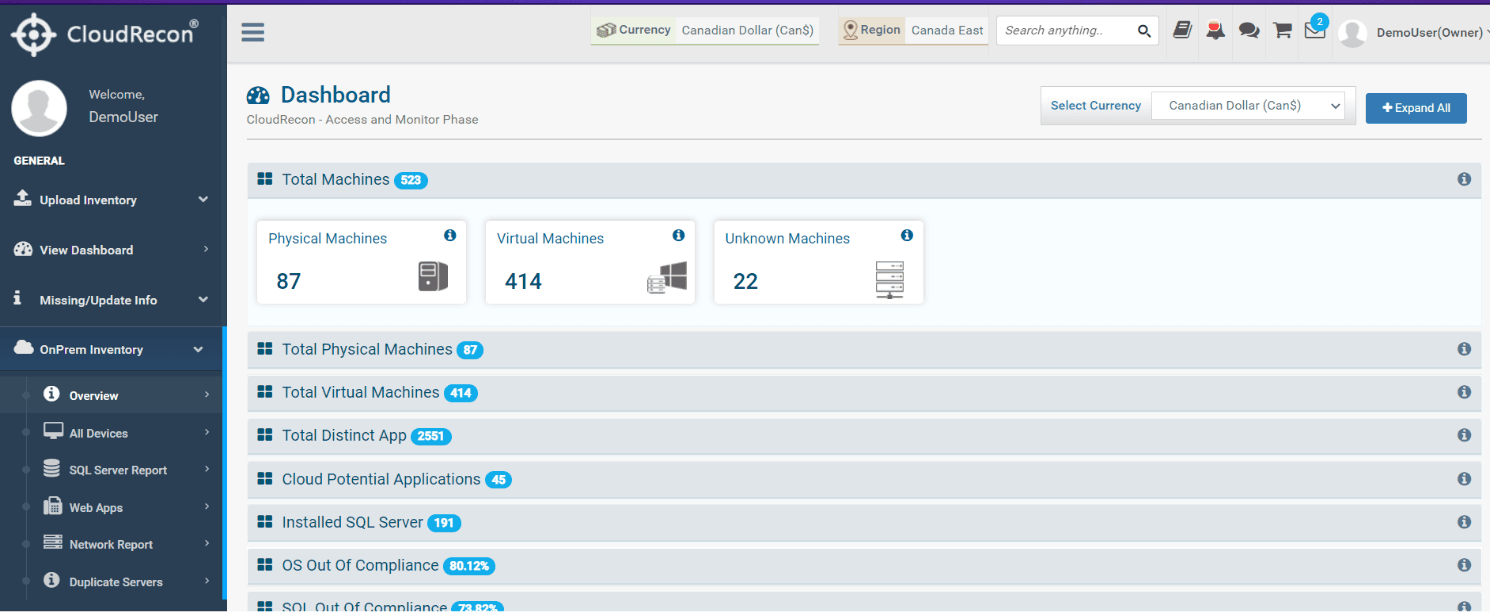
Figure 7: Region & Currency Freeze
4. 1-Year RI Price for Managed Disk
Use Case: For Premium Disks, CloudRecon now recommends a one-year Reserved Instance (RI) price for Managed Disks when the disk size is P30 or above.
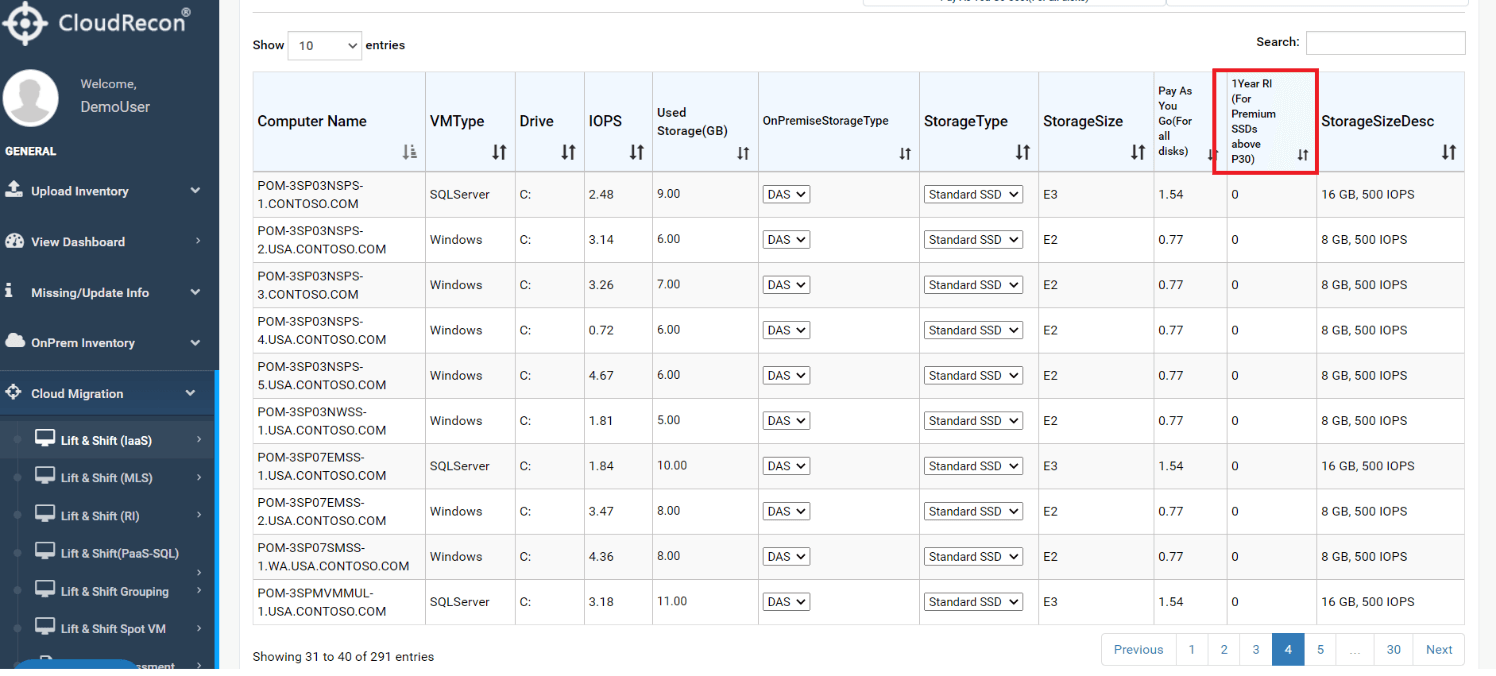
Figure 8: 1-Year RI Price for Managed Disk