
INTRODUCTION
PURPOSE
This document outlines the new features being rolled out on the CloudRecon portal in August 2021. Customers can use this document as a guide to understand and leverage the benefits of these features.
INTENDED AUDIENCE AND PERTINENT SECTIONS
This document is intended as a reference for company internal personnel, customers, and partners.
NEW FEATURES
1. New Filters in Lift & Shift Report
Use Case: CloudRecon now allows you to apply additional filters in the Lift & Shift Report to refine the results displayed.
Role-based filters:
- DNS
- DHCP
- File Server
- Backup Server
- ADDS
- ADFS
- App Servers
- Print Servers
Workload-based filters:
- Oracle
- PostgreSQL
- MySQL
- Custom ISV filter: supports custom application/database-based and ISV application/database-based filtering.
1.1 Apply Filters
1.1.1 Apply Role-Based Filters
To use these filters, navigate to the Lift & Shift (IaaS) report. The option to apply role-based filters is available in the top-right corner of the report.
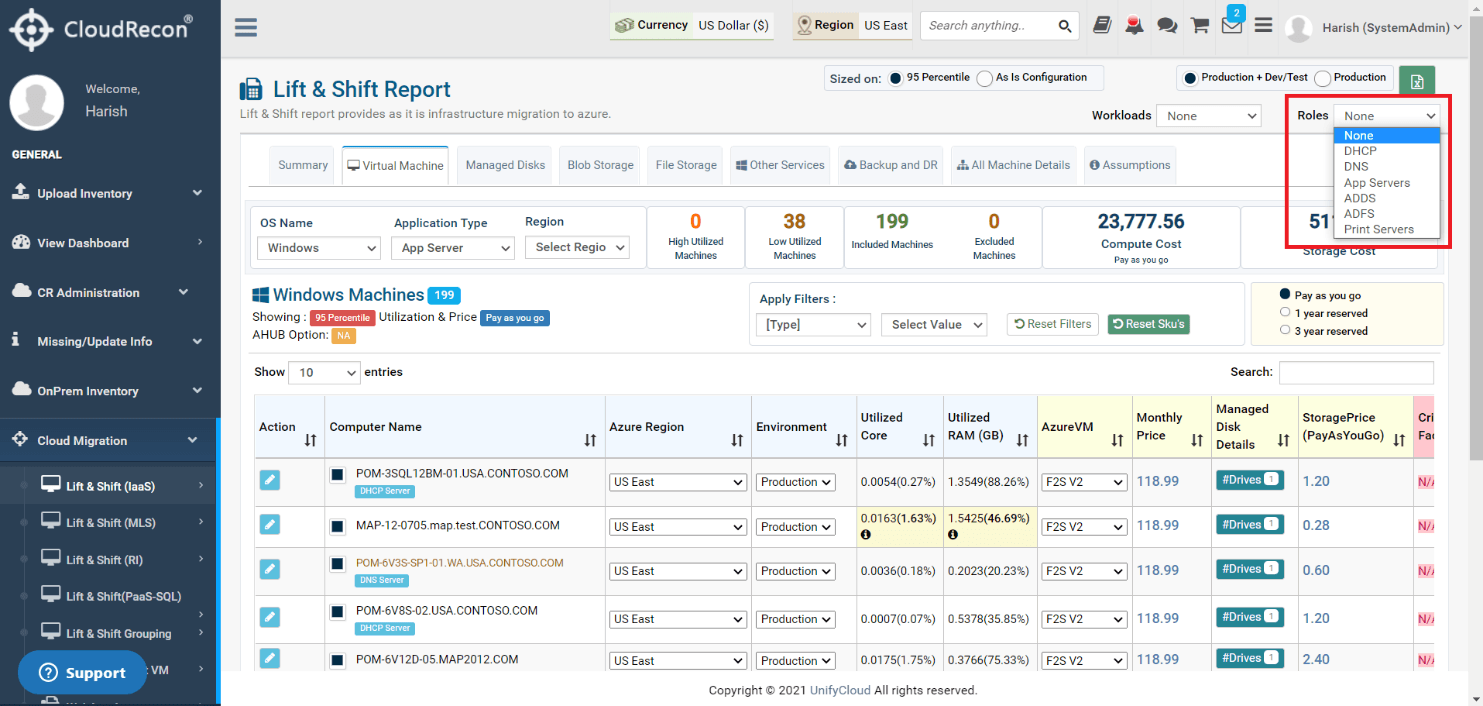
Figure 1: Role-Based Filters in Lift & Shift
1.1.2 Apply Workload-Based Filters
To use these filters, navigate to the Lift & Shift (IaaS) report. The option to apply workload-based filters is available in the top-right corner of the report.
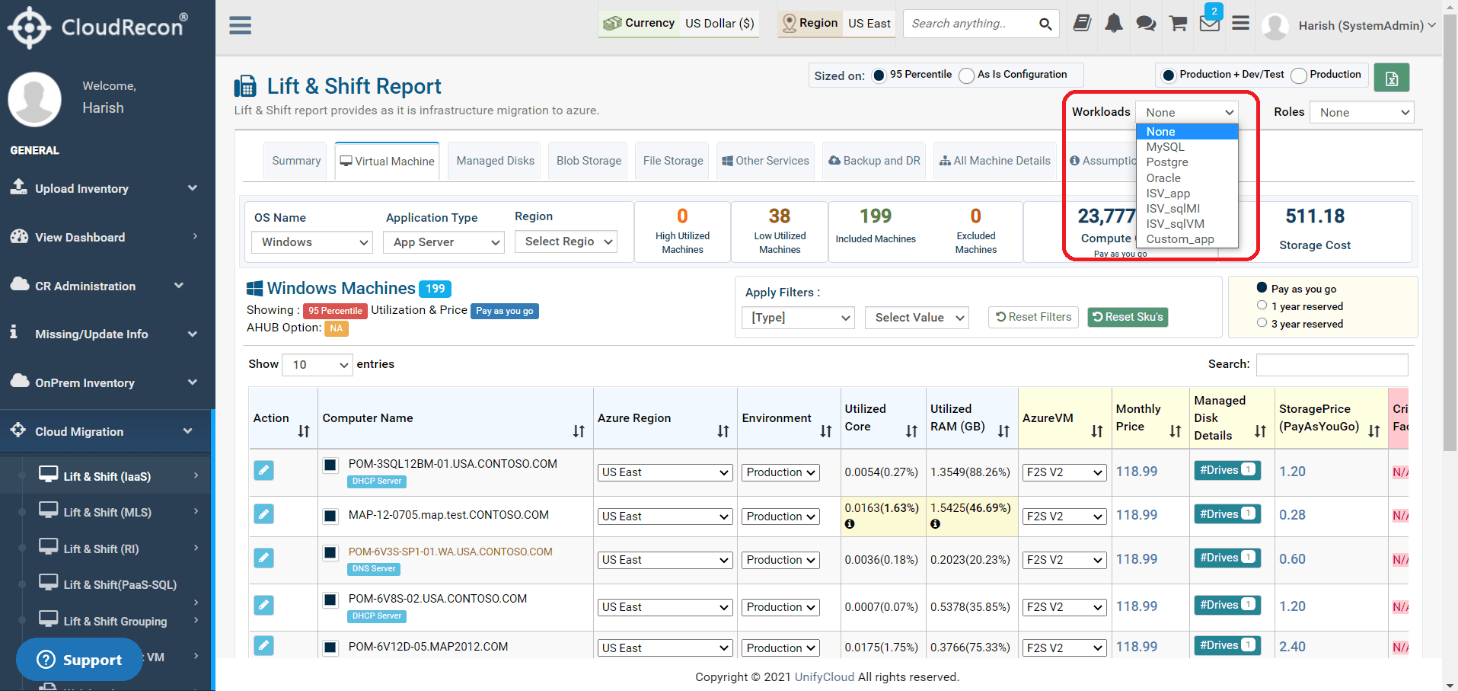
Figure 2: Workload-Based Filters in Lift & Shift
1.2 Apply Tags
You can click the Edit option for any machine in the report, as shown in Figure 3. This opens the edit screen, where you can apply role-based tags to the machine.
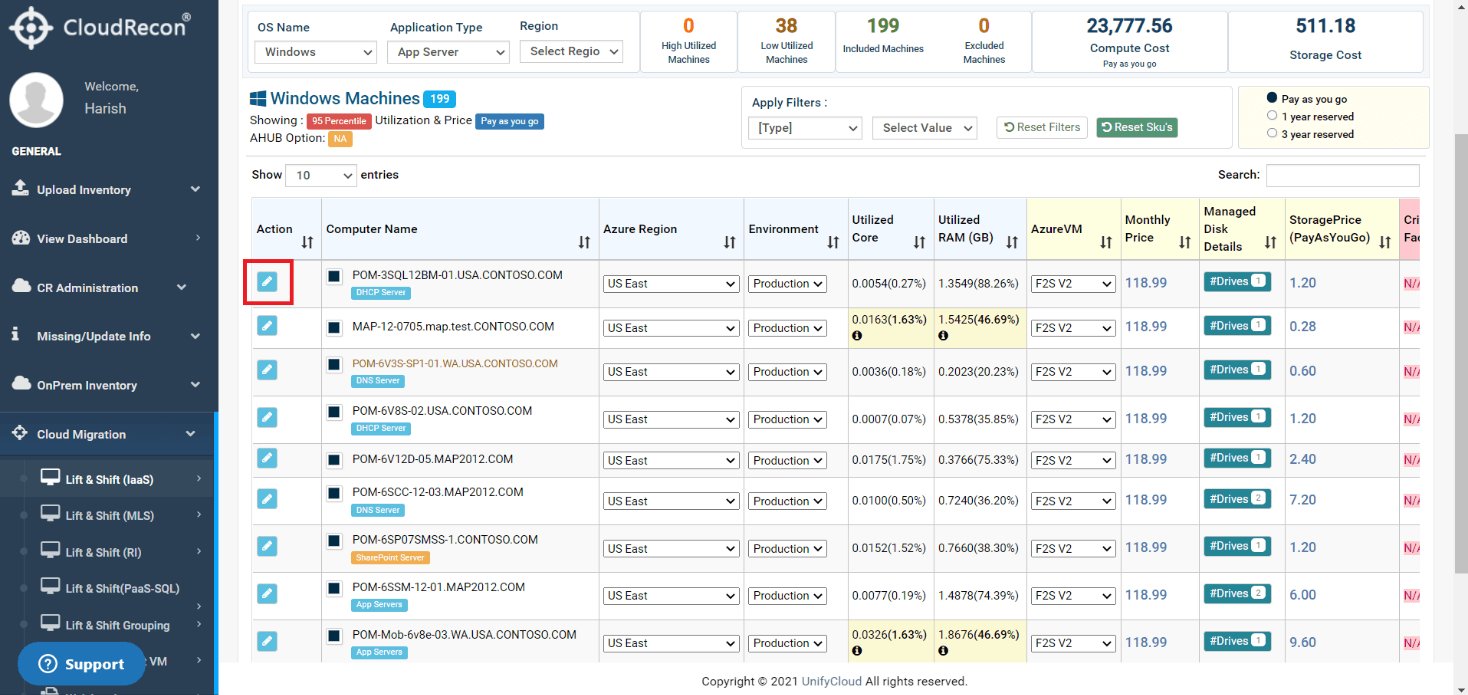
Figure 3: Edit Button for a Machine in Lift & Shift
1.2.1 Apply Role-Based Tags
Select the dropdown for “Role” under “Role & Org/Unit” to apply a role-based tag to a machine, as shown in Figure 4.
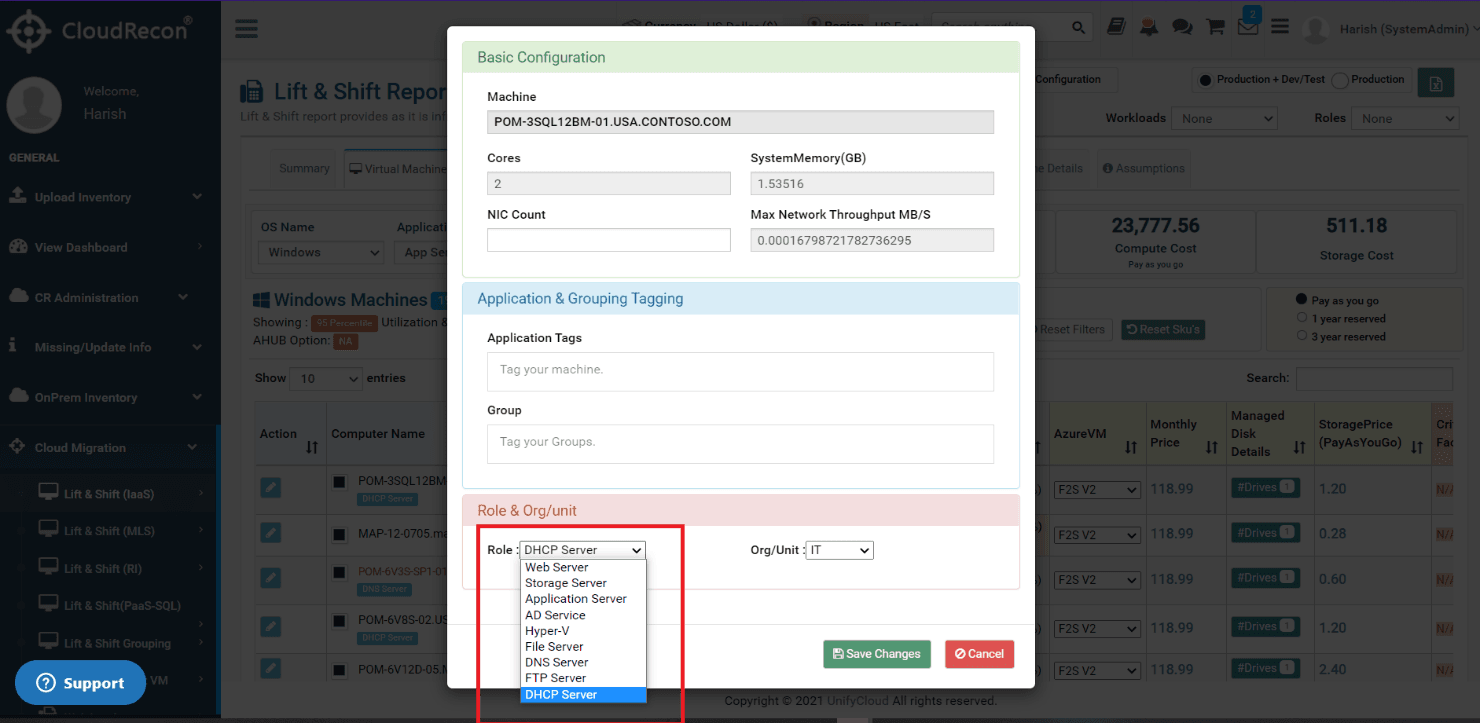
Figure 4: Apply a Role-Based Tag
1.2.2 Apply Workload-Based Tags
You can add a workload-based tag under “Application & Grouping Tagging,” as shown in Figure 5. Enter a tag name or create a custom tag as needed.
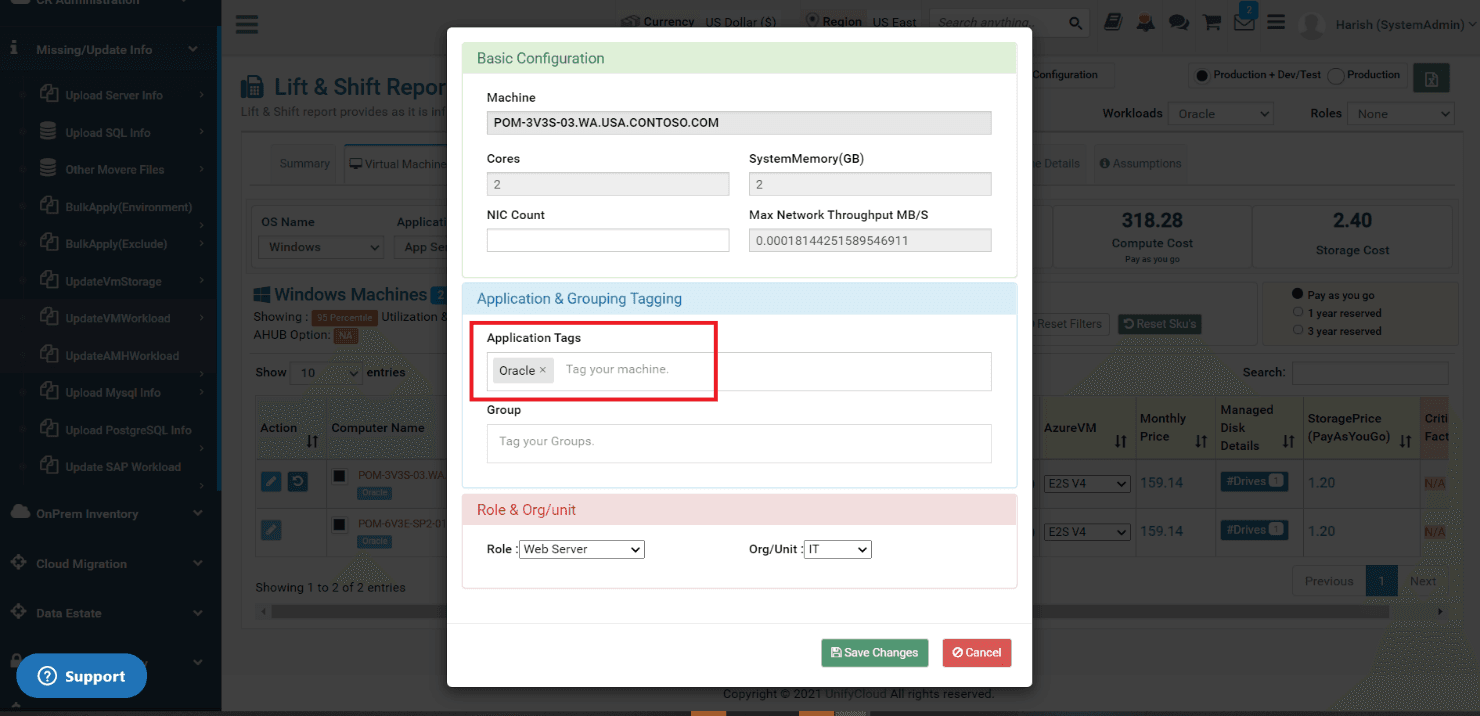
Figure 5: Workload-Based Tag Under Application Tags
2. New Reports
Two new reports are being introduced in CloudRecon: PostgreSQL to Azure PostgreSQL and MySQL DB to Azure MySQL DB.
2.1 PostgreSQL to Azure PostgreSQL
Use Case: This report provides Azure cost estimates and related information for migrating an on-premises PostgreSQL environment to Azure PostgreSQL.
Navigate to the “Data Estate” section in your inventory and select “PostgreSQL” under the PostgreSQL option, as shown in Figure 6.
The report provides Azure PostgreSQL cost estimates for deployment models such as Single Server, Flexible Server, and Hyperscale (Citus), including compute and storage costs.
You can select databases to exclude from the report using the “Default DB (Not Considered)” tab. The “Considered Databases” tab displays the databases included in the report.
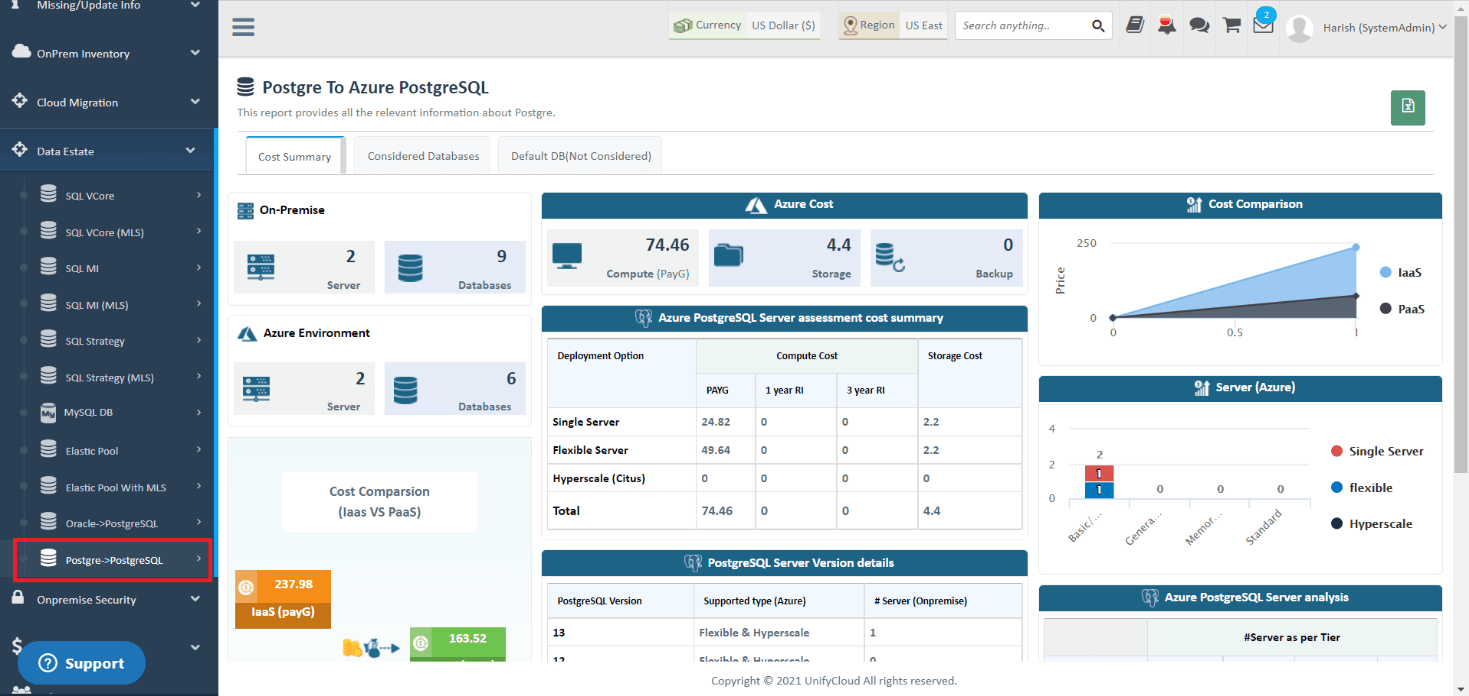
Figure 6: PostgreSQL to Azure PostgreSQL Report
2.2 MySQL DB to Azure MySQL DB
Use Case: This report provides Azure cost estimates for migrating an on-premises MySQL environment to Azure MySQL DB using the Single Server and Flexible Server deployment models.
Navigate to the “Data Estate” section in your inventory and select “MySQL DB,” as shown in Figure 7.
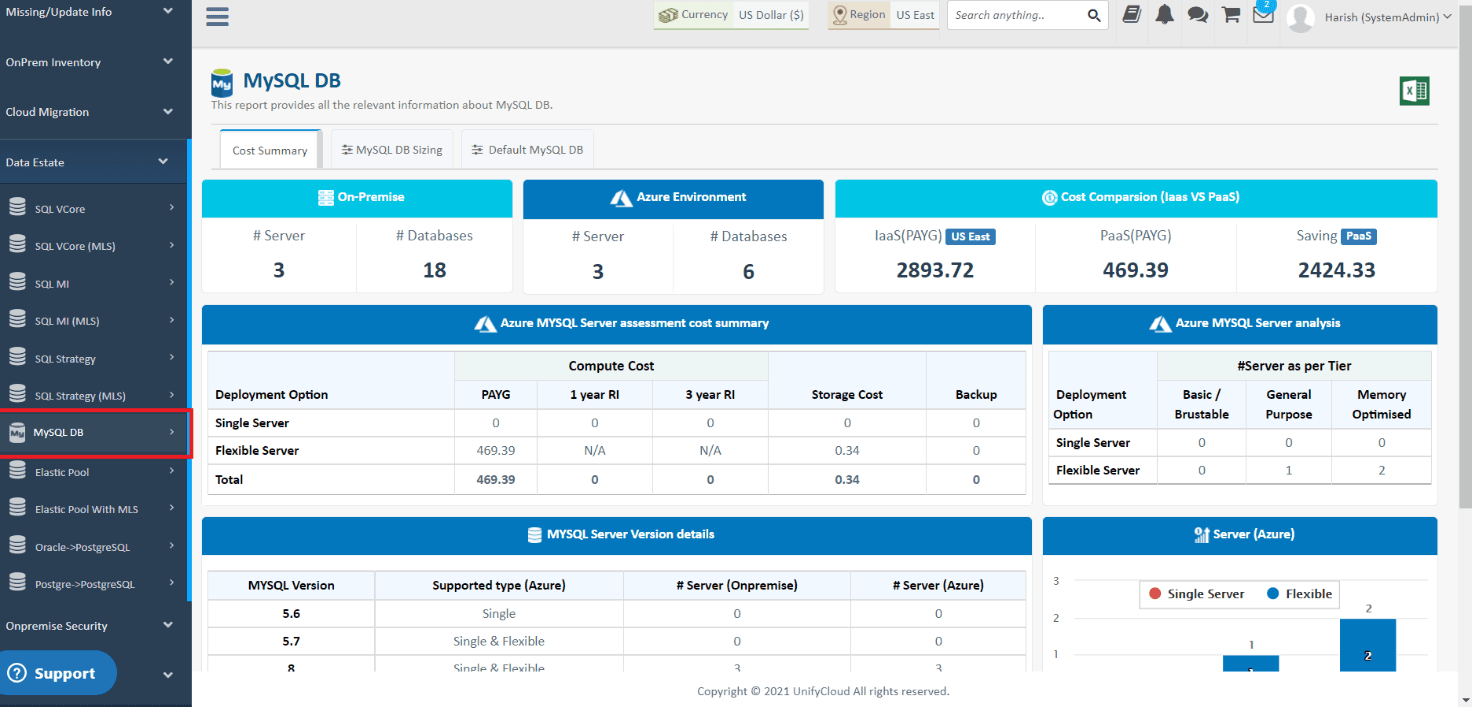
Figure 7: MySQL DB to Azure MySQL DB Report
You can select the MySQL databases to exclude from the “Default MySQL DB” tab. The “MySQL DB Sizing” tab displays the databases considered in the report and provides information about how the sizing was determined.
3. Missing / Update Info
3.1 Update AMH Workload
Use Case: You can update software inventory details and server workload information by uploading the software inventory export XLSX file from Azure Migrate.
- Open the Azure portal and navigate to Azure Migrate.
- Under Migration Goals, select “Windows, Linux, and SQL Server.”
- Under Assessment Tools, click “Discovered Servers Count.”
- Select your appliance name, then click “Export Software Inventory.”
- Navigate to “Missing/Update Info” → “AMH Workload CSV” in CloudRecon and upload the XLSX export file.
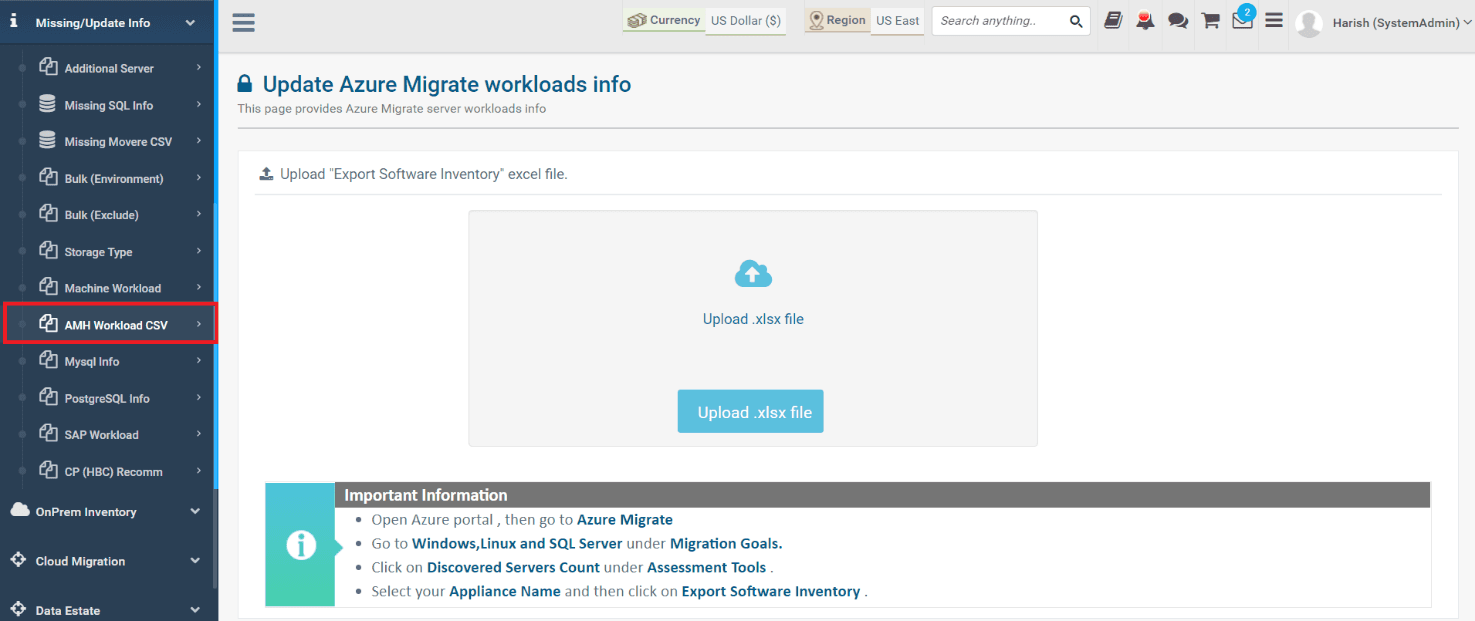
Figure 8: Update AMH Workload
3.2 Update MySQL Info
Use Case: You can upload data from your on-premises MySQL environment by running the CloudRecon client installer application, which can also be downloaded from the CloudRecon portal.
- Download the client application software from the CloudRecon portal.
- Click “Collect SQL Data.”
- Select “MySQL Data,” enter the credentials and server name, then click “Start Scan” to generate a CSV file.
- Navigate to “Missing/Update Info” → “MySQL Info.”
- Click “Upload Template” to upload your file.
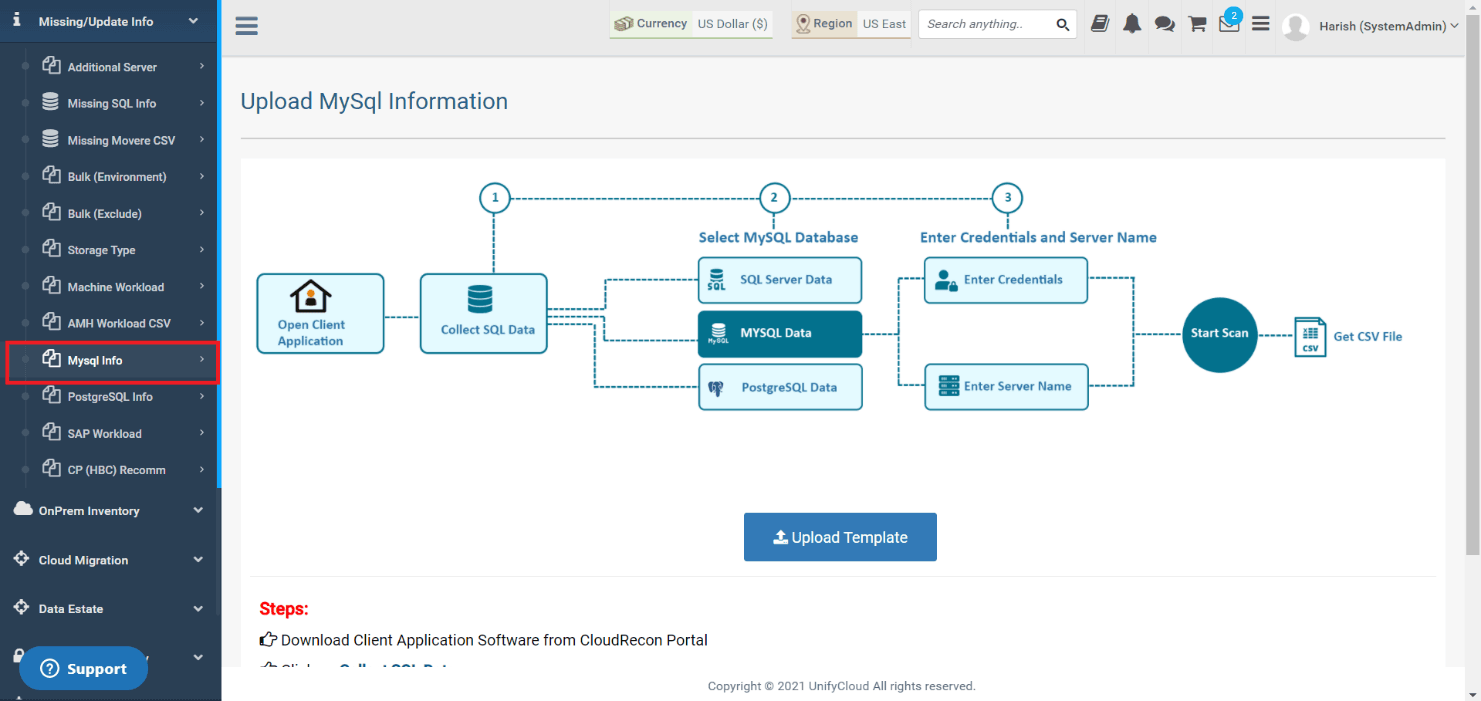
Figure 9: Update MySQL Info
3.3 Update PostgreSQL Info
Use Case: You can upload data from your on-premises PostgreSQL environment by running the CloudRecon client installer application, which can also be downloaded from the CloudRecon portal.
- Download the client application software from the CloudRecon portal.
- Click “Collect SQL Data.”
- Select “PostgreSQL Data,” enter the credentials and server name, then click “Start Scan” to generate a CSV file.
- Navigate to “Missing/Update Info” → “PostgreSQL Info.”
- Click “Upload Template” to upload your file.
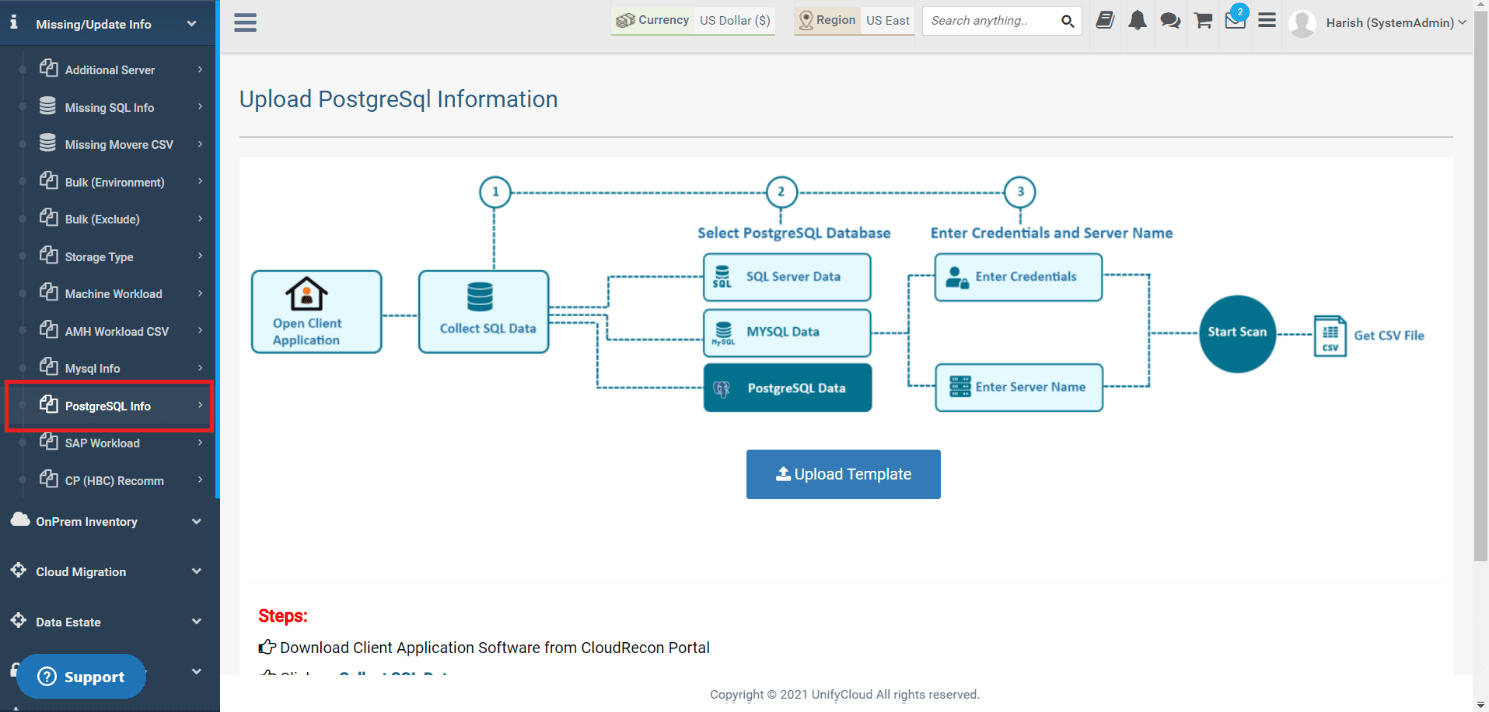
Figure 10: Update PostgreSQL Info