
CloudRecon Product Release
INTRODUCTION
PURPOSE
This document outlines the new features being rolled out on the CloudRecon Portal in December 2021. Customers can use this document as a guide to leverage the benefits of these new features.
INTENDED AUDIENCE AND PERTINENT SECTIONS
This document is intended as a reference for company internal personnel, customers, and partners.
NEW FEATURES
1. New Dashboard UI
Use Case: Users will now see a new dashboard interface in CloudRecon. The dashboard provides insights into available report status and data status, giving an overview of inventory data and the reports available in the account.
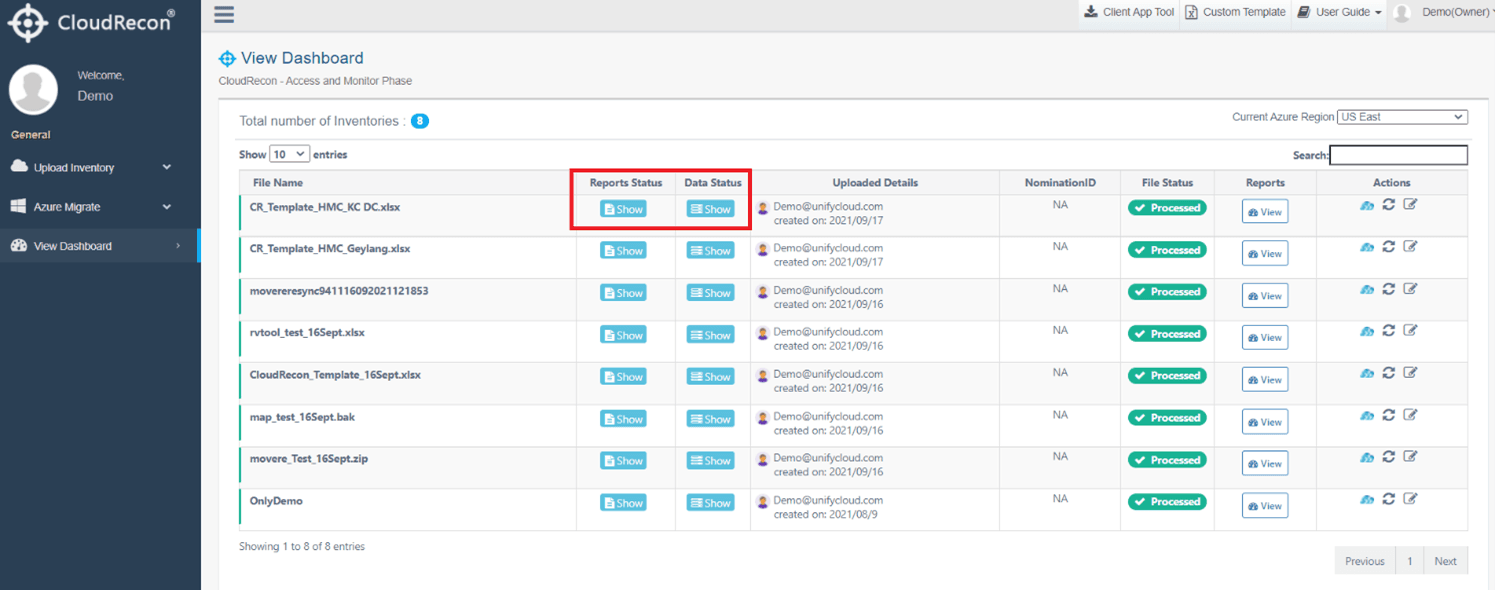
Figure 1: Report Status and Data Status on the New Dashboard UI
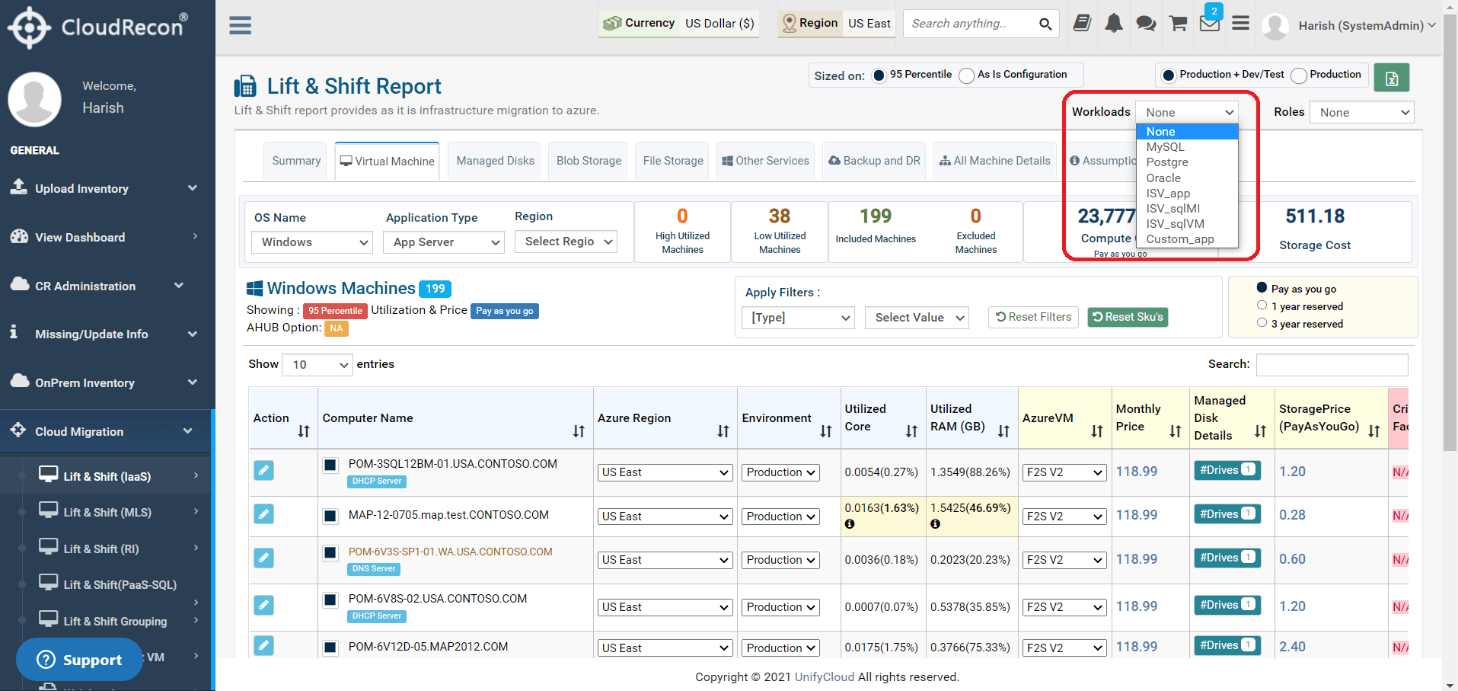
Figure 2: Report Status
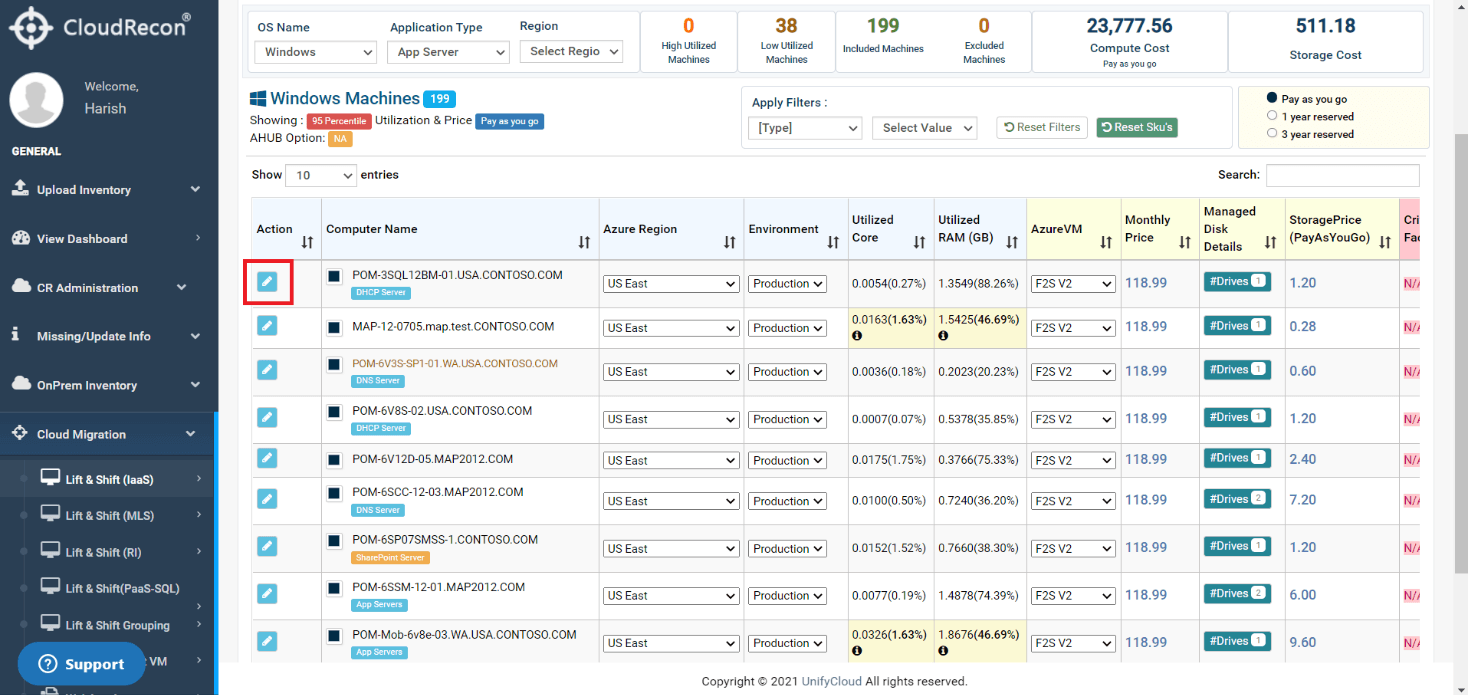
Figure 3: Data Status
2. New Reports
This section introduces new reports available in CloudRecon, including the Lift & Shift SAP Assessment.
2.1 Lift & Shift SAP Assessment
Use Case: This report generates an assessment of SAP workloads on Azure.
The report is generated after you upload SAP information through Missing/Update Info > SAP Workload. Once the data is uploaded, navigate to Cloud Migration > SAP (Lift & Shift) to view the report.
You can view monthly cost comparisons for PAYG, 1YRI, and 3YRI payment models, along with SAP machines considered in the cost calculations and SAP count details under the SAP Machines tab.
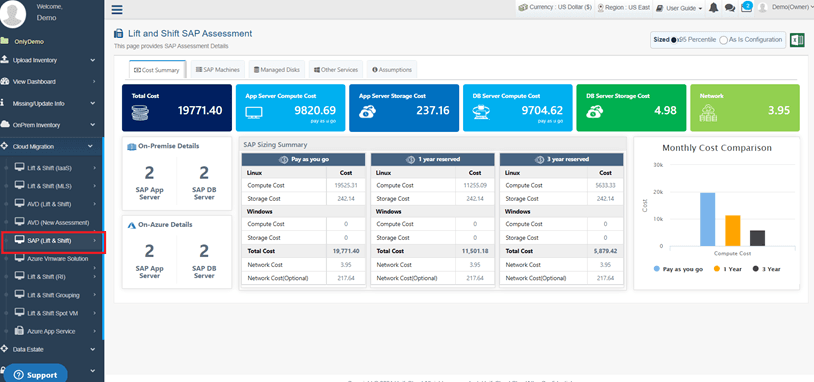
Figure 4: Lift and Shift SAP
2.2 AVD (New Assessment)
Use Case: The new AVD assessment report allows you to generate a customized report for Azure Virtual Desktop. You can manually enter values for the required desktop user groups, as shown below.
After clicking Save Input, the assessment is generated under the Assessment Details tab.
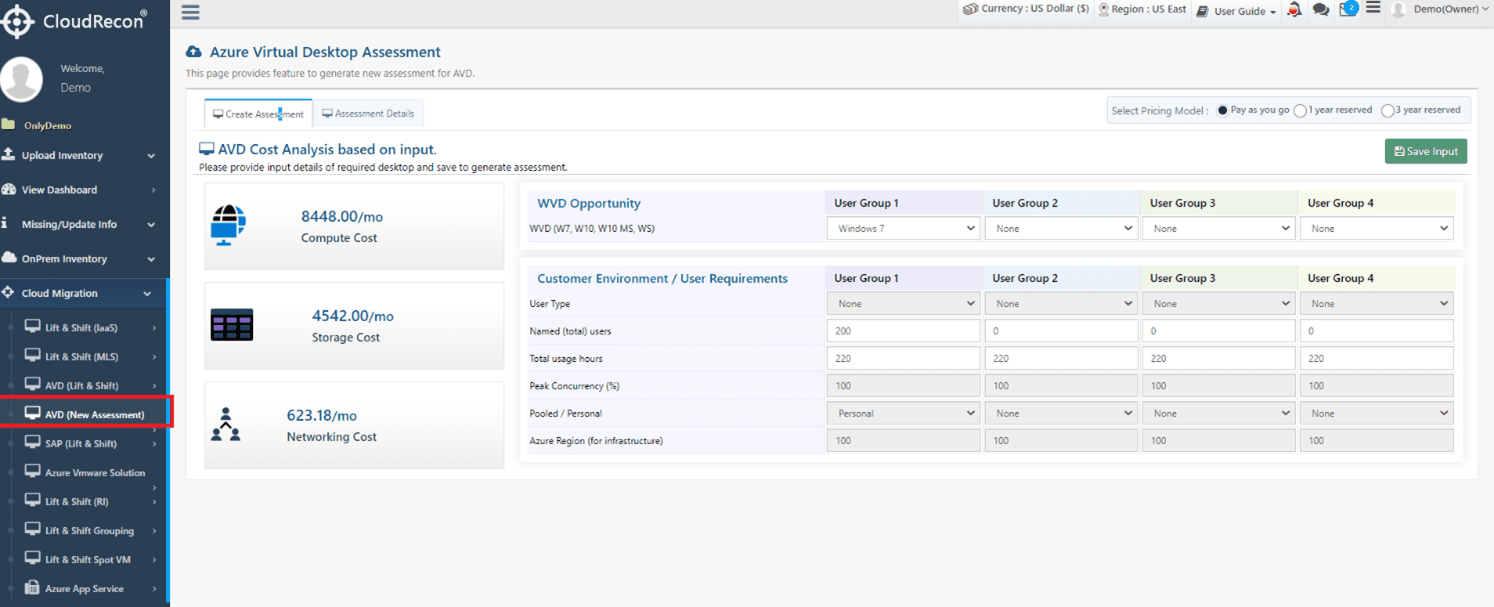
Figure 5: AVD (New Assessment)
2.3 Azure VMware Solutions
Use Case: The new Lift & Shift Azure VMware Solution report provides details about migrating the existing environment to Azure VMware Solution (AVS).
You can compare on-premises and Azure figures for the number of VMs, cores, and storage, along with the number of Azure AVS nodes.
The report also provides the following details:
- Networking services and their pricing under the Networking Details tab.
- AVS ESU savings under the ESU Saving Details tab.
- AVS licensing information under the Licensing Requirement Details tab.
- VMs included in the AVS report under the Guest VM Details tab.
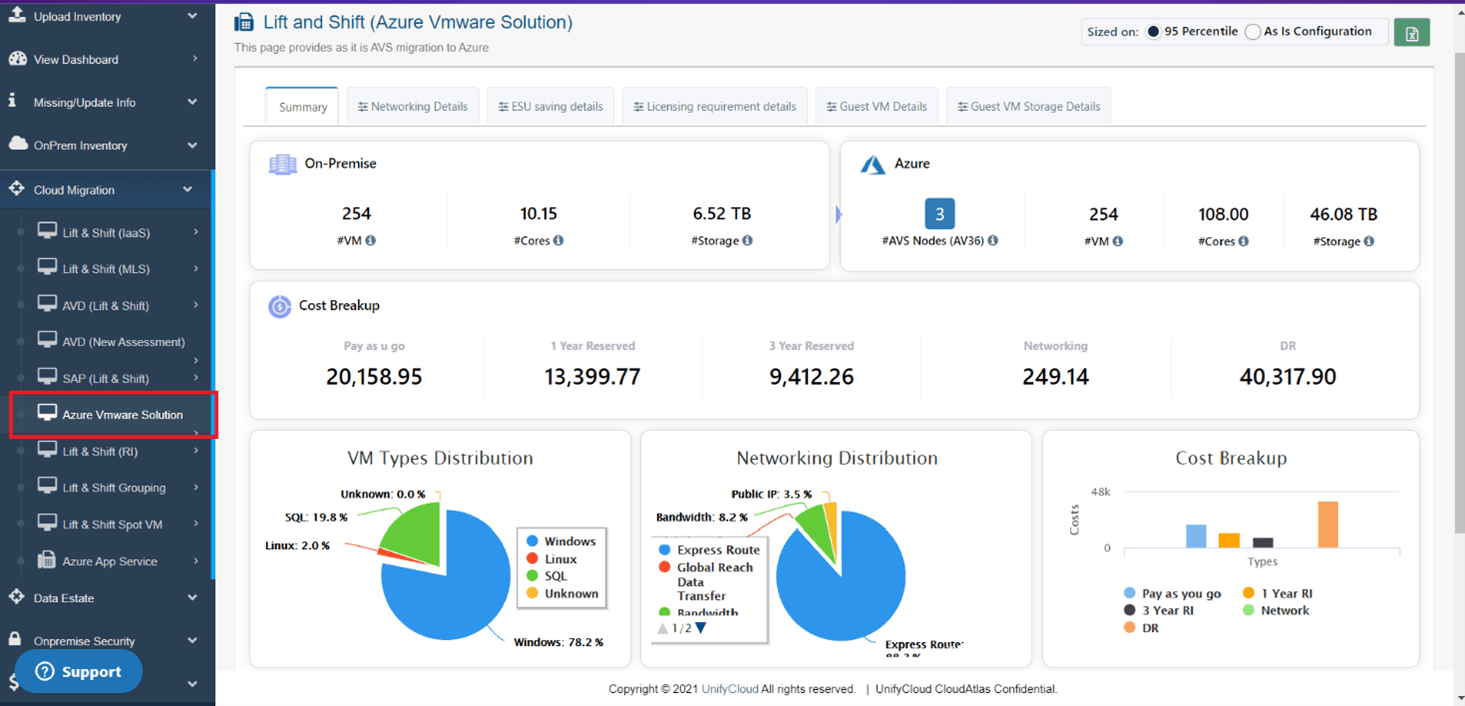
Figure 6: AVS Report
2.4 Azure App-Sizing Report
Use Case: This report provides application-sizing details for Azure, along with monthly cost estimates. It includes:
- Application platform highlights from the current environment.
- Azure application tier distribution (Premium, Basic, and Standard) with monthly cost estimates.
- Application categories: Light, Medium, and Critical.
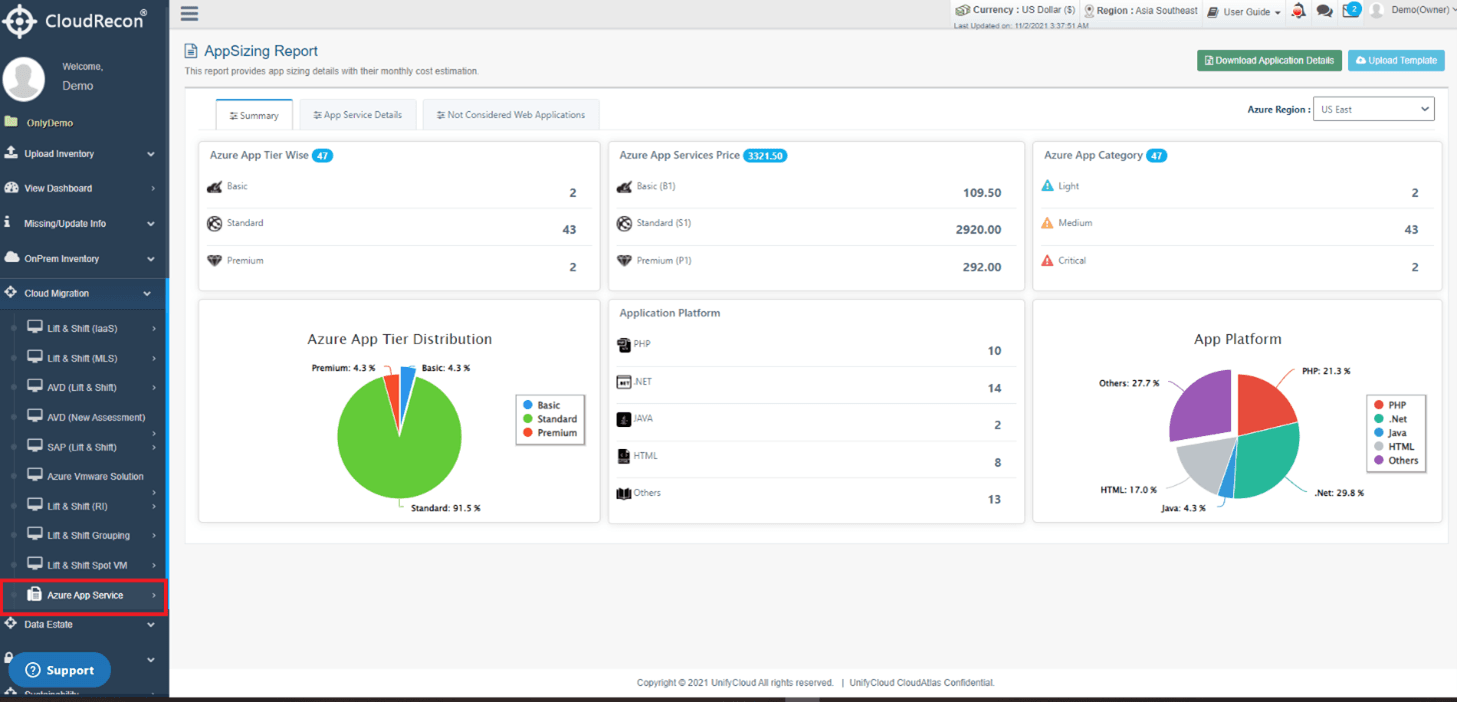
Figure 7: Azure App Sizing Report
Under the App Service Details tab, you can view the applications included in the report and:
- Modify application categories: Medium, Light, or Critical.
- Update application status: Move to Cloud, Retained, or Retired.
- Update the environment: Production or Dev/Test.
You can also make these changes in bulk by following these steps:
- Click Download Application Details at the top-right of the page.
- Enter the application details in the downloaded template and save it.
- Upload the completed template using Upload Template at the top-right of the page.
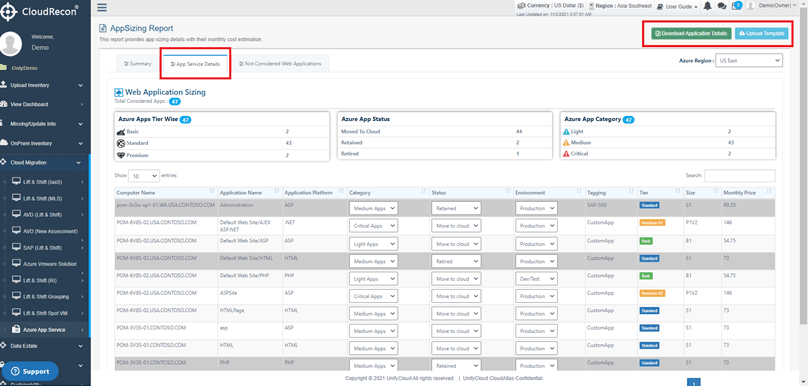
Figure 8: App Service Details
2.5 Sustainability Report
Use Case: This report provides information about the carbon emissions of your infrastructure. It includes:
- Carbon footprint of the current environment.
- Carbon emission estimates for different scopes, cooling factors, and loads.
- Efficiency categories: Light, Medium, and High.
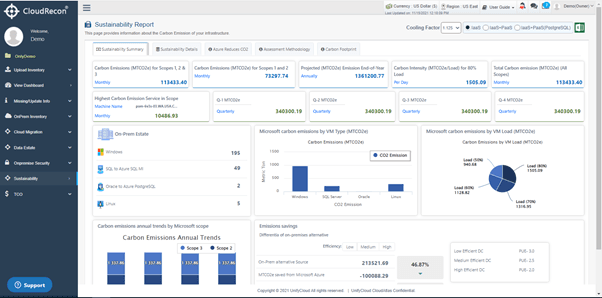
Figure 9: Sustainability Report Summary
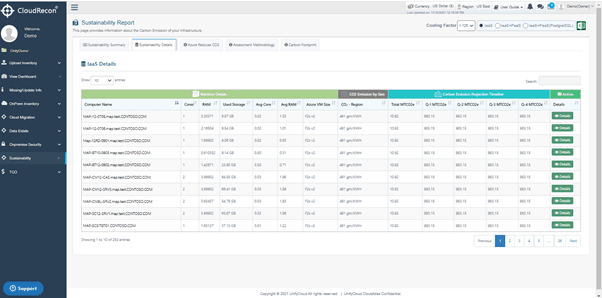
Figure 10: Sustainability Machine Details
3. IOPS Toggle on Lift & Shift and Reset Button for Storage Type
Use Case: You can now size disks based on IOPS in CloudRecon under the Managed Disk tab of the Lift & Shift report.
By default, CloudRecon sizes disks based on used storage. Using the IOPS toggle, you can switch the sizing method to IOPS and adjust storage pricing accordingly.
You can also restore the CloudRecon default storage-type recommendation by clicking Reset. This allows you to customize the storage type and return to the default recommendation whenever required.
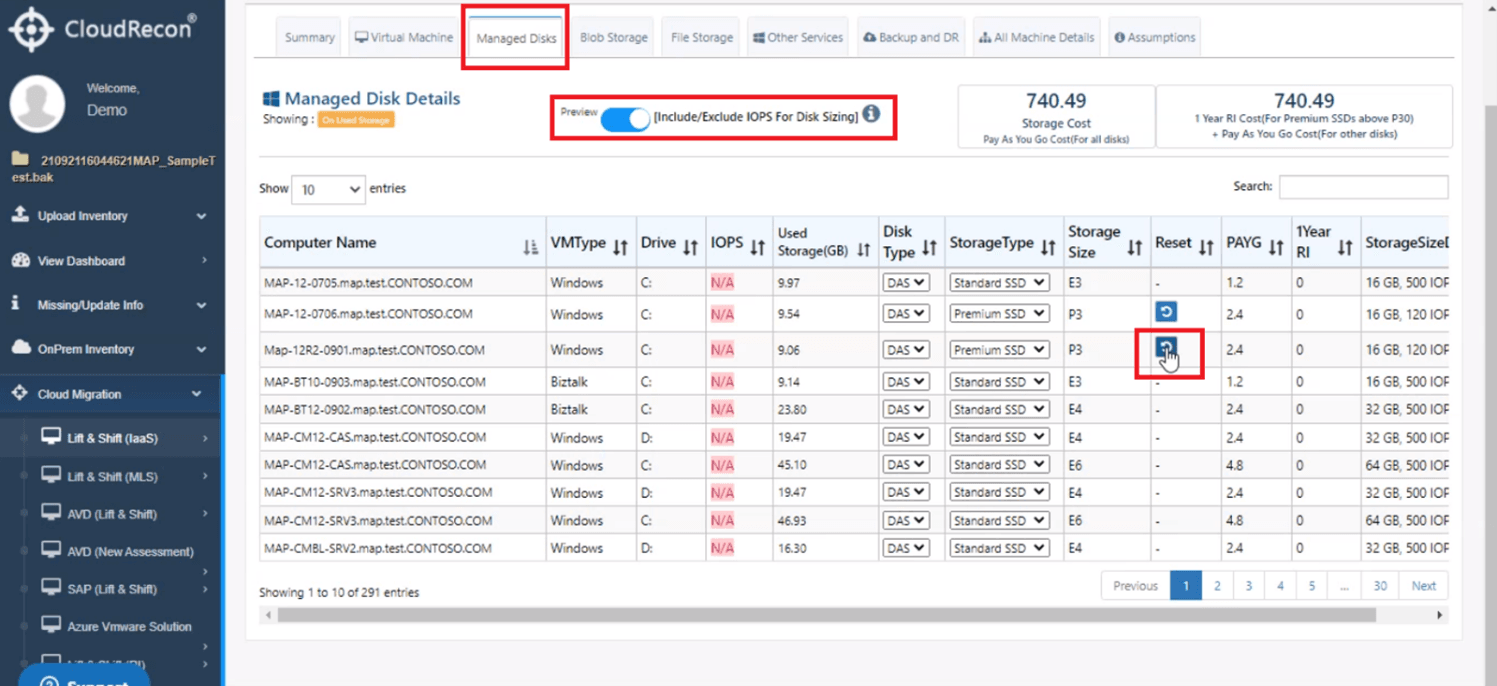
Figure 11: IOPS Toggle Button on Managed Disk
4. Missing/Update Info
This section introduces options for updating existing information or adding missing data to your inventory.
4.1 SAP Workload
Use Case: You can upload SAP workload information for machines in your inventory. Use the downloaded template to identify machines running SAP workloads and specify the SAP count. If the SAP count is not provided, CloudRecon considers it to be zero when generating the Lift & Shift report.
- Download the template containing prefilled server workload details from Step 1.
- The template contains Computer Name, Current Operating System, VM Type, and Workload.
- Workload is prefilled as Web Server. You can change it to Backup Server or File Server using the dropdown.
- You can also classify workloads using role-based filters.
- After updating the workload, save the template, upload it in Step 2, and check the Lift & Shift report.
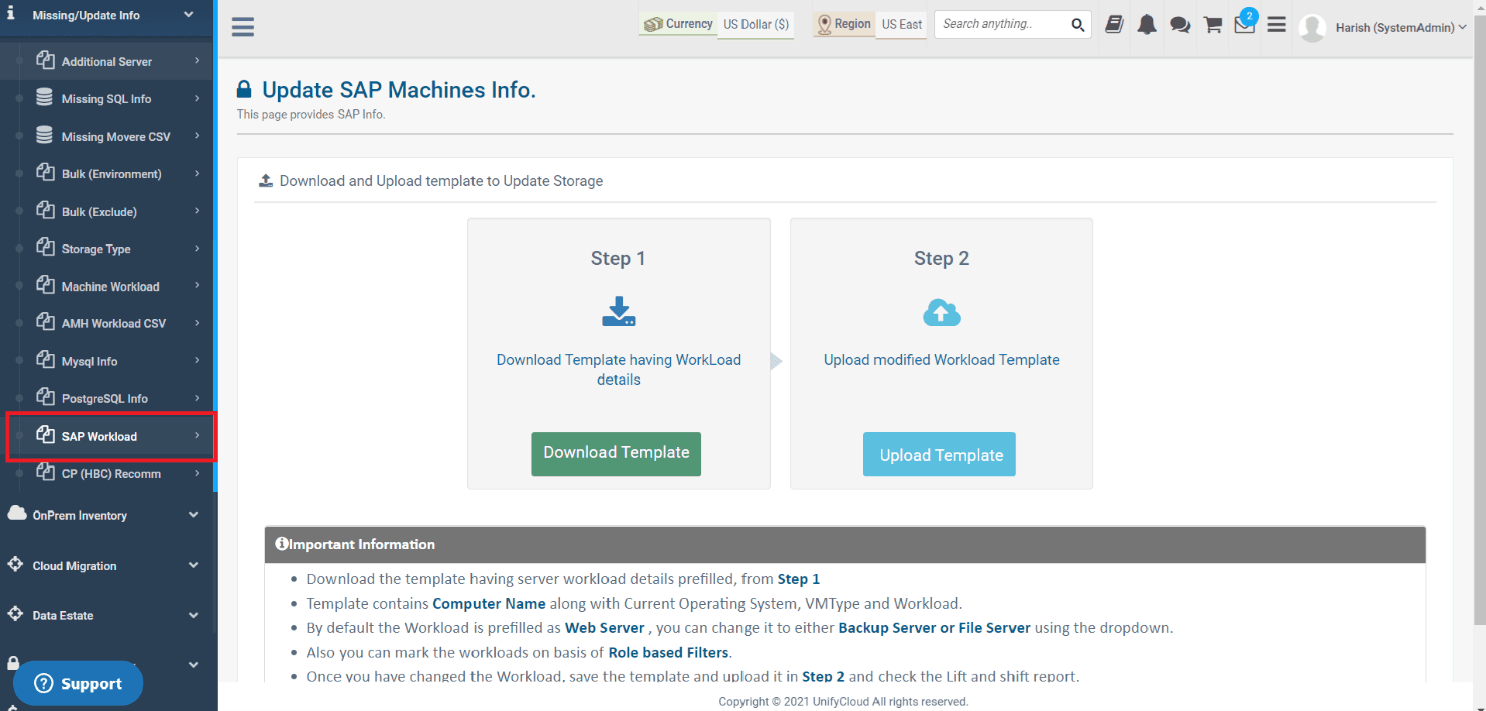
Figure 12: Update SAP Info
FEATURE UPDATES
1. AVD Assessment Report
Use Case: The updated AVD assessment report displays Premium File Storage and Azure NetApp Files Storage cost calculations under AVD Total Infrastructure Cost in the User Groups tab. Costs for both categories can be viewed across all available user groups.
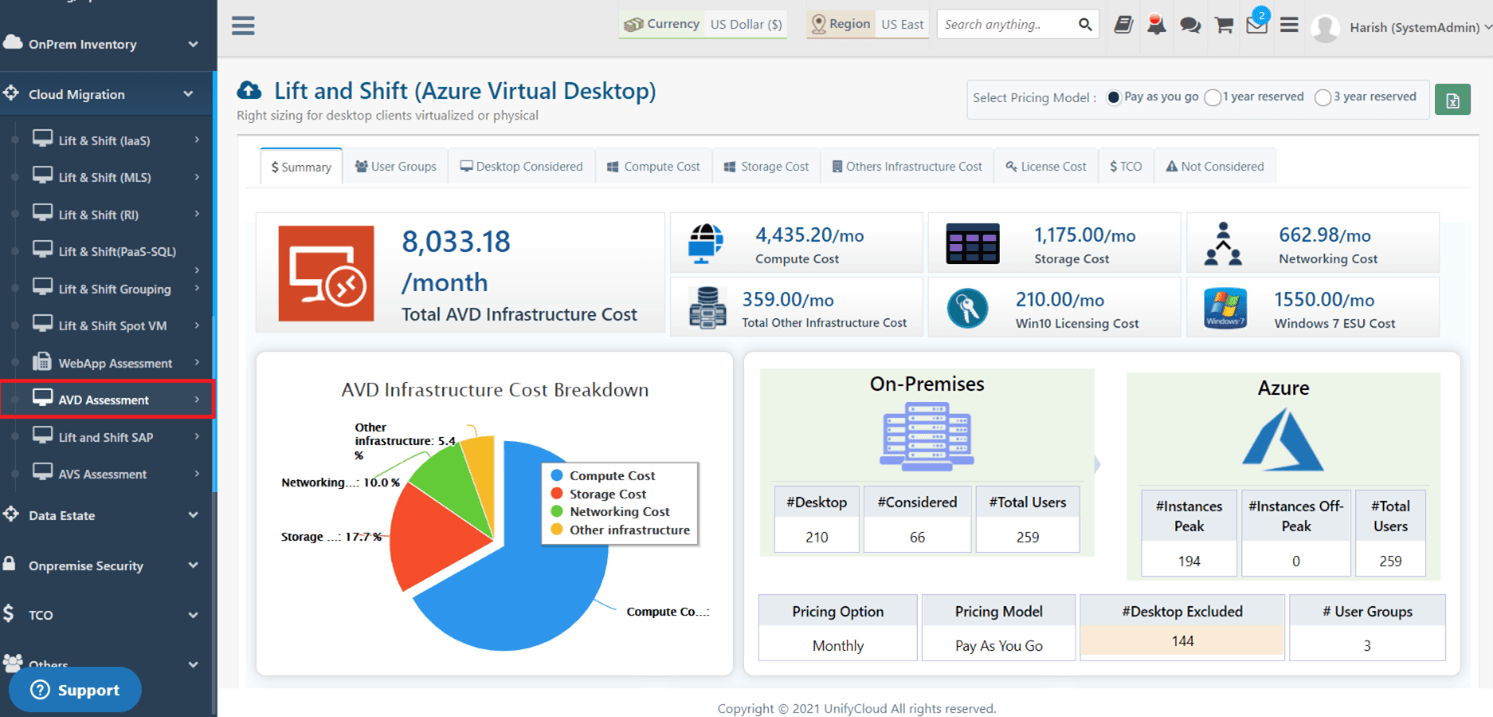
Figure 13: AVD Assessment
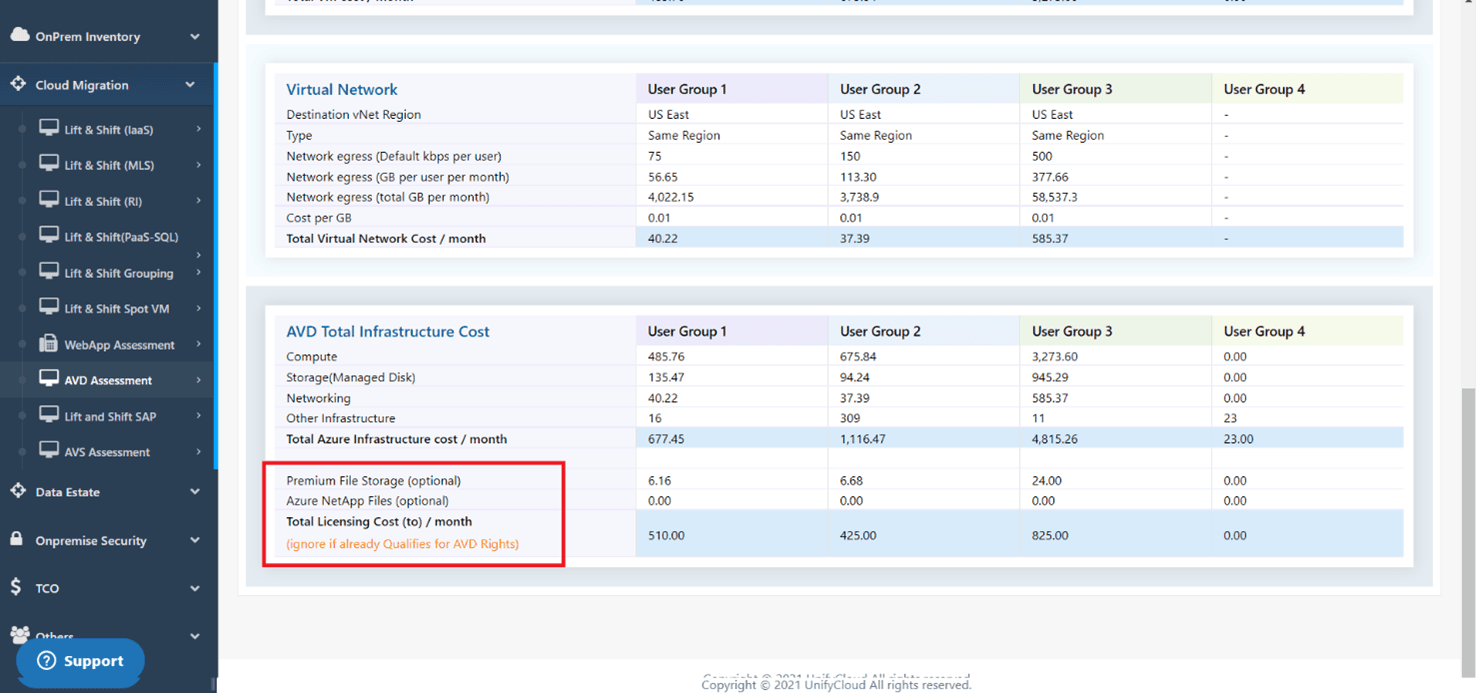
Figure 14: Premium File and Azure NetApp Files
Both Premium File Storage and Azure NetApp Files are optional. Monthly storage cost calculations for these categories, along with Managed Disk, are available under the new Storage Cost tab.
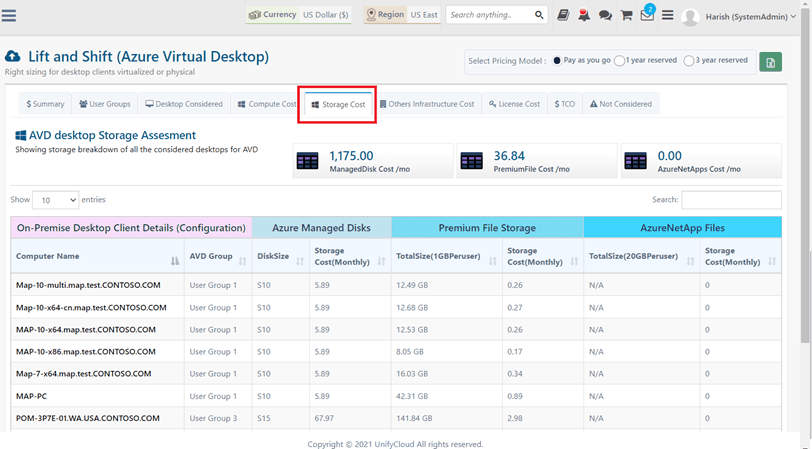
Figure 15: Lift & Shift AVD Storage Cost
2. SQL VCore Report
Use Case: The updated SQL VCore report provides the following information under the Cost Summary tab:
- Number of on-premises component service databases.
- Detailed monthly PAYG pricing for SQL component services on Azure.
- Recommended Azure IaaS SQL component service details, including VM count, payment model, and monthly price.
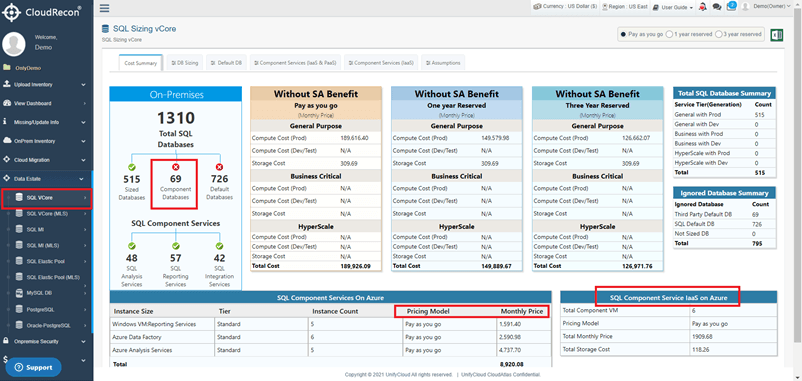
Figure 16: Updated SQL VCore Report
The revised report also provides details under the Component Services (IaaS & PaaS) tab:
- Component services with payment models and monthly pricing.
- Machines running analysis, reporting, and integration services.
- Consolidated instance details.
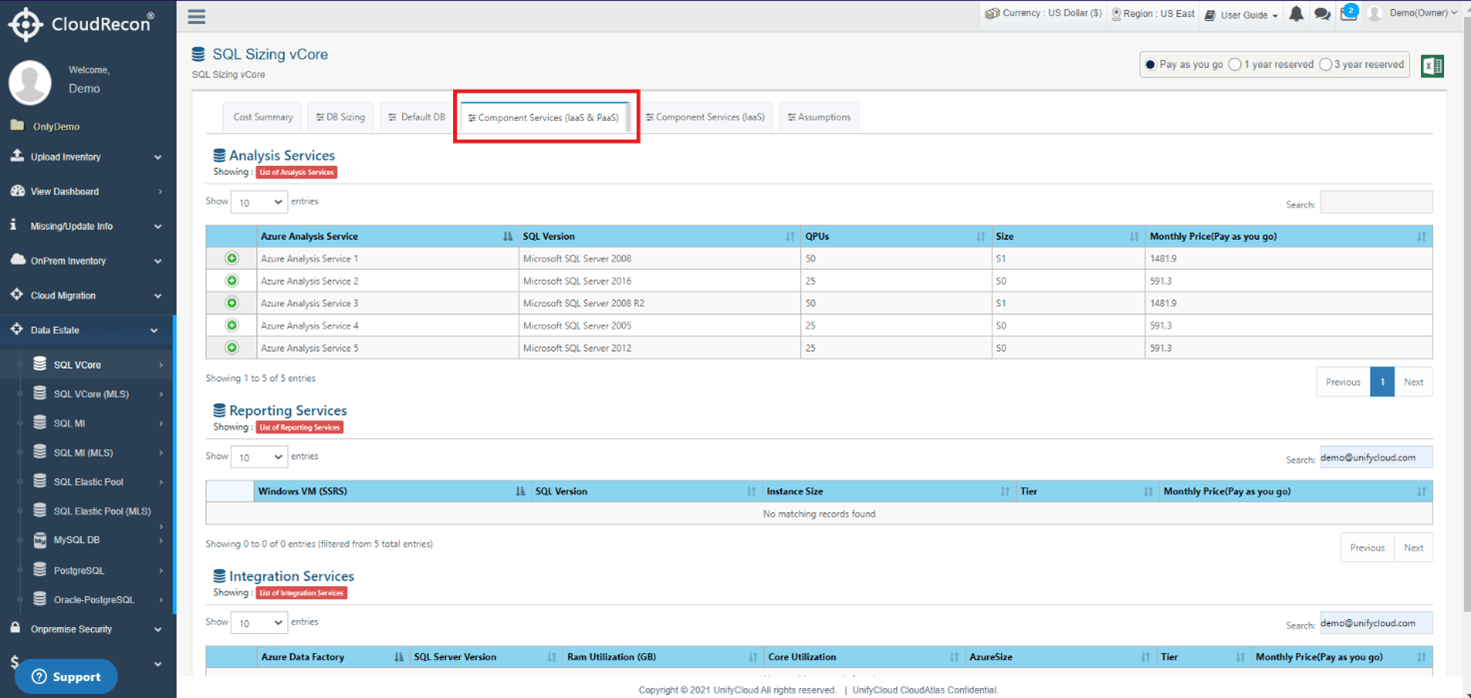
Figure 17: Component Service (IaaS & PaaS) Tab on SQL VCore Report
3. SQL MI Report
Use Case: The updated SQL MI report provides additional details under the Cost Summary tab:
- Azure pricing model details and monthly pricing for each SQL component service instance size.
- Recommended Azure IaaS SQL component service VM count, pricing model, and monthly pricing.
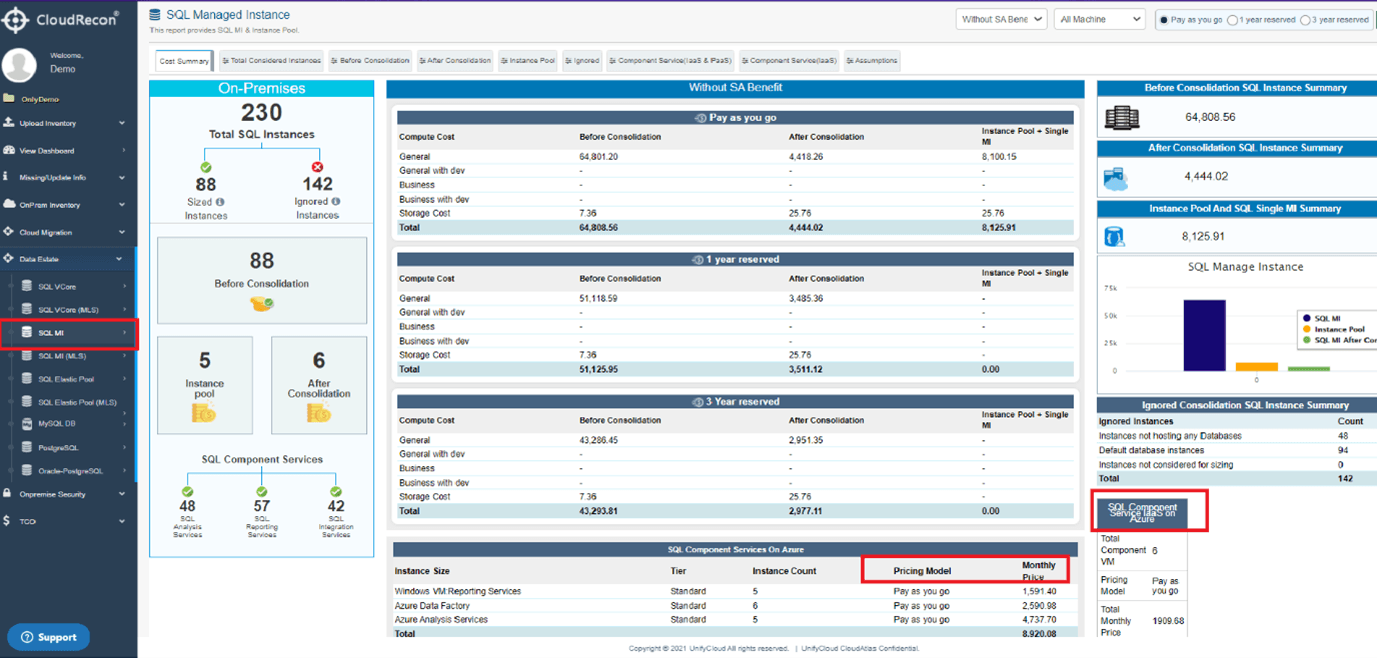
Figure 18: Updated SQL MI Report
The report also provides the following information under the Component Service (IaaS & PaaS) tab:
- Component services with payment models and monthly pricing.
- Machines running analysis, reporting, and integration services.
- Consolidated instance details.
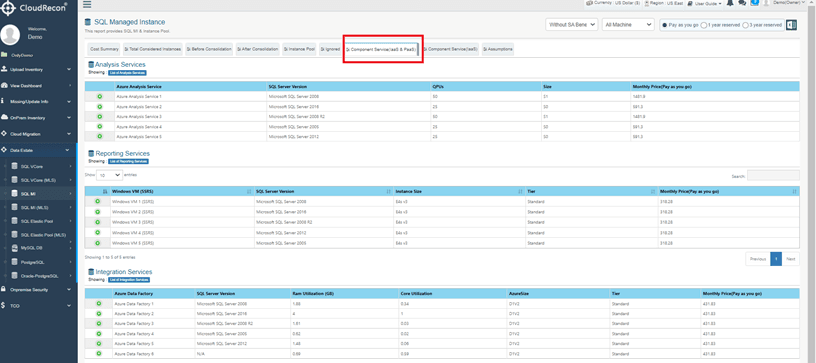
Figure 19: Component Service (IaaS & PaaS) Tab on SQL MI Report
4. Inventory Upload Update
Use Case: Partners can now select an account name when uploading inventory to the portal. This feature is available under the inventory upload options for all data collection tools.
After selecting the account name, partners can proceed with uploading the inventory data.
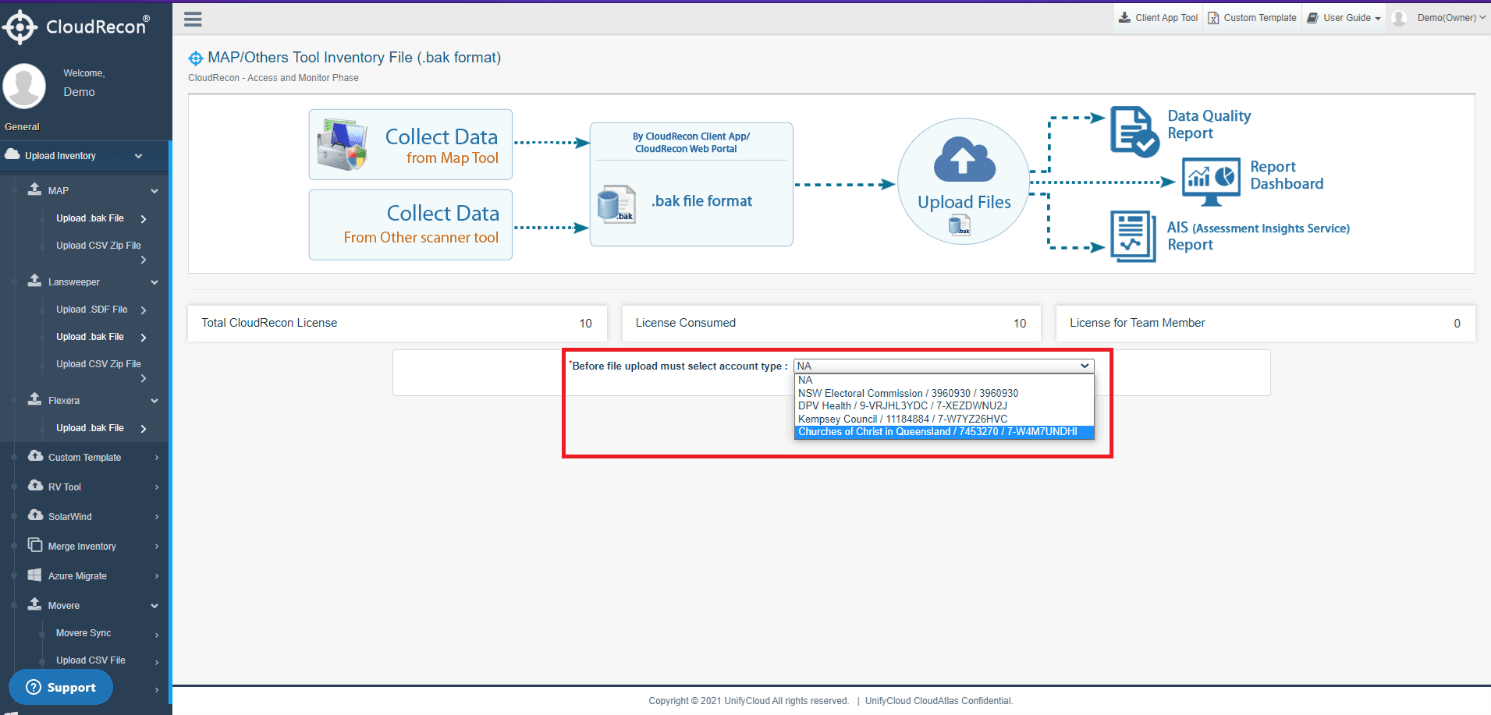
Figure 20: Upload Inventory Update