
CloudRecon Product Release
INTRODUCTION
PURPOSE
This document outlines the new features being rolled out on the CloudRecon Portal in December 2022. Customers can use this document as a guide to leverage the benefits of these new features.
INTENDED AUDIENCE AND PERTINENT SECTIONS
This document is intended as a reference for company internal personnel, customers, and partners.
NEW FEATURES
This section explains the new features added to the CloudRecon Portal.
1. MIGRATION ASSIST
The Migration Assist section offers updates that improve your migration experience. These reports provide detailed analysis of your infrastructure and application migration process. The reports offered are Workload Priority Infrastructure and Wave Plan Infrastructure.
1.1 Workload Priority Infrastructure
The Workload Priority Infrastructure section provides a detailed analysis of the infrastructure migration assessment and an outline of your cloud migration journey status. This section is divided into four categories: Overview, Infrastructure Workload Details, Workload Details, and Rules.
1.1.1 Overview
In the Overview tab, your organization's VMs are sorted according to migration preference. "Rehost" represents the machines that are easiest to migrate, while "Retire" represents machines that will not be migrated.
Rehost
Rehost moves a current-state asset to Azure with minimal changes to the overall architecture. It is synonymous with Lift & Shift migration and helps achieve rapid ROI on the organization's cloud investment.
Refactor
Refactor refers to modifying the code of existing assets to fulfil new business opportunities. Refactoring adapts applications to a PaaS-based model and helps improve cloud efficiency in terms of cost management and operational efficiency.
Re-Arch/Rebuild
Assets that cannot be supported directly in the cloud may need to be re-architected to preserve their functionality. This helps achieve application scalability and agility while enabling the adoption of cloud capabilities.
Replace
These workloads can be scheduled for future replacement and set aside from current migration efforts. A SaaS application can often provide the functionality of the existing hosted application.
Retain
Machines that cannot currently be migrated to the cloud may need to be retained. This helps avoid inefficiency and loss of functionality until the application can be successfully migrated.
Retire
Machines that cannot be adapted to the cloud and are no longer required may need to be retired.
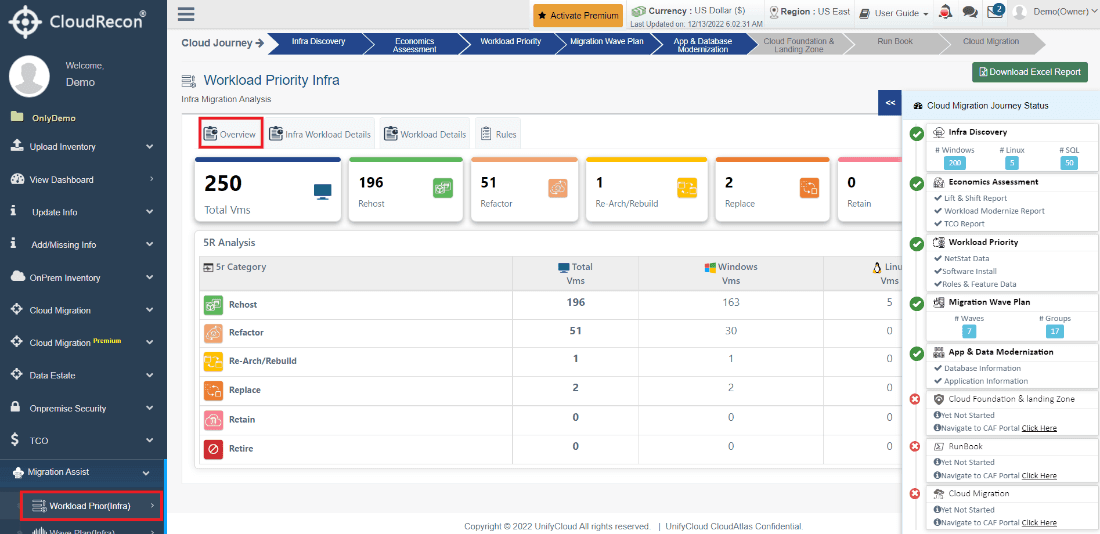
Figure 1: Workload Priority Infrastructure
1.1.2 Infrastructure Workload Details
In the "Infra Workload Details" tab, you can view details such as the source server list, infrastructure complexity, Workload Criticality IaaS, and Platform.
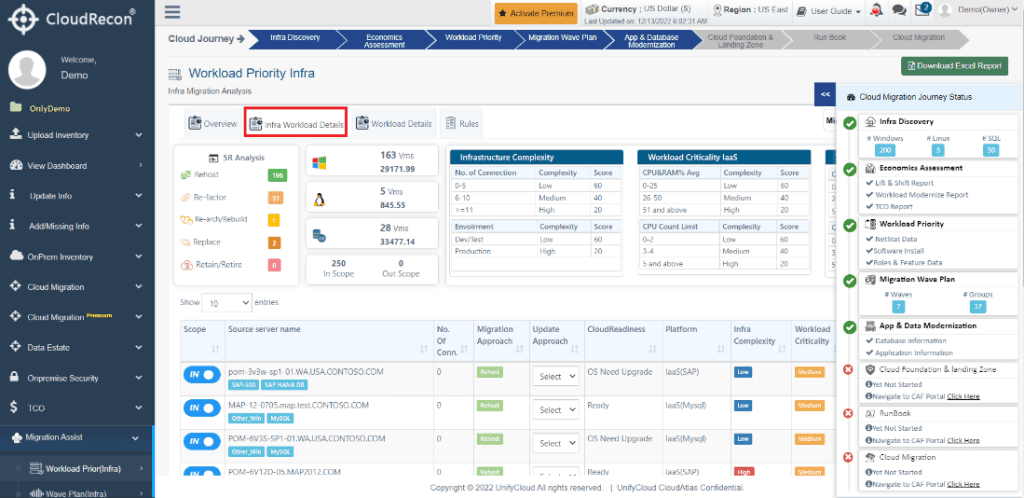
Figure 2: Infrastructure Workload Details
1.1.3 Workload Details
In the "Workload Details" tab, you can view infrastructure details organized by database servers, application servers, website applications, enterprise servers, middleware servers, and roles.
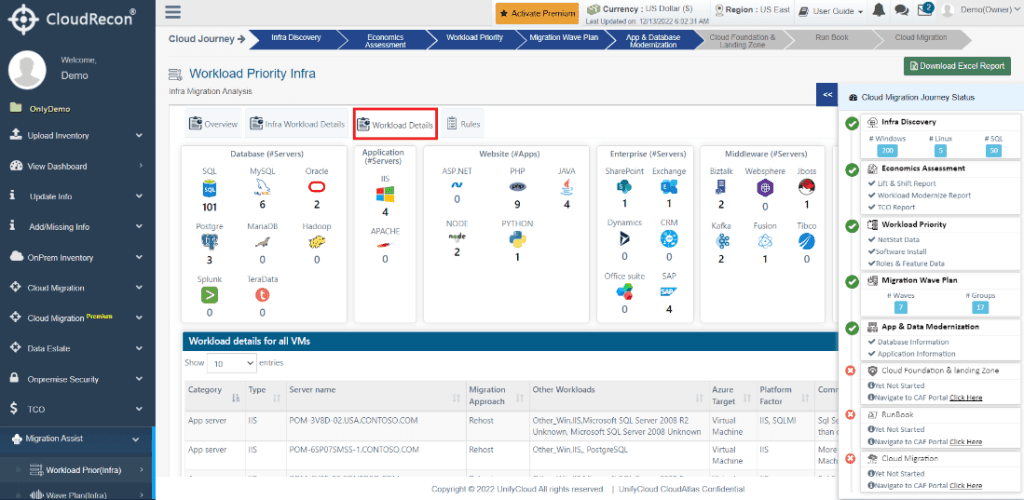
Figure 3: Workload Details
1.1.4 Rules
In the "Rules" tab, you can view the attributes used to rank and group machines for migration.
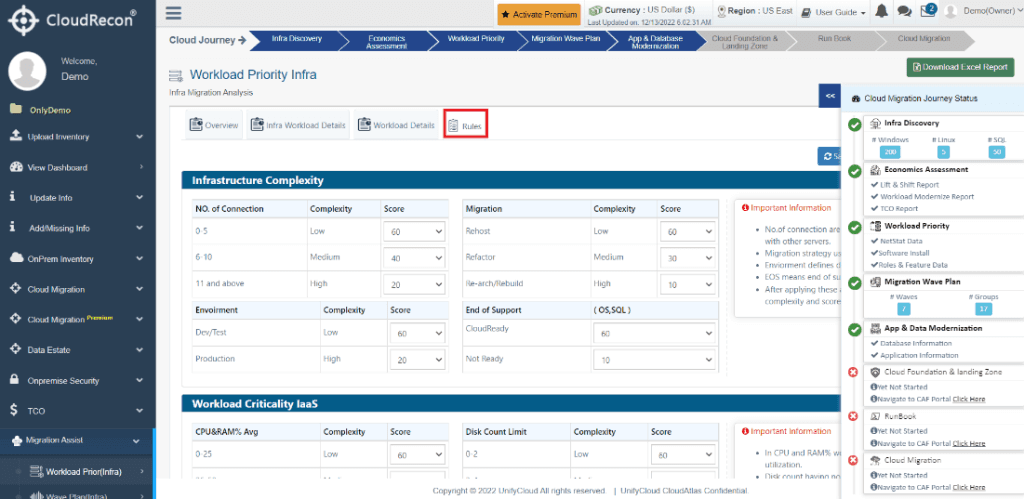
Figure 4: Workload Priority Infrastructure Rules
1.2 Wave Plan Infrastructure
The Wave Plan Infrastructure section provides insights into waves and the grouping of VMs according to migration order. Its analysis presents statistical data about VM waves and groups, ordered by ease of migration. This section is divided into four categories: Summary, Wave Plan Details, Waves and Groups, and Server Details.
1.2.1 Summary
In the "Summary" tab, you can view the total number of servers, server groups, and migration waves. The data is organized according to server complexity and server criticality. Source server names are listed along with multiple data points about migration efforts.
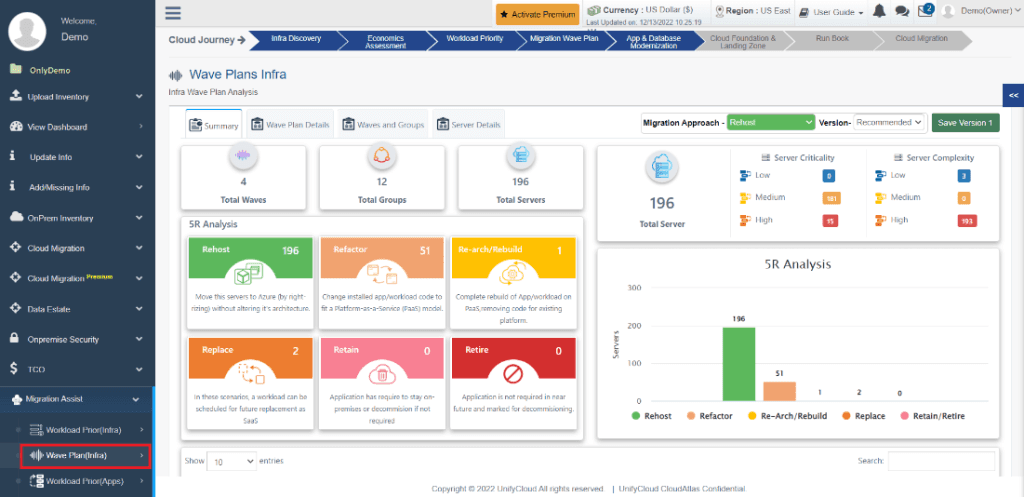
Figure 5: Wave Plan Infrastructure Summary
1.2.2 Wave Plan Details
In the "Wave Plan Details" tab, you can view details associated with the wave plan and infrastructure migration assessment.
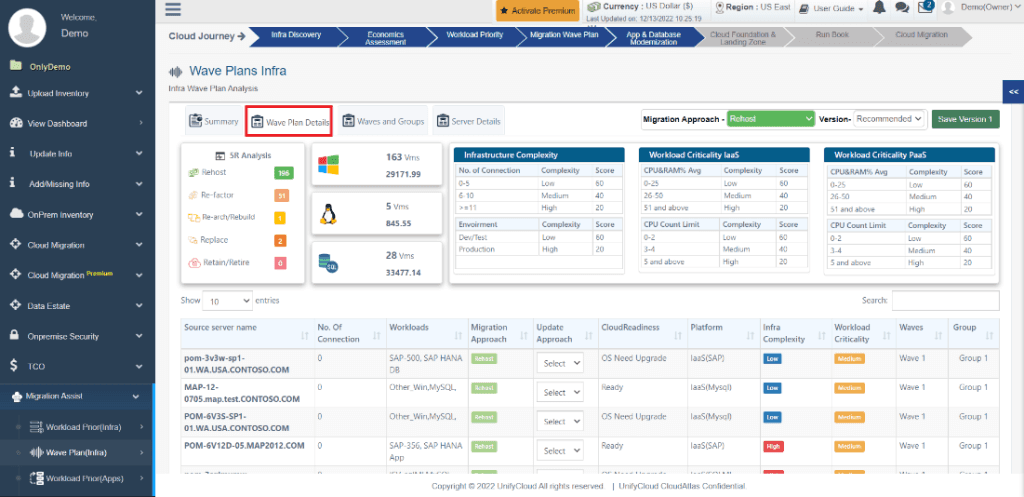
Figure 6: Wave Plan Details
1.2.3 Waves and Groups
In the "Waves and Groups" tab, you can find server grouping details based on migration scores and ease of migration. Group 1 machines are migrated first, followed by Group 2 and Group 3 machines.
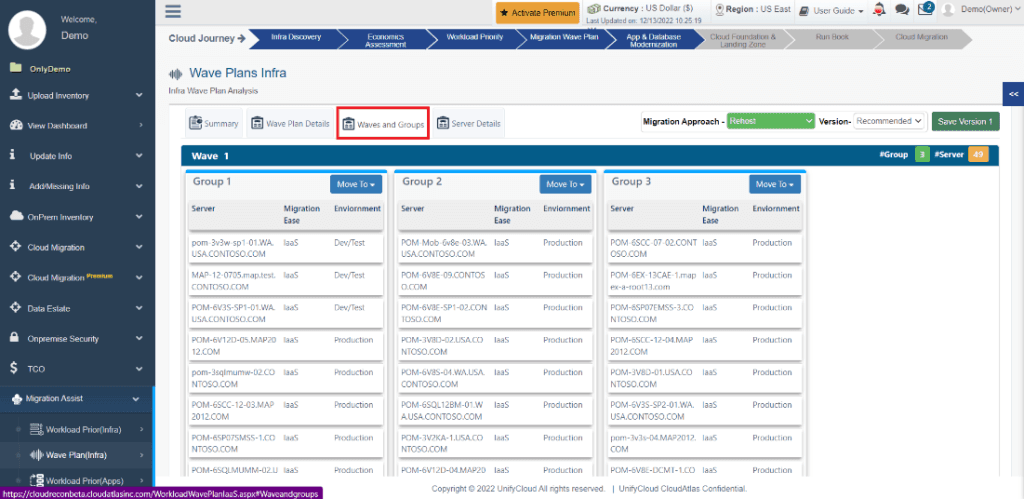
Figure 7: Waves and Groups
1.2.4 Server Details
In the "Server Details" tab, you can search for server names using the search box to view complete details about specific servers included in the migration waves and groups.
Server information includes hardware details, workload details, operating system name, Azure pricing, server details, complexity, criticality, and migration approach.
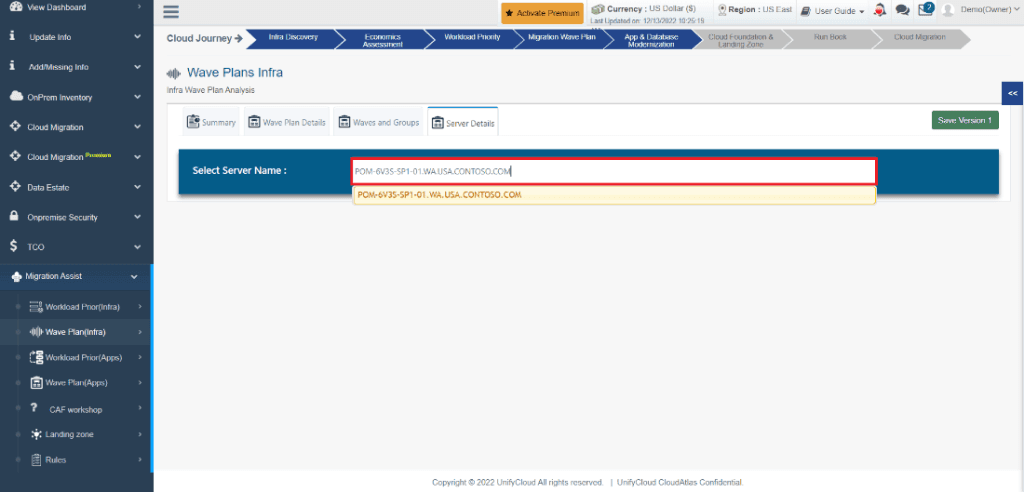
Figure 8: Server Details Search Box
After searching for a specific server, you can view its hardware details, workload details, operating system name, Azure pricing, complexity, criticality, and migration approach.
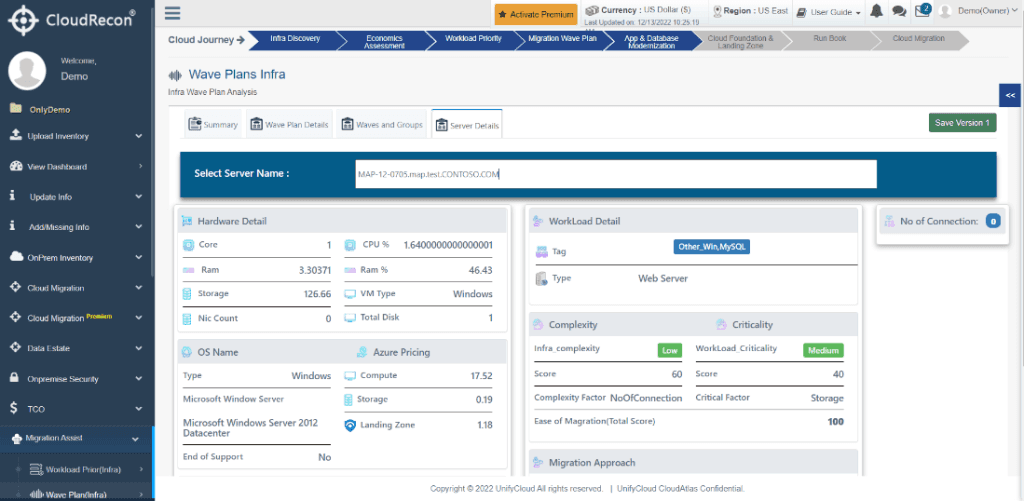
Figure 9: Server Details
2. UPDATED FEATURES
This section explains the updated features in the CloudRecon Portal.
2.1 Cloud Migration
The Cloud Migration Standard Report section has been updated with the Azure Dedicated Host Report.
2.1.1 Azure Dedicated Host
These reports help you understand the configuration and determine how many dedicated hosts are required to run your infrastructure and handle your entire workload. The Azure Dedicated Host Report consists of two components: Cost Summary and Dedicated Hosts.
2.1.2 Cost Summary
In the "Cost Summary" tab, you can find sizing details related to the Azure Dedicated Host service. Available information includes on-premises versus Azure costs, 1-Year and 3-Year Reserved Instances, cost comparison, Lift & Shift costs, and dedicated host costs.
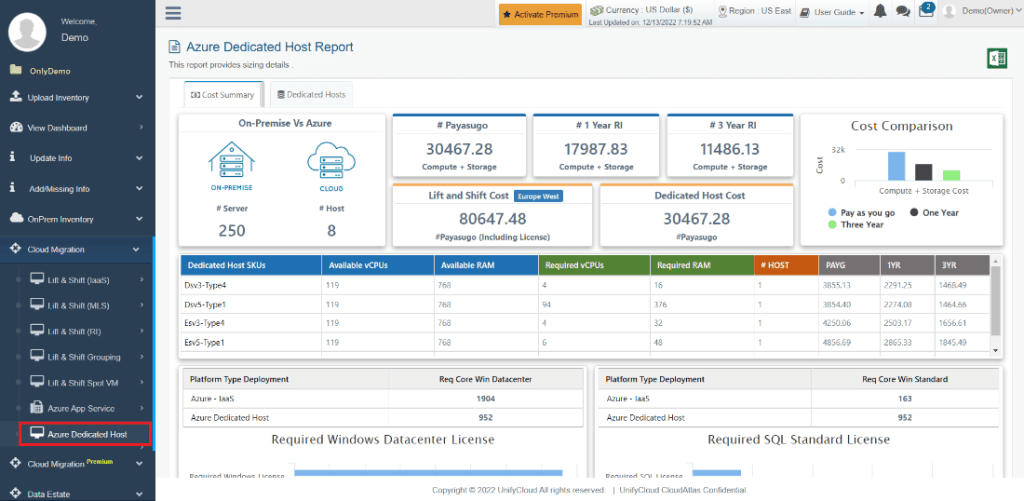
Figure 10: Azure Dedicated Host Report – Cost Summary
2.1.3 Dedicated Hosts
In the "Dedicated Hosts" tab, you can view relevant details about Dedicated Host Groups, virtual machines, and servers.
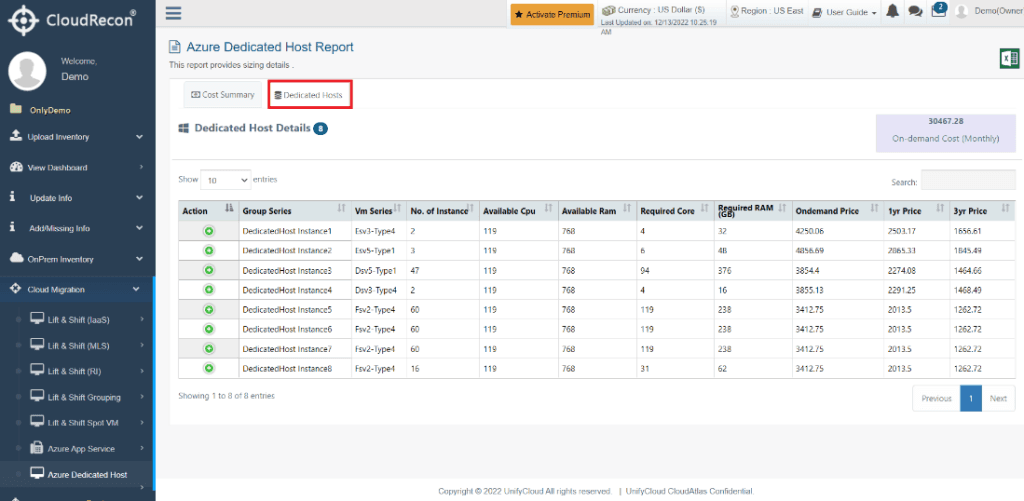
Figure 11: Azure Dedicated Host Report – Dedicated Hosts
2.2 Activate Premium Reports
You can now activate Cloud Migration Premium reports using the CloudRecon Dashboard. Follow the steps below to activate Premium reports.
-
Go to the CloudRecon Dashboard using the following link: https://cloudrecon.cloudatlasinc.com/ReconOverview.aspx
-
Click Activate Premium, as shown in the figure below.
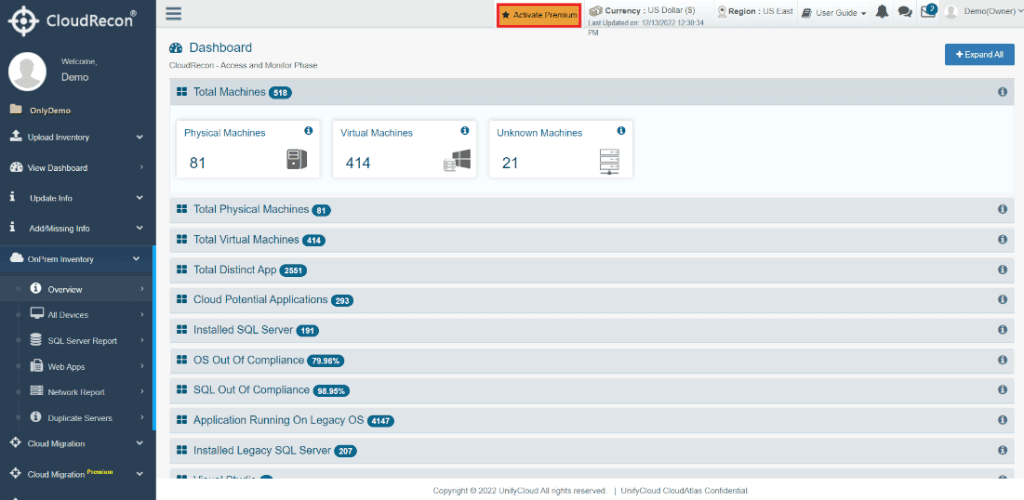
Figure 12: Activate Premium Reports
-
A pop-up window appears, asking you to enter your email address to receive a One-Time Password (OTP).
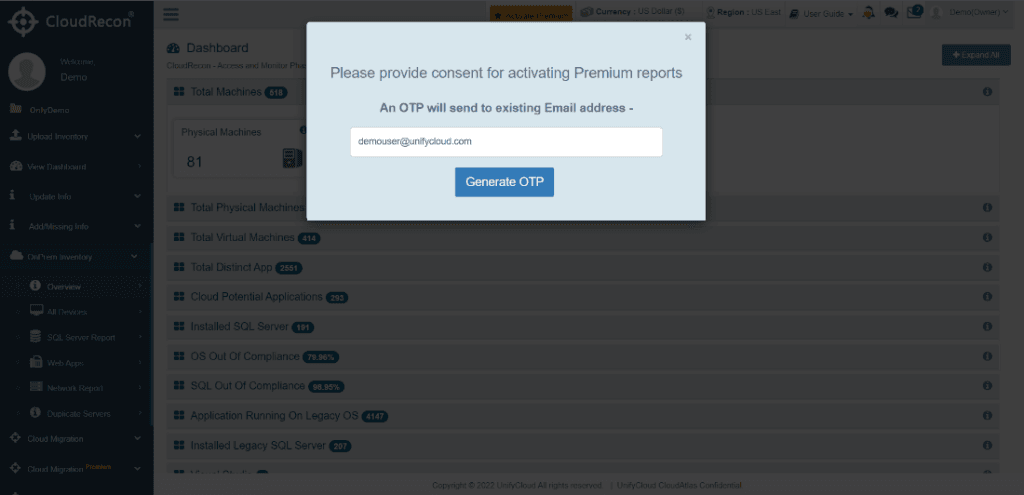
Figure 13: Generate OTP
-
Another pop-up window appears, asking you to enter the OTP. Enter the OTP and click the Validate OTP button, as shown below.
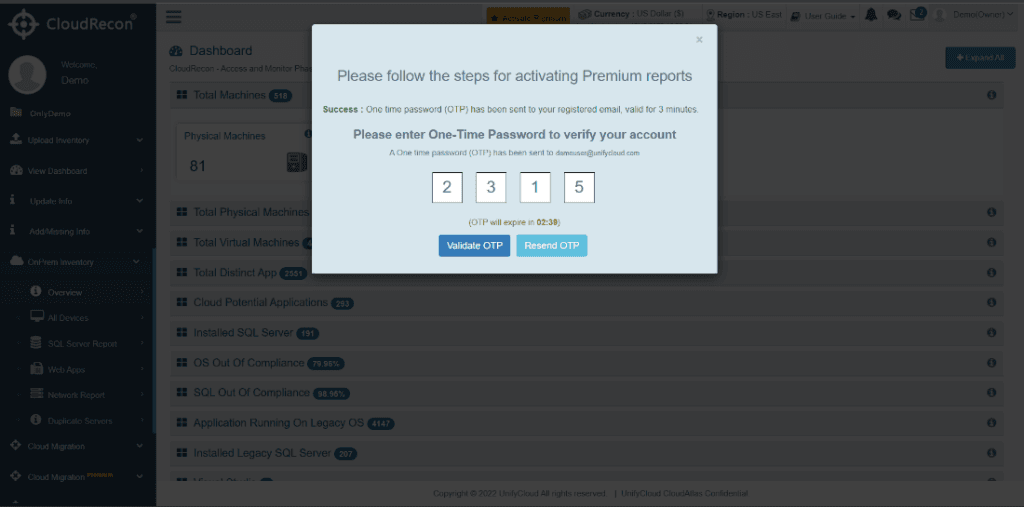
Figure 14: Enter OTP
-
A further pop-up window requests consent to activate Premium Reports for Azure VMware Solution, Azure Virtual Desktop, Sustainability Report, and SAP Machine Analysis. Select your preferences and click Allow.
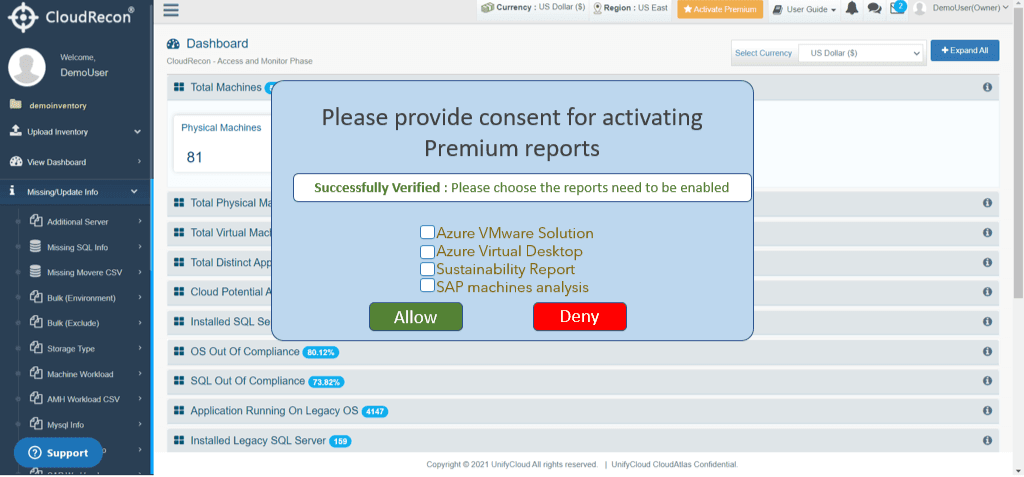
Figure 15: Consent for Premium Reports
-
A new menu called Cloud Migration Premium appears in the left panel of the CloudRecon Portal, providing access to the premium reports.
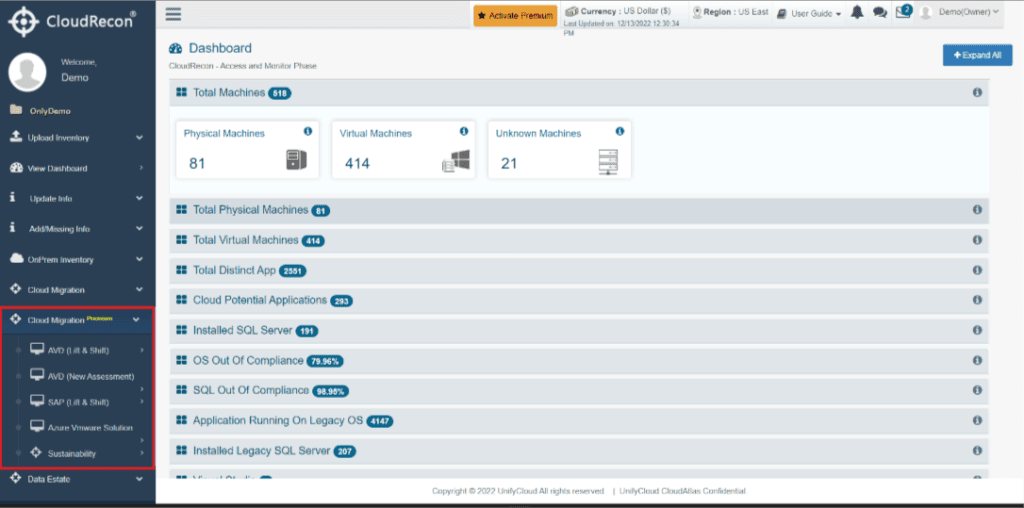
Figure 16: Premium Reports Activated